

Introduction
Welcome to this tutorial on turning your VPS into a deployment and hosting platform using Stormkit! I’m Savas, the founder of Stormkit, and today, we’ll set up a VPS, install Stormkit, and deploy two applications: a Go-based API, and a hybrid TanStack application that is capable of prerendering and serving dynamic files at the same time. We’ll also connect our Go-based API to the database included with Stormkit. Let’s dive in!
Estimated time
The estimated time to complete this tutorial is 10 minutes.
Terminology
203.0.113.1: The public IP address of your VPS that will be created on Step 1.
Prerequisites
Step 1 - Setting Up and Accessing Your VPS
- Follow this tutorial to create a Ubuntu Server.
- Make sure to select a machine with minimum 4GB RAM and 2vCPU to have optimal performance (for instance CX23 if available).
- Copy the public IP address
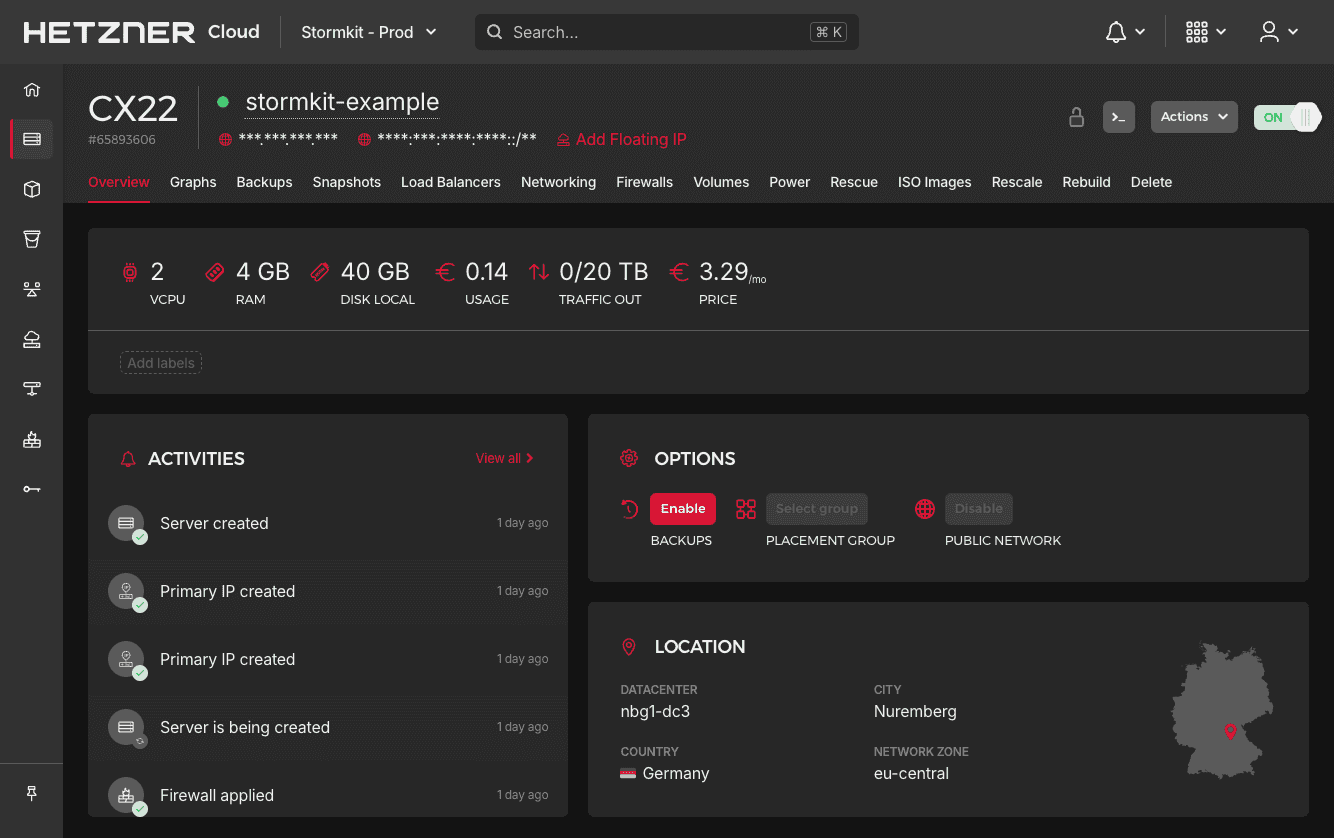
Open your terminal and run the following command:
Replace
203.0.113.1with the IP of your server.
ssh root@203.0.113.1You're now logged into the VPS, ready to proceed.
Step 2 - Installing Stormkit
Before installing Stormkit, let's quickly update the system. This ensures your VPS has the latest packages for a secure setup.
Stormkit is installed via a script that sets up Docker and prepares the platform.
sudo apt update && sudo apt upgrade -y
curl -sSL https://www.stormkit.io/install.sh | sh
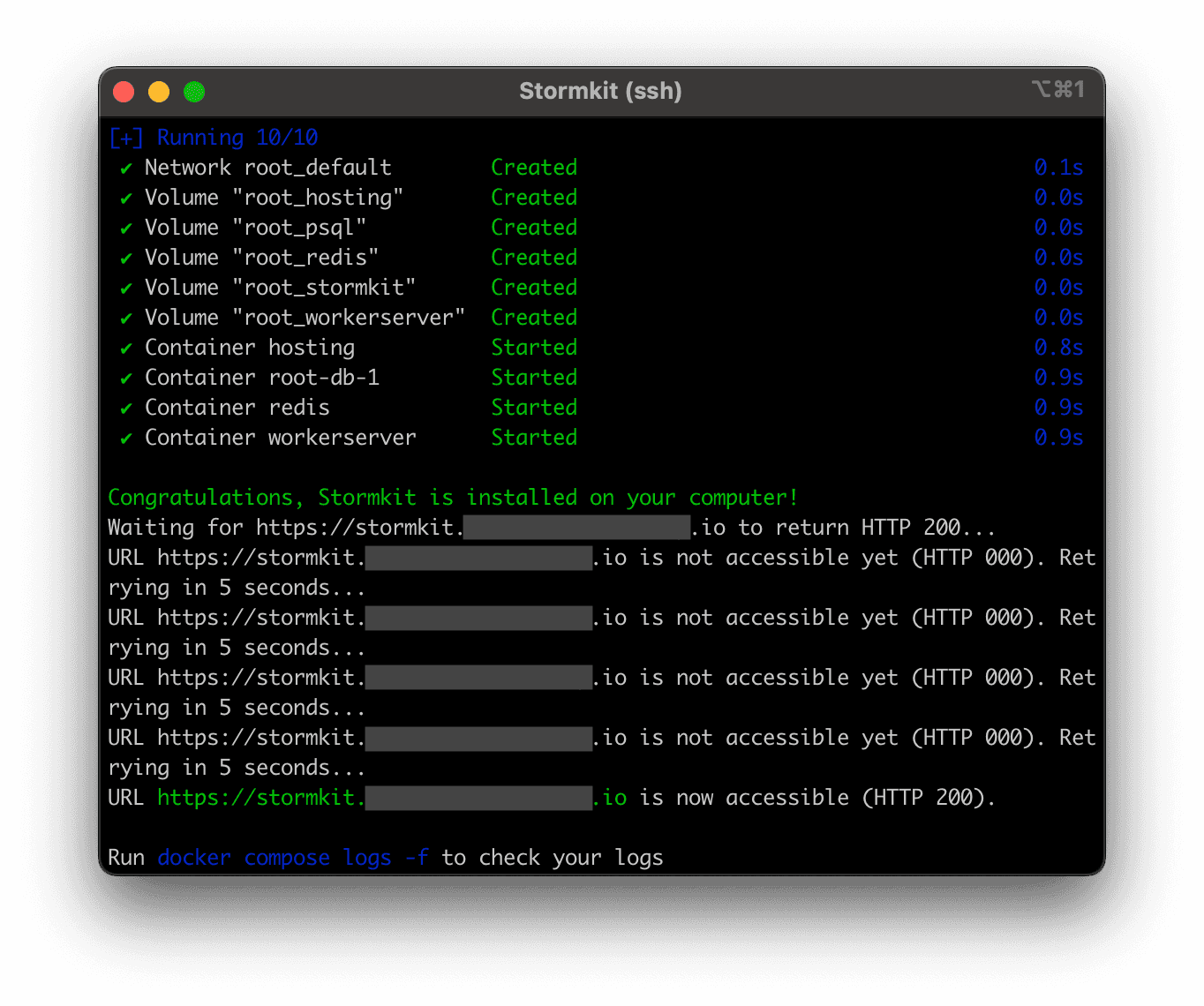
The script will install Docker, configure environment variables and install Stormkit containers on your VPS.
During the installation, the script asks whether you have a custom domain:
- If you have one, enter it (e.g.
example.com) and pointexample.comand*.example.comto203.0.113.1withArecords at your DNS provider. - Otherwise, press Enter. Stormkit will use an auto-generated domain based on your IP address, such as
203-0-113-1.sslip.io.
Now, Grab a coffee until the installation is complete.
Step 3 - Accessing the Stormkit Console
Once the installation is complete, the script waits until https://stormkit.<your-domain> is reachable and prints the link on your terminal.
- Click on the link provided in your terminal.
- Create an administrator account.
- Login using these credentials.
Note: Stormkit has 3 subdomains reserved for itself:
stormkit.<your-domain>: Allows you to access the UIapi.<your-domain>: Allows you to access Stormkit programmaticallyhealth.<your-domain>: An endpoint to monitor your Stormkit instance
Every other subdomain (*.<your-domain>) is used for the development endpoints of your applications.
The TLS certificates for each endpoint managed by Stormkit, including your applications, are going to be generated automatically on the first request to that endpoint. This process usually takes a few seconds.
Step 4 - Configure Go-based API on Stormkit
If you are not yet logged in, follow Step 3 to access the Stormkit UI. You should see an initial screen with several options:
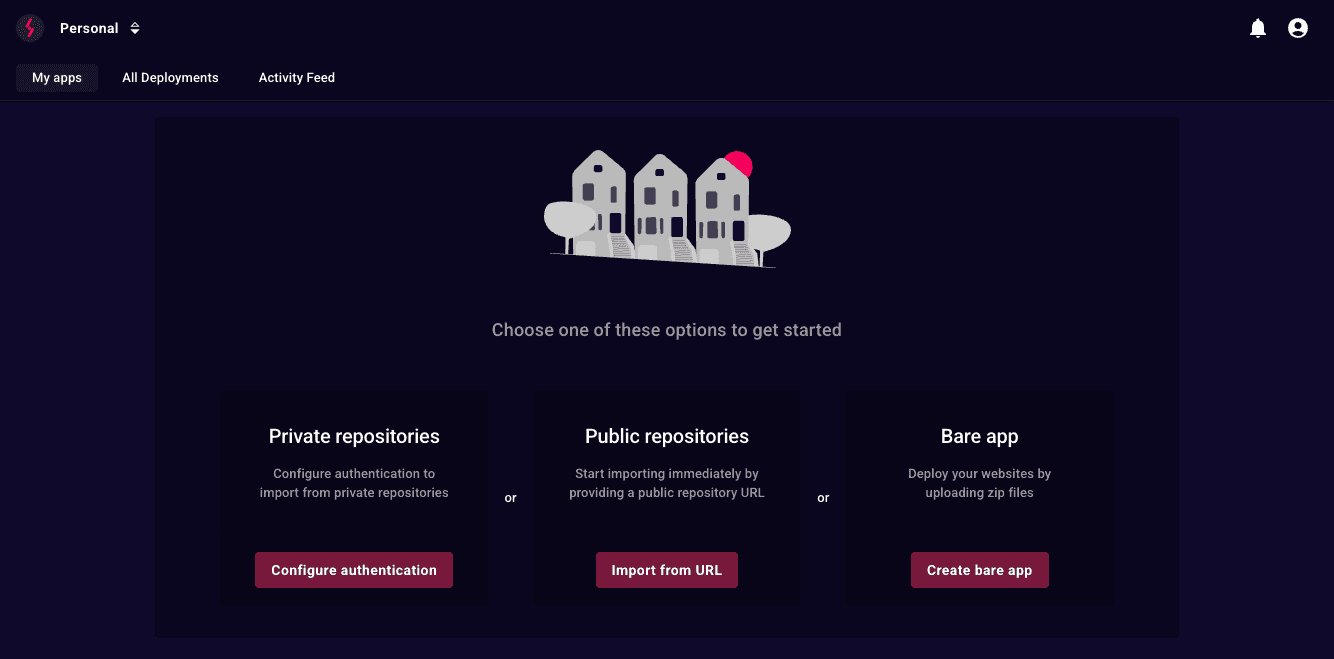
By default, Stormkit works with public repositories. If you need to access private repositories, you can follow this documentation. For this tutorial, we'll be using an example repository.
-
Click "Import from URL".
-
Paste
https://github.com/stormkit-io/stormkit-examplesand click Import repo. -
Click on Production environment.
-
On the left menu, click on "Config", then "Build" to access build settings and configure your app:
Field name Value Description Install command go get .Install dependencies Build command go build -o dist/server .Build the application, inside a dist folder Output folder ./distWe want to upload only the dist folder Build root ./go-apiSince our application is inside the top-level go-api folder, we switch the build root -
Click "Save".
-
Next, scroll down to Server settings and configure your server settings:
Field name Value Start command ./dist/server -
Click "Save" again.
Step 5 - Attach a Database to the Go-based API
Stormkit comes with a built-in PostgreSQL database. Each environment can get its own isolated schema with dedicated credentials, so your application never touches the database Stormkit uses to manage the platform.
- On the left menu, click on "Database".
- Click "Attach Database".
- Enable "Inject environment variables" and click "Save".
From now on, Stormkit makes the following environment variables available to your deployments: POSTGRES_HOST, POSTGRES_PORT, POSTGRES_DB, POSTGRES_SCHEMA, POSTGRES_USER, POSTGRES_PASSWORD and DATABASE_URL. The example Go API reads these variables to connect to the database, so no further configuration is needed.
Do not define these variables manually under "Environment variables". Variables you define there take precedence over the injected ones.
If you'd like Stormkit to run SQL migrations on each deployment, you can also enable "Enable schema migrations" and set the path to your migration files. See the Database documentation for more details.
Now, let's deploy the application:
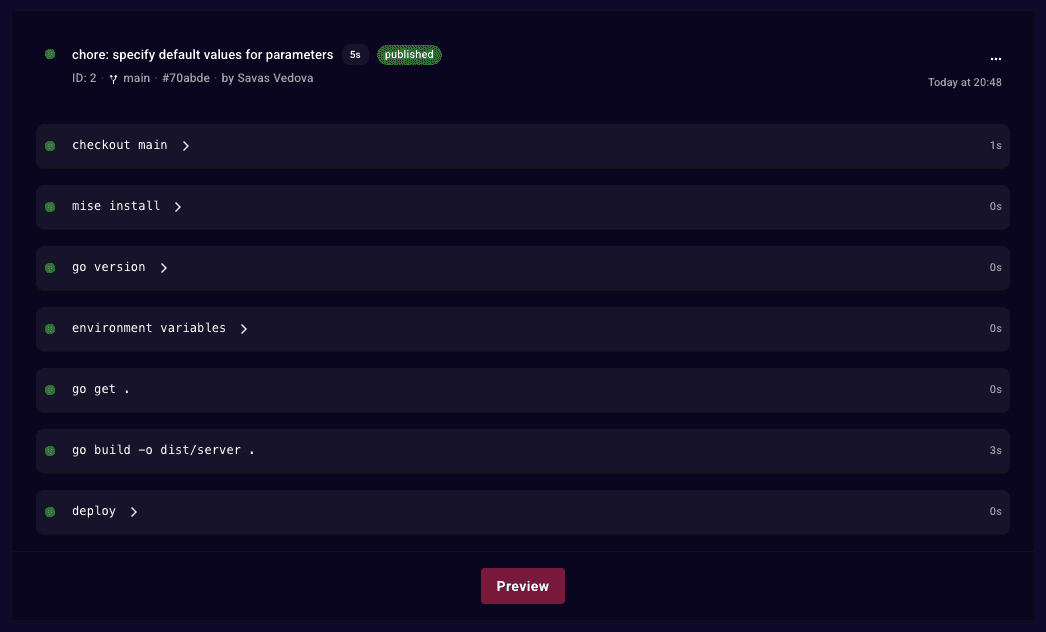
- Scroll back to the top and click on "Deploy".
- Once the deployment is complete and it says
publishedat the top, click on "Preview".
Optional: Configure the display name
You can configure the display name of your application to have a more rememberable URL structure for your development endpoints.
- After you created your application, click on Settings.
- Change the Display name to something more meaningful: For instance go-api.
- Click Update.
Optional: Managing Go Version
To manage your Go version, we recommend using .go-version, mise.toml or .tool-versions file. Stormkit will automatically
install the dependencies specified in these files.
Step 6 - Configure Tanstack hybrid application
- Go to "My apps", select "Create new app", and click "Import from URL".
- Paste
https://github.com/stormkit-io/stormkit-examplesand click Import repo. - Click on Production environment.
- Update the Build root to point the TanStack folder:
./tanstack-ssr. - Click Save.
- Click Deploy
Stormkit will create two artifacts from this deployment:
- Static files: These files will be served statically, without invoking any server action. You can verify the uploaded files by checking the build manifest.
- Server files: These files will be invoked on-demand. Think of it like Lambda functions.
Conclusion
Congratulations! You've successfully transformed your VPS into a powerful deployment and hosting platform using Stormkit. Throughout this tutorial, you've accomplished several key objectives:
- Set up and configured a VPS with optimal specifications
- Installed Stormkit with Docker Compose for containerized deployments
- Attached an isolated PostgreSQL schema from the built-in database to your API
- Deployed a Go-based API with custom build configurations
- Deployed a TanStack hybrid application capable of both static and server-side rendering
Your VPS now serves as a complete deployment platform that can handle multiple applications simultaneously. The automatic TLS certificate generation ensures your applications are secure, while the intuitive Stormkit interface makes ongoing management straightforward.
With this setup, you can continue to deploy additional applications, scale your infrastructure as needed, and take full advantage of having your own self-hosted deployment platform. Whether you're working on personal projects or managing applications for clients, you now have the foundation for a robust hosting solution.
Happy deploying!