

Introduction
Nginx is one of those tools that does a lot more than most people use it for. Most folks set it up to serve static files and leave it at that, but it's also a really solid reverse proxy, and that's what we're using it for here.
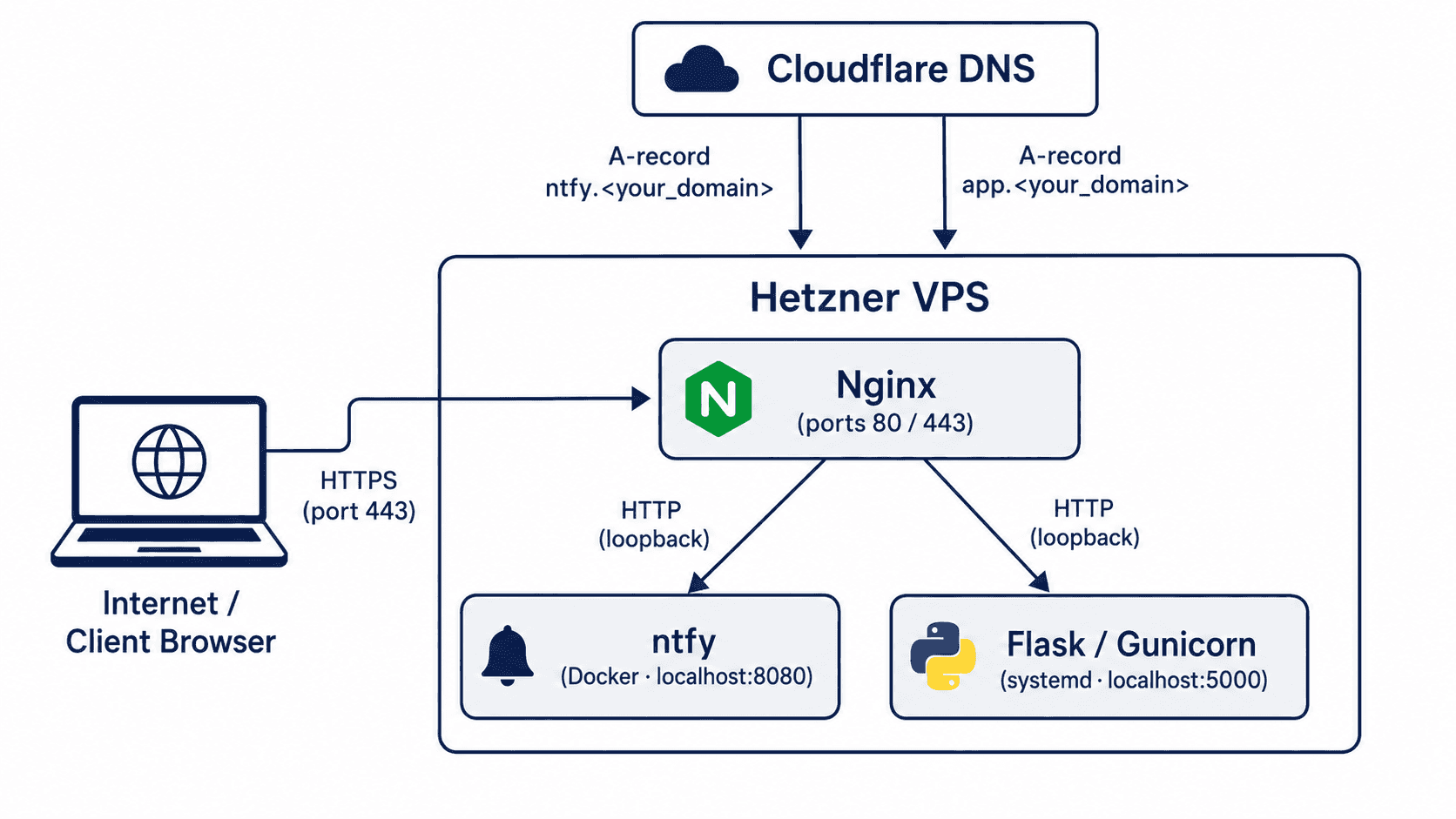
The problem it solves is pretty simple. If you've ever tried running two or three self-hosted services on the same VPS, you've already hit the wall: only one process can bind to port 80 or 443 at a time. So what do you do with the rest? You put Nginx in front of all of them. It sits on port 443, reads the hostname on each incoming request, and forwards it to whichever app owns that subdomain, all on the same machine, all over HTTPS.
By the end of this tutorial you'll have:
- A self-hosted ntfy push-notification server running in Docker,
reachable at
ntfy.<your_domain> - A Python Flask API managed as a systemd service, reachable at
app.<your_domain> - Both apps served over HTTPS with Let's Encrypt certificates that renew automatically
- A reusable pattern: adding a third or fourth app only takes about five minutes once this is in place
The reason I'm doing this with native Nginx server blocks rather than a tool like Nginx Proxy Manager is because you get full control over the config. Everything lives in plain text files that you can read, edit, put in version control, and actually understand. There's no GUI to babysit and no extra layer that can silently break at 3 AM.
Prerequisites
- A server with:
- Ubuntu 22.04, 24.04 or 26.04
- 2 vCPU, 4 GB RAM (e.g. CX23 with Hetzner) is more than enough for this whole setup
- A domain name
- DNS (e.g. with Hetzner or Cloudflare).
- This tutorial uses
<your_domain>as a placeholder; swap in your real domain everywhere you see it.
- Basic comfort with the Linux terminal:
- SSH,
sudo, and editing files withnanoorvim
- SSH,
Example terminology
- Username:
holu - Domain:
<your_domain> - Server IP:
<your_server_ip>
Step 1 - Initial Server Setup
Step 1.1 - Connect and update the system
Log in over SSH as root:
ssh root@<your_server_ip>Update the package index and apply any pending upgrades:
apt update && apt upgrade -yAlways do this on a fresh server before installing anything. You want to start from current security patches, not whatever version happened to ship in the base image.
Step 1.2 - Create a non-root user
Running everything as root is asking for trouble. Create a regular user with sudo
access:
adduser holu
usermod -aG sudo holu
Copy your SSH key across so you can log in as holu without a password:
rsync --archive --chown=holu:holu ~/.ssh /home/holuNow log out and reconnect as holu. Everything from here on is done as holu:
ssh holu@<your_server_ip>Step 1.3 - Configure the firewall (UFW)
Ubuntu ships with UFW but it's disabled by default. The critical thing here is to allow SSH before you enable the firewall — skipping that step will lock you out of the server immediately:
sudo ufw allow OpenSSH
sudo ufw allow 80/tcp
sudo ufw allow 443/tcp
sudo ufw enable
sudo ufw status
Expected output:
Status: active

To                         Action      From
--                         ------      ----
OpenSSH                    ALLOW       Anywhere
80/tcp                     ALLOW       Anywhere
443/tcp                    ALLOW       Anywhere
OpenSSH (v6)               ALLOW       Anywhere (v6)
80/tcp (v6)                ALLOW       Anywhere (v6)
443/tcp (v6)               ALLOW       Anywhere (v6)
Everything else is blocked. Ports 80 and 443 are open for web traffic; everything else gets dropped silently.
Step 2 - Installing Nginx
Install Nginx and set it to start automatically on boot:
sudo apt install -y nginx
sudo systemctl enable --now nginx
sudo systemctl status nginx
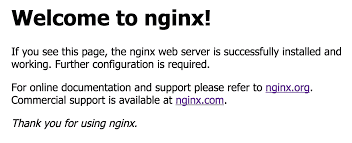
enable --now does both at once: registers Nginx as a boot service and starts it
right now. Once it's up, hit your server's IP in a browser and you should see the
default Nginx welcome page.
Step 2.1 - Remove the default server block
This is a step which a lot of tutorials skip and then wonder why Certbot fails later. Nginx ships with a catch-all default server block that listens on port 80 for any hostname that doesn't match your own configs. If you leave it in place, it'll intercept requests (including Let's Encrypt's HTTP domain verification challenge) before your own server blocks even get a look in.
Remove the symlink that activates it:
sudo rm /etc/nginx/sites-enabled/defaultThe actual file in sites-available/ is untouched — you're only removing the symlink
that loads it. You can re-enable it any time with a single ln -s if you need it.
Step 2.2 - Understanding the config layout
Two directories in /etc/nginx/ which you'll be using throughout this tutorial:
sites-available/: where you write your server block configs, one file per appsites-enabled/: symlinks to the configs that Nginx actually loads
The workflow is: write in sites-available/, symlink into sites-enabled/ to
activate. To disable an app, just delete the symlink; the config is still there for
when you want it back.
Step 3 - Setting Up App 1: ntfy (Docker)
ntfy is a self-hosted push notification service. You POST a message
to a topic over plain HTTP, and any subscribed clients get it in real time. It's useful
for things like build alerts, cron job results, monitoring events — basically anywhere
you want a lightweight notification without a third-party service involved. It's also a
good first example here because it needs WebSocket support in the Nginx config, which
is slightly more involved than a standard proxy_pass.
Step 3.1 - Install Docker
Ubuntu's default repositories have a docker.io package but it's usually pretty far
behind upstream; use Docker's official apt repository instead. Follow the official Docker documentation to install it:
Allow holu to run Docker commands without sudo:
sudo usermod -aG docker holuNote: Group membership only kicks in after your next login. You'll need to either log out and back in now, or prefix the Docker commands below with
sudountil you do.
Step 3.2 - Create the ntfy configuration
ntfy needs to know its public URL so it can build correct notification links and attachment URLs. Create the config and cache directories, then write the config file:
sudo mkdir -p /etc/ntfy /var/cache/ntfy
sudo nano /etc/ntfy/server.yml
Add the following content in /etc/ntfy/server.yml:
base-url: "https://ntfy.<your_domain>"
cache-file: "/var/cache/ntfy/cache.db"| Description | |
|---|---|
| base-url | The public HTTPS address ntfy uses when constructing links. Put your real subdomain here; ntfy embeds this URL in notification payloads, so it needs to match what clients actually reach. |
| cache‑file | Turns on message persistence. Clients that briefly go offline won't miss notifications that were published while they were disconnected. |
Save and close (Ctrl+O, Enter, Ctrl+X).
Step 3.3 - Run ntfy with Docker
docker run -d \
  --name ntfy \
  --restart unless-stopped \
  -p 127.0.0.1:8080:80 \
  -v /etc/ntfy:/etc/ntfy \
  -v /var/cache/ntfy:/var/cache/ntfy \
  binwiederhier/ntfy \
  serve
What each flag does:
| Flag | Purpose |
|---|---|
-d |
Run in the background (detached) |
--restart unless-stopped |
Restart automatically on crash or server reboot |
-p 127.0.0.1:8080:80 |
Bind ntfy's port 80 to localhost:8080 on the host (not reachable from the internet directly) |
-v /etc/ntfy:/etc/ntfy |
Mount the config file into the container |
-v /var/cache/ntfy:/var/cache/ntfy |
Persist the message cache on the host so it survives container restarts |
The 127.0.0.1: prefix on the port binding is the important part. It means only
processes on this machine (specifically Nginx) can reach ntfy on port 8080. Without
it, Docker would expose the port on all interfaces, making ntfy directly reachable from
the internet and completely bypassing Nginx.
Verify the container is running:
docker psExample:
holu@example-server:~$ docker ps
CONTAINER ID   IMAGE                COMMAND        CREATED         STATUS         PORTS                    NAMES
d0ecec01563b   binwiederhier/ntfy   "ntfy serve"   3 minutes ago   Up 3 minutes   127.0.0.1:8080->80/tcp   ntfy
Do a quick health check from the server itself:
curl -s http://127.0.0.1:8080/v1/healthExpected response: {"healthy":true}
Step 4 - Setting Up App 2: A Flask API with Gunicorn
The second app is a small Python Flask application served by Gunicorn and managed as a systemd service — no Docker involved. This is probably the most portable pattern for deploying custom Python apps: Gunicorn handles concurrency, systemd handles the process lifecycle, and the two together work pretty much identical to how any other native service runs on the machine.
Step 4.1 - Create a dedicated user and directory
Each service should run under its own system account. Running everything as your main user is a bad habit. If the app is ever compromised, running as a dedicated account limits what an attacker can get to:
sudo useradd --system --no-create-home --shell /bin/false statusapi
sudo mkdir -p /opt/statusapi
sudo chown statusapi:statusapi /opt/statusapi| Description | |
|---|---|
--system |
Creates a service account with no login shell. |
--shell /bin/false |
Prevents interactive login entirely, even if someone manages to switch to that user. |
Step 4.2 - Set up the Python virtual environment
Create a virtualenv owned by the statusapi user, then install the dependencies into
it:
sudo -u statusapi python3 -m venv /opt/statusapi/venv
sudo -u statusapi /opt/statusapi/venv/bin/pip install flask gunicorn
Running both commands as statusapi via sudo -u means every file in the virtualenv
is owned by the service user from the start — less permission headaches down the line.
Step 4.3 - Write the Flask application
sudo -u statusapi nano /opt/statusapi/app.pyfrom flask import Flask, jsonify
app = Flask(__name__)
@app.route("/")
def index():
return "<p>Status API is running.</p>"
@app.route("/status")
def status():
return jsonify({"status": "ok", "service": "statusapi", "version": "1.0"})| Two routes: | |
|---|---|
/ |
A plain HTML response confirming the service is alive. |
/status |
A JSON health endpoint, useful for uptime monitors or other services that need to poll for availability. |
Now create the WSGI entry point. Gunicorn uses this file to find and load the Flask app:
sudo -u statusapi nano /opt/statusapi/wsgi.pyfrom app import app
if __name__ == "__main__":
app.run()Step 4.4 - Create the systemd service
sudo nano /etc/systemd/system/statusapi.service[Unit]
Description=Status API (Gunicorn)
After=network.target
[Service]
User=statusapi
Group=statusapi
WorkingDirectory=/opt/statusapi
Environment="PATH=/opt/statusapi/venv/bin"
ExecStart=/opt/statusapi/venv/bin/gunicorn --workers 5 --bind 127.0.0.1:5000 wsgi:app
Restart=on-failure
RestartSec=5
[Install]
WantedBy=multi-user.target| Key settings worth explaining: | |
|---|---|
User / Group |
The process runs as statusapi, not as root or holu. |
WorkingDirectory |
Gunicorn looks here for wsgi.py at startup. |
Environment="PATH=..." |
Puts the virtualenv's bin/ on $PATH so Gunicorn picks up the right Python, not the system one. |
--workers 5 |
Gunicorn's own docs recommend (2 × CPUs) + 1 as a starting point. On a CX23 with 2 vCPUs that works out to 5. Each worker is a separate process that handles one request at a time, so more workers means more concurrency but also more memory. If you're running a lot of services on the same box, tune this down a bit. |
--bind 127.0.0.1:5000 |
Same deal as ntfy — localhost only, Nginx handles the public side. |
Restart=on-failure with RestartSec=5 |
If the process crashes, systemd will restart it after 5 seconds, which stops it from hammering itself in a crash loop. |
Enable and start the service:
sudo systemctl daemon-reload
sudo systemctl enable statusapi
sudo systemctl start statusapi
sudo systemctl status statusapi
Example output:
holu@example-server:~$ sudo systemctl status statusapi
● statusapi.service - Status API (Gunicorn)
     Loaded: loaded (/etc/systemd/system/statusapi.service; enabled; preset: enabled)
     Active: active (running) since Fri 2026-05-29 09:32:00 UTC; 3s ago
   Main PID: 5737 (gunicorn)
      Tasks: 6 (limit: 3644)
     Memory: 118.8M (peak: 118.8M)
        CPU: 505ms
     CGroup: /system.slice/statusapi.service
             ├─23456 /opt/statusapi/venv/bin/python3 /opt/statusapi/venv/bin/gunicorn --workers 5 --bind 127.0.0.1:5000 wsgi:app
             ├─23457 /opt/statusapi/venv/bin/python3 /opt/statusapi/venv/bin/gunicorn --workers 5 --bind 127.0.0.1:5000 wsgi:app
             ├─23458 /opt/statusapi/venv/bin/python3 /opt/statusapi/venv/bin/gunicorn --workers 5 --bind 127.0.0.1:5000 wsgi:app
             └─23459 /opt/statusapi/venv/bin/python3 /opt/statusapi/venv/bin/gunicorn --workers 5 --bind 127.0.0.1:5000 wsgi:app

May 29 09:32:00 tutorial-wireguard systemd[1]: Started statusapi.service - Status API (Gunicorn).
May 29 09:32:01 tutorial-wireguard gunicorn[23456]: [2026-05-29 09:32:01 +0000] [23456] [INFO] Starting gunicorn 26.0.0
May 29 09:32:01 tutorial-wireguard gunicorn[23456]: [2026-05-29 09:32:01 +0000] [23456] [INFO] Listening at: http://127.0.0.1:5000 (23456)
May 29 09:32:01 tutorial-wireguard gunicorn[23456]: [2026-05-29 09:32:01 +0000] [23456] [INFO] Using worker: sync
May 29 09:32:01 tutorial-wireguard gunicorn[23457]: [2026-05-29 09:32:01 +0000] [23457] [INFO] Booting worker with pid: 23457
May 29 09:32:01 tutorial-wireguard gunicorn[23458]: [2026-05-29 09:32:01 +0000] [23458] [INFO] Booting worker with pid: 23458
May 29 09:32:01 tutorial-wireguard gunicorn[23459]: [2026-05-29 09:32:01 +0000] [23459] [INFO] Booting worker with pid: 23459
lines 1-26/26 (END)
Confirm the app is responding:
curl -s http://127.0.0.1:5000/statusExpected output: {"service":"statusapi","status":"ok","version":"1.0"}
Step 5 - Configuring Nginx Server Blocks
Both apps are running and listening on localhost. Now you need an Nginx server block for each subdomain so public requests get forwarded to the right app.
Step 5.1 - Server block for ntfy
sudo nano /etc/nginx/sites-available/ntfy.<your_domain>Replace
<your_domain>with your own domain.
server {
    listen 80;
    server_name ntfy.<your_domain>;

    location / {
        proxy_pass http://127.0.0.1:8080;
        proxy_http_version 1.1;

        proxy_set_header Host              $http_host;
        proxy_set_header Upgrade           $http_upgrade;
        proxy_set_header Connection        "upgrade";
        proxy_set_header X-Forwarded-For   $proxy_add_x_forwarded_for;
        proxy_set_header X-Forwarded-Proto $scheme;

        proxy_connect_timeout 3m;
        proxy_send_timeout    3m;
        proxy_read_timeout    3m;
    }
}
There are three things here that differ from a standard proxy config, and each one has a specific reason:
| Differences | |
|---|---|
proxy_http_version 1.1 |
Nginx defaults to HTTP/1.0 for upstream connections, which doesn't support the Upgrade header. WebSockets need HTTP/1.1, so this is required. |
Upgrade and Connection "upgrade" headers |
These tell Nginx to upgrade the HTTP connection to a WebSocket when the client asks for it. ntfy uses WebSockets for real-time delivery; without these the connection either falls back to polling or fails outright. |
| Extended timeouts (3 minutes) | ntfy clients keep an open connection while waiting for messages. Nginx's default 60-second proxy_read_timeout would drop those idle connections before any messages arrive. Three minutes gives them enough room. |
Step 5.2 - Server block for the Flask app
sudo nano /etc/nginx/sites-available/app.<your_domain>Replace
<your_domain>with your own domain.
server {
    listen 80;
    server_name app.<your_domain>;

    location / {
        proxy_pass http://127.0.0.1:5000;
        proxy_http_version 1.1;

        proxy_set_header Host              $host;
        proxy_set_header X-Real-IP         $remote_addr;
        proxy_set_header X-Forwarded-For   $proxy_add_x_forwarded_for;
        proxy_set_header X-Forwarded-Proto $scheme;
    }
}
X-Real-IP and X-Forwarded-For pass the visitor's real IP through to Flask. Without
them, every request in your app logs shows 127.0.0.1 as the client, because from
Gunicorn's perspective the request is coming from Nginx on the loopback interface. These
headers fix that so your logging and any rate-limiting middleware can see who's actually
making the request.
Step 5.3 - Enable the configs and test
Create symlinks to activate both server blocks:
DOMAIN=<your_domain>
sudo ln -s /etc/nginx/sites-available/ntfy.$DOMAIN /etc/nginx/sites-enabled/
sudo ln -s /etc/nginx/sites-available/app.$DOMAIN /etc/nginx/sites-enabled/
Test for syntax errors:
sudo nginx -tYou should see:
nginx: the configuration file /etc/nginx/nginx.conf syntax is ok
nginx: configuration file /etc/nginx/nginx.conf test is successful
If the test passes, reload Nginx to pick up the new configs:
sudo systemctl reload nginxNginx is configured now. The subdomains aren't publicly reachable yet because DNS doesn't point to your server — that's what the next step is for.
Step 6 - Pointing Domains via DNS
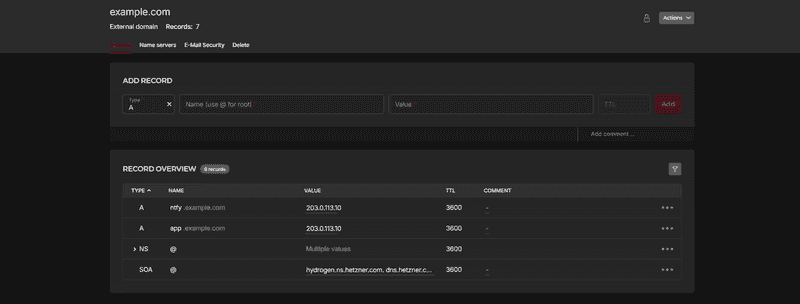
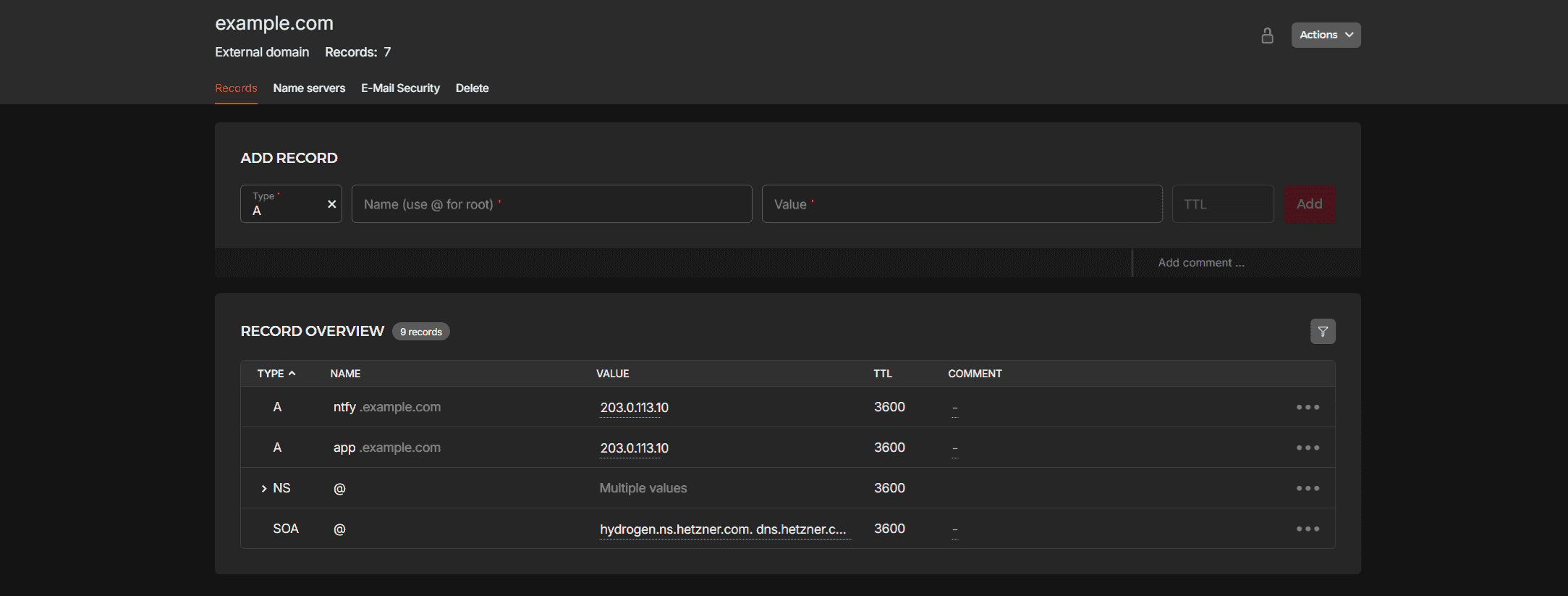
You need an A record for each subdomain pointing at your server's public IP. Grab your IP first:
curl -4 https://ip.hetzner.comStep 6.1 - Add DNS records
-
Hetzner
-
Open Hetzner Console
-
Select the respective project and navigate to your DNS zone.
-
Set the fields as follows:
Type Name Value TTL Antfyyour server IP (from the command above) -
Click Add.
-
Repeat for Name:
app.
-
-
Cloudflare
-
Log in to dash.cloudflare.com and select your domain.
-
Go to DNS → Records → Add record.
-
Set the fields as follows:
Type Name IPv4 address Proxy status Antfyyour server IP (from the command above) DNS only (grey cloud) -
Click Save.
-
Repeat for Name:
app.
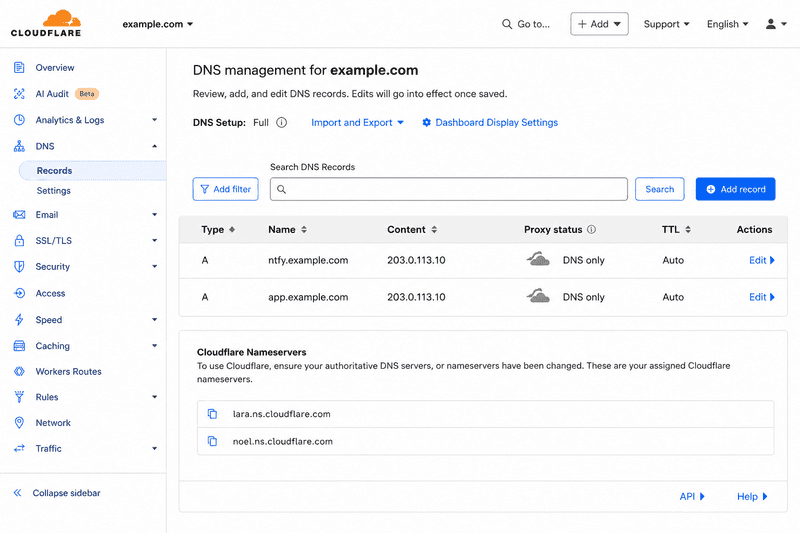
Why the grey cloud matters: If Cloudflare's proxy is on (orange cloud), Cloudflare intercepts all traffic before it reaches your server. Let's Encrypt's HTTP domain verification challenge in the next step needs a direct connection to your server on port 80. With the proxy active, Cloudflare answers instead and the challenge fails. Set it to DNS only for now. You can switch the proxy back on after SSL is working if you want Cloudflare's CDN and DDoS features.
-
DNS propagation usually takes a few minutes, sometimes up to an hour in practice. Verify each subdomain resolves before you continue:
dig +short ntfy.<your_domain>
dig +short app.<your_domain>
Both should return your server's IP. If they return nothing, wait a few minutes and try again.
Step 7 - SSL with Certbot
Certbot's --nginx plugin reads your existing server blocks, proves to Let's Encrypt
that you control the domain, gets the certificate, and then modifies your Nginx config
to enable HTTPS and redirect HTTP — all automatically.
Step 7.1 - Install Certbot
On Ubuntu, the recommended way to install Certbot is the official Snap package; it stays more current than the apt version:
sudo snap install --classic certbot
sudo ln -s /snap/bin/certbot /usr/bin/certbot
The ln -s creates a symlink so you can call certbot directly without the full Snap
path.
Step 7.2 - Obtain certificates
Run Certbot once per subdomain:
sudo certbot --nginx -d ntfy.<your_domain>
sudo certbot --nginx -d app.<your_domain>
On first run Certbot will ask for:
- An email address (for expiry reminders and urgent security notices from Let's Encrypt)
- Agreement to the Let's Encrypt Terms of Service
After each command, Certbot modifies the Nginx server block for that subdomain, adding the SSL certificate paths, enabling HTTPS, and inserting an HTTP → HTTPS redirect, then reloads Nginx automatically.
Successfully received certificate.
Certificate is saved at: /etc/letsencrypt/live/ntfy.example.com/fullchain.pem
Key is saved at:         /etc/letsencrypt/live/ntfy.example.com/privkey.pem
This certificate expires on 2026-08-27.
These files will be updated when the certificate renews.
Certbot has set up a scheduled task to automatically renew this certificate in the background.

Deploying certificate
Successfully deployed certificate for ntfy.example.com to /etc/nginx/sites-enabled/ntfy.example.com
Congratulations! You have successfully enabled HTTPS on https://ntfy.example.com

- - - - - - - - - - - - - - - - - - - - - - - - - - - - - - - - - - - - - - - -
If you like Certbot, please consider supporting our work by:
 * Donating to ISRG / Let's Encrypt:   https://letsencrypt.org/donate
 * Donating to EFF:                    https://eff.org/donate-le
- - - - - - - - - - - - - - - - - - - - - - - - - - - - - - - - - - - - - - - -
Verify both apps are reachable over HTTPS:
curl -I https://ntfy.<your_domain>/v1/health
curl -I https://app.<your_domain>/status
Both should return HTTP/2 200.
Step 8 - Automating Certificate Renewal
Let's Encrypt certificates expire after 90 days. Certbot takes care of renewal automatically — you just need to confirm the renewal mechanism is actually set up and working.
Step 8.1 - Check the systemd timer
When installed via Snap, Certbot registers a systemd timer that runs renewal checks twice a day. Check its status:
sudo systemctl status snap.certbot.renew.timerLook for Active: active (waiting). That means the timer is registered and will fire on
schedule — it's not failing silently somewhere.
Step 8.2 - Run a dry run
Before you rely on automatic renewal, confirm the full flow works end-to-end without actually issuing a new certificate:
sudo certbot renew --dry-runA successful run ends with: Congratulations, all simulated renewals succeeded.
If it fails, the error message will tell you what's wrong — usually something like a DNS issue or a firewall problem — and you can fix it now rather than discovering the problem when a certificate has actually expired.
Certbot only renews certificates that are within 30 days of expiry, so the twice-daily checks are safe. They do nothing most of the time.
Cron fallback: If you'd rather use a cron job than the systemd timer, add this to root's crontab with
sudo crontab -e:0 3 * * * /usr/bin/certbot renew --quietThis runs at 3 AM daily. The
--quietflag suppresses output unless there's an error, so it won't spam your mail spool.
Step 9 - Adding a New App: Checklist (Optional)
Once this infrastructure is in place, adding another service is just repeating the same five steps. Here's the full checklist:
-
Run the app on a free localhost port
Check which ports are currently in use:
sudo ss -tlnp | grep LISTENThen start your app bound to an unused port:
- Docker: add
-p 127.0.0.1:<port>:<container_port>to yourdocker runcommand - systemd service: set
--bind 127.0.0.1:<port>in theExecStartline
- Docker: add
-
Create an Nginx server block
sudo nano /etc/nginx/sites-available/<subdomain>.<your_domain>Minimal template:
If the app uses WebSockets (like ntfy does), also add the
Upgrade,Connection "upgrade", and extended timeout headers from Step 5.server { listen 80; server_name <subdomain>.<your_domain>; location / { proxy_pass http://127.0.0.1:<port>; proxy_http_version 1.1; proxy_set_header Host $host; proxy_set_header X-Forwarded-For $proxy_add_x_forwarded_for; proxy_set_header X-Forwarded-Proto $scheme; } }
-
Enable and test
sudo ln -s /etc/nginx/sites-available/<subdomain>.<your_domain> /etc/nginx/sites-enabled/
sudo nginx -t && sudo systemctl reload nginx
-
Add a DNS A record
Same as Step 6:
<subdomain>→ your server IP. Wait for propagation, then confirm withdig +short <subdomain>.<your_domain>.
-
Obtain an SSL certificate
sudo certbot --nginx -d <subdomain>.<your_domain>That's the whole thing. Bind to localhost, write a server block, add a DNS record, run Certbot.
Conclusion
I set this up originally just to run ntfy (push notifications for my own projects, build
alerts, cron job results, that kind of thing) and honestly it's been running on a single
CX22 without any intervention since. The Certbot timer just does its job, sudo nginx -t
catches any typos before they cause an outage, and adding a new service genuinely does
take about five minutes once you've done it once.
Everything in this setup is plain text. When something breaks (and something always
eventually does), the config files are exactly where you left them and sudo nginx -t
usually tells you what's wrong straight away.