

Introduction
In this tutorial, we are going to set up a K3s cluster on Hetzner servers, inside a private network. We will explore Hetzner's Cloud Controller Manager capabilities, configure dynamic volume provisioning, and finally, dive into the most interesting part: achieving true cluster autoscaling on Hetzner.
Prerequisites
- Generate an API token with
Read & WritePermissions - Download hcloud CLI on your machine
- Set the hcloud API token
Step 1 - Setup Base Infrastructure
In this step, we are going to create a Private Network, a private server (master), and a public server (bastion host). We will place the K3s master and worker nodes in a private subnet (with no public IP addresses). To access them, we will place the bastion host in a public subnet, and we'll also configure it to act as a NAT Gateway so our private nodes can reach the internet.
Step 1.1 - Create network and subnets
Create a Private Network and two subnets: one for our public-facing bastion host, and one for our private Kubernetes nodes.
# Private Network
hcloud network create --name k3s-network --ip-range 10.0.0.0/8

# Public subnet
hcloud network add-subnet k3s-network --type cloud --network-zone eu-central --ip-range 10.0.1.0/24

# Private subnet
hcloud network add-subnet k3s-network --type cloud --network-zone eu-central --ip-range 10.0.2.0/24
Step 1.2 - Create Bastion Host and K8 Master
Create and attach servers to the Private Network from "Step 1.1".
Note: Using an SSH key is optional but highly recommended for better security. While this tutorial does not use one, if you prefer to use your own, simply append the following flag to the end of your server creation command:
--ssh-key <ssh-key>
# Bastion host with IP 10.0.1.11
hcloud server create --name bastion-host --type cx23 --image ubuntu-24.04 --location nbg1
hcloud server attach-to-network bastion-host --network k3s-network --ip 10.0.1.11

# k3s master with IP 10.0.2.11
hcloud server create --name k3s-master --image ubuntu-24.04 --type cpx22 --location nbg1 --network k3s-network --without-ipv4 --without-ipv6
# Hetzner automatically assigned the very first available IP address because we created it private
# Detach and re-attach to set the private IP we want
hcloud server detach-from-network k3s-master --network k3s-network
hcloud server attach-to-network k3s-master --network k3s-network --ip 10.0.2.11
Step 1.3 - Configure Routes and Servers
Kubernetes nodes don't have public IPs. They cannot reach the internet to download the k3s binaries or pull container images. We need to route internet traffic through our bastion host.
BASTION_HOST_PRIVATE_IP=$(hcloud server describe bastion-host -o format="{{ (index .PrivateNet 0).IP }}")
hcloud network add-route k3s-network --destination 0.0.0.0/0 --gateway $BASTION_HOST_PRIVATE_IP
SSH into the bastion host and enable IP forwarding:
BASTION_HOST_PUBLIC_IP=$(hcloud server describe bastion-host -o format="{{ .PublicNet.IPv4.IP }}")
ssh root@$BASTION_HOST_PUBLIC_IP

# Enable IP forwarding and make the iptable rules persistent
echo "net.ipv4.ip_forward=1" | sudo tee /etc/sysctl.d/99-custom-routing.conf
sysctl --system
apt update
apt install iptables-persistent -y
iptables -t nat -A POSTROUTING -s 10.0.0.0/8 -o eth0 -j MASQUERADE
netfilter-persistent save
SSH into the K3s master node and add DNS nameservers and a default route so it can reach internet:
ssh -J root@$BASTION_HOST_PUBLIC_IP root@10.0.2.11
# Find the name of the Private Network interface (usually enp7s0)
PRIVATE_IFACE=$(ip -o -4 addr show | awk '$4 ~ /^10\./ {print $2}')

# Create a Netplan configuration to route traffic and set DNS
cat <<EOF | sudo tee /etc/netplan/60-private-routing.yaml
network:
  version: 2
  ethernets:
    $PRIVATE_IFACE:
      routes:
        - to: default
          via: 10.0.0.1
      nameservers:
        addresses: [1.1.1.1, 8.8.8.8]
EOF

# Set permissions and apply the network changes
chmod 600 /etc/netplan/60-private-routing.yaml
netplan apply
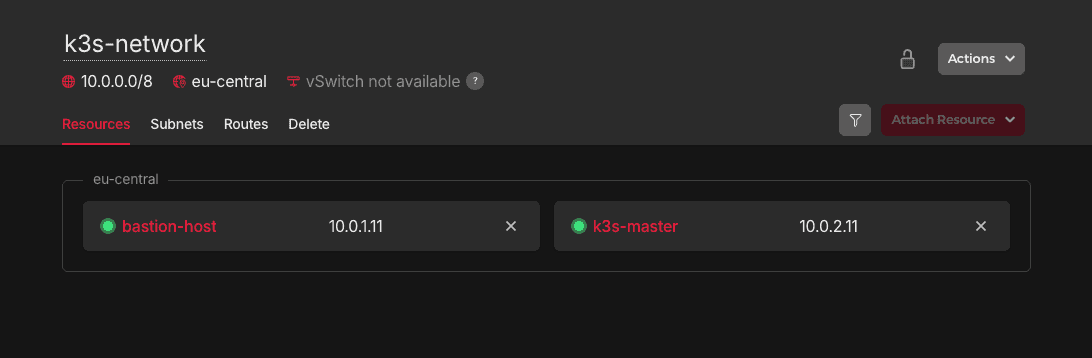
Product IP range Name Network Zone / Location Network 10.0.0.0/8 k3s-network eu-central Subnet (Public) 10.0.1.0/24 eu-central Subnet (Private) 10.0.2.0/24 eu-central Server (Bastion) 10.0.1.11 bastion-host nbg1 Server (Master) 10.0.2.11 k3s-master nbg1
Step 2 - Install K3s on the Master Node
It's time to install the Kubernetes control plane. Because we want Hetzner to manage our IPs, Load Balancers, and Storage automatically, we have to pass args in K3s not to use its default internal cloud tools, and instead prepare for an "external" cloud provider.
Step 2.1 - Run the K3s Installation Script
ssh -J root@$BASTION_HOST_PUBLIC_IP root@10.0.2.11

curl -vL https://get.k3s.io | INSTALL_K3S_EXEC="server \
  --disable-cloud-controller \
  --disable servicelb \
  --disable traefik \
  --kubelet-arg=cloud-provider=external \
  --node-ip=10.0.2.11 \
  --advertise-address=10.0.2.11 \
  --flannel-iface=enp7s0" sh -

# Verify
kubectl get nodes| Flag | Description |
|---|---|
--disable-cloud-controller--disable servicelb |
Turns off K3s's built-in networking tools so Hetzner's CCM can handle Load Balancers and routing. |
--kubelet-arg=cloud-provider=external |
Tells Kubernetes to wait for an external provider (Hetzner) to initialize the node. |
--node-ip--advertise-address |
Forces K3s to use our private IP (10.0.2.11) instead of looking for a public one. |
--flannel-iface=enp7s0 |
Forces internal Pod-to-Pod communication to route over Hetzner's private network cable. |
Note: Please find all the options here
We used the cloud-provider=external flag, K3s has placed a strict "Taint" on this node (node.cloudprovider.kubernetes.io/uninitialized:NoSchedule). It is essentially "frozen" and will refuse to schedule normal pods (like CoreDNS and metrics server) until we install the Hetzner Cloud Controller Manager (CCM) in the next step.
Step 2.2 - Extract Node Token
To allow future worker nodes to join, we need the node token.
cat /var/lib/rancher/k3s/server/node-tokenCopy this token and save it securely. You will need it whenever you want a new worker node to join the cluster.
Step 2.3 - Install Hetzner Cloud Controller Manager
Before we deploy the CCM, we must create a k8s secret with the name hcloud, give it the Hetzner API token and the exact name of the Private Network.
Replace
<YOUR_HETZNER_API_TOKEN>with your actual token.
kubectl -n kube-system create secret generic hcloud \
  --from-literal=token=<YOUR_HETZNER_API_TOKEN> \
  --from-literal=network=k3s-network
Hetzner provides two versions of the CCM:
- One for public internet routing (
ccm.yaml) - One for private networks (
ccm-networks.yaml)
We use the Private Networks version.
kubectl apply -f https://github.com/hetznercloud/hcloud-cloud-controller-manager/releases/latest/download/ccm-networks.yamlOfficial installation instructions and manifest files for this step can be found in the Hetzner Cloud Controller Manager GitHub Repository.
Step 2.4 - Install Hetzner Container Storage Interface (CSI) Driver
We already created the hcloud secret containing our API token in the previous step, the CSI driver will automatically use it to authenticate. We just need to apply the manifest.
kubectl apply -f https://raw.githubusercontent.com/hetznercloud/csi-driver/master/deploy/kubernetes/hcloud-csi.yml

# Verify
kubectl get pods -n kube-system | grep hcloud-csi
kubectl get storageclass

cat <<EOF | kubectl apply -f -
apiVersion: storage.k8s.io/v1
kind: StorageClass
metadata:
  name: hcloud-volumes
provisioner: csi.hetzner.cloud
reclaimPolicy: Delete
volumeBindingMode: WaitForFirstConsumer
allowVolumeExpansion: true
EOF

cat <<'EOF' | kubectl apply -f -
apiVersion: v1
kind: PersistentVolumeClaim
metadata:
  name: test-pvc
spec:
  accessModes:
    - ReadWriteOnce
  storageClassName: hcloud-volumes
  resources:
    requests:
      storage: 10Gi
EOF

# Status should be "Pending" for now
# PVC stays Pending until a Pod using it is scheduled
kubectl get pvc test-pvc -w
Official installation instructions and manifest files for this step can be found in the Hetzner Cloud Controller Manager GitHub Repository.
Step 3 - Cluster Autoscaling
We use the official Kubernetes Cluster Autoscaler to dynamically spin up and delete servers based on our workload.
Step 3.1 - Create the Worker Node cloud-init Script
When the Autoscaler tells Hetzner to create a new VM, that new server is completely blank. We have to provide a cloud-init script so the server automatically configures its Private Network routing (to reach the internet via our bastion host) and installs the K3s Agent to join our cluster.
Create a file named worker-cloud-init.yaml:
Replace
<YOUR_NODE_TOKEN>with the token you copied in "Step 2.2".
#cloud-config
write_files:
  # Persist DNS via systemd-resolved drop-in file
  - path: /etc/systemd/resolved.conf.d/dns_servers.conf
    permissions: '0644'
    content: |
      [Resolve]
      DNS=8.8.8.8 1.1.1.1

  # Persist Default Route via Netplan
  - path: /etc/netplan/60-hetzner-private-route.yaml
    permissions: '0600'
    content: |
      network:
        version: 2
        ethernets:
          enp7s0:
            dhcp4: true
            # Ignore Hetzner's DHCP DNS so it uses our systemd-resolved config
            dhcp4-overrides:
              use-dns: false
            routes:
              - to: default
                via: 10.0.0.1
                on-link: true

runcmd:
  # Apply the persistent network and DNS configurations immediately
  - systemctl restart systemd-resolved
  - netplan apply

  # Give the network a few seconds to establish the new routes before curling
  - sleep 5

  # Download and install the K3s agent
  - |
    curl -sfL https://get.k3s.io | \
    K3S_URL=https://10.0.2.11:6443 \
    K3S_TOKEN=<YOUR_NODE_TOKEN> \
    INSTALL_K3S_EXEC="--kubelet-arg=cloud-provider=external --flannel-iface=enp7s0" \
    sh -s - agent
Convert this file to a base64 string so we can embed it into the autoscaler config:
cat worker-cloud-init.yaml | base64 -w0Copy the resulting long string.
Step 3.2 - Create the Autoscaler Config
Create a file named config.json:
Replace
<PASTE_BASE64_STRING_HERE>with the actual string from the step above.
{
    "imagesForArch": {
        "amd64": "ubuntu-24.04"
    },
    "defaultSubnetIPRange": "10.0.0.0/8",
    "nodeConfigs": {
        "workers-small": {
            "cloudInit": "<PASTE_BASE64_STRING_HERE>",
            "subnetIPRange": "10.0.2.0/24",
            "labels": {
                "node.kubernetes.io/role": "autoscaler-node"
            },
            "taints":
            [
                {
                    "key": "node.kubernetes.io/role",
                    "value": "autoscaler-node",
                    "effect": "NoExecute"
                }
            ]
        },
        "workers-large": {
            "cloudInit": "<PASTE_BASE64_STRING_HERE>",
            "subnetIPRange": "10.0.2.0/24",
            "labels": {
                "node.kubernetes.io/role": "autoscaler-node-large"
            }
        }
    }
}
Step 3.3 - Create the Autoscaler Secret
The Autoscaler needs the Hetzner API token, the raw cloud-init file, and the JSON config to function. Package them all into a Kubernetes Secret:
Replace
<YOUR_HETZNER_API_TOKEN>with your actual token.
kubectl -n kube-system create secret generic hcloud-autoscaler \
  --from-literal=token=<YOUR_HETZNER_API_TOKEN> \
  --from-literal=cloudInit="$(cat worker-cloud-init.yaml | base64 -w0)" \
  --from-literal=clusterConfig="$(cat config.json | base64 -w0)"
Step 3.4 - Deploy the Cluster Autoscaler & RBAC
The Cluster Autoscaler is a powerful pod that needs permission to watch deployments, read metrics, and evict pods. We will apply a single YAML file that contains the strict RBAC roles, the ServiceAccount, and the Deployment itself.
Note: We set HCLOUD_PUBLIC_IPV4 and IPV6 to false to ensure the autoscaler provisions nodes securely in our private subnet.
Create and apply cluster-autoscaler.yaml:
apiVersion: apps/v1
kind: Deployment
metadata:
  name: cluster-autoscaler
  namespace: kube-system
spec:
  replicas: 1
  selector:
    matchLabels:
      app: cluster-autoscaler
  template:
    metadata:
      labels:
        app: cluster-autoscaler
    spec:
      tolerations:
        - key: node-role.kubernetes.io/control-plane
          operator: "Exists"
          effect: NoSchedule
      nodeSelector:
        node-role.kubernetes.io/control-plane: "true"
      serviceAccountName: cluster-autoscaler
      containers:
        - name: cluster-autoscaler
          image: registry.k8s.io/autoscaling/cluster-autoscaler:v1.32.0
          command:
            - ./cluster-autoscaler
            - --cloud-provider=hetzner
            - --nodes=0:10:cx23:nbg1:workers-small   # min:max:type:region:poolname
            - --nodes=0:3:cpx22:nbg1:workers-large
            - --scale-down-delay-after-add=10m
            - --scale-down-unneeded-time=10m
            - --scan-interval=10s
            - --v=4
          env:
            - name: HCLOUD_TOKEN
              valueFrom:
                secretKeyRef:
                  name: hcloud-autoscaler
                  key: token
            - name: HCLOUD_CLOUD_INIT
              valueFrom:
                secretKeyRef:
                  name: hcloud-autoscaler
                  key: cloudInit
            - name: HCLOUD_CLUSTER_CONFIG
              valueFrom:
                secretKeyRef:
                  name: hcloud-autoscaler
                  key: clusterConfig
            - name: HCLOUD_NETWORK
              value: "k3s-network"
            - name: HCLOUD_PUBLIC_IPV4
              value: "false"
            - name: HCLOUD_PUBLIC_IPV6
              value: "false"
          resources:
            requests:
              cpu: 100m
              memory: 300Mi
---
apiVersion: v1
kind: ServiceAccount
metadata:
  name: cluster-autoscaler
  namespace: kube-system
---
apiVersion: rbac.authorization.k8s.io/v1
kind: ClusterRole
metadata:
  name: cluster-autoscaler
rules:
  - apiGroups: [""]
    resources: ["events", "endpoints"]
    verbs: ["create", "patch"]
  - apiGroups: [""]
    resources: ["pods", "nodes", "namespaces", "services", "persistentvolumeclaims", "persistentvolumes", "replicationcontrollers"]
    verbs: ["watch", "list", "get"]
  - apiGroups: [""]
    resources: ["nodes"]
    verbs: ["update"]
  - apiGroups: ["extensions", "apps"]
    resources: ["replicasets", "statefulsets", "daemonsets"]
    verbs: ["watch", "list", "get"]
  - apiGroups: ["policy"]
    resources: ["poddisruptionbudgets"]
    verbs: ["watch", "list"]
  - apiGroups: ["storage.k8s.io"]
    resources: ["storageclasses", "volumeattachments", "csinodes", "csidrivers", "csistoragecapacities"]
    verbs: ["watch", "list", "get"]
  - apiGroups: ["batch"]
    resources: ["jobs"]
    verbs: ["watch", "list", "get"]
  - apiGroups: ["coordination.k8s.io"]
    resources: ["leases"]
    verbs: ["create", "get", "update"]
---
apiVersion: rbac.authorization.k8s.io/v1
kind: ClusterRoleBinding
metadata:
  name: cluster-autoscaler
roleRef:
  apiGroup: rbac.authorization.k8s.io
  kind: ClusterRole
  name: cluster-autoscaler
subjects:
  - kind: ServiceAccount
    name: cluster-autoscaler
    namespace: kube-system
---
apiVersion: rbac.authorization.k8s.io/v1
kind: Role
metadata:
  name: cluster-autoscaler
  namespace: kube-system
rules:
  - apiGroups: [""]
    resources: ["configmaps"]
    verbs: ["create", "list", "watch", "get", "patch", "update"]
---
apiVersion: rbac.authorization.k8s.io/v1
kind: RoleBinding
metadata:
  name: cluster-autoscaler
  namespace: kube-system
roleRef:
  apiGroup: rbac.authorization.k8s.io
  kind: Role
  name: cluster-autoscaler
subjects:
  - kind: ServiceAccount
    name: cluster-autoscaler
    namespace: kube-system
kubectl apply -f cluster-autoscaler.yaml
kubectl get pods -n kube-system -l app=cluster-autoscalerOfficial installation instructions for this step can be found in the Cluster Autoscaler.
Step 4 - Test Auto scaling
Create nginx pods and verify:
cat <<EOF | kubectl apply -f -
apiVersion: apps/v1
kind: Deployment
metadata:
  name: autoscaler-test
spec:
  replicas: 5
  selector:
    matchLabels:
      app: test-web
  template:
    metadata:
      labels:
        app: test-web
    spec:
      containers:
      - name: web
        image: nginx:alpine
        resources:
          requests:
            cpu: "500m"
            memory: "512Mi"
EOF
Check logs:
kubectl logs -f deployment/cluster-autoscaler -n kube-system
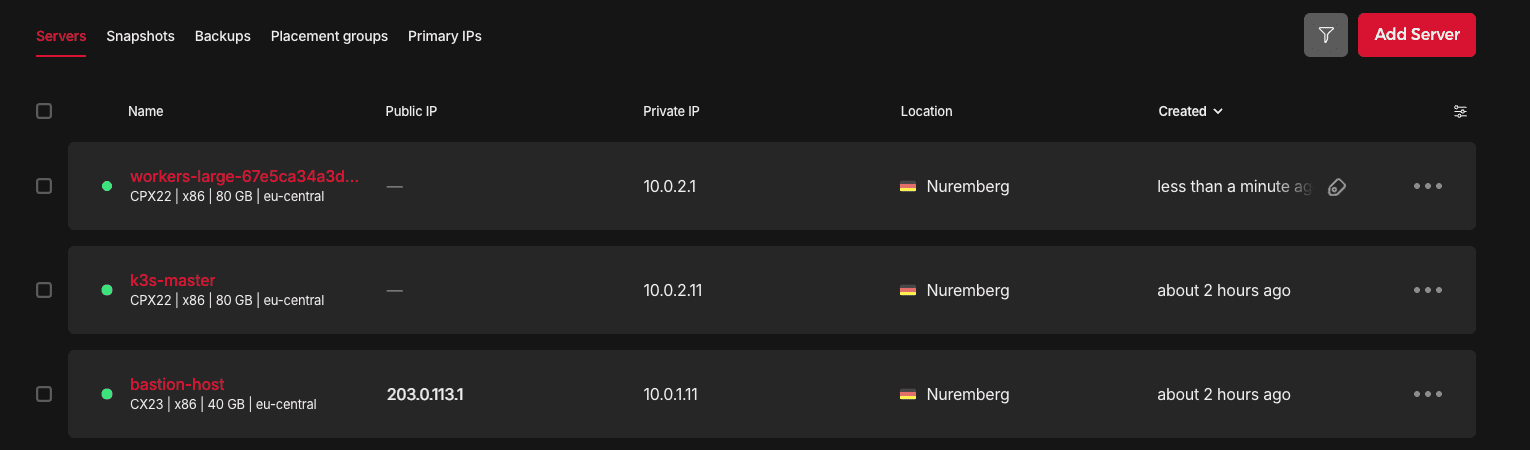
You should now be able to see a new node joining the cluster:
root@k3s-master:~# kubectl get nodes
NAME                              STATUS    ROLES            AGE     VERSION
k3s-master                        Ready     control-plane    77m     v1-34-6+k3s1
workers-large-6ba35e49d16ad546    Ready     <none>           46s     v1-34-6+k3s1

root@k3s-master:~# kubectl get pods
NAME                              READY     STATUS           RESTARTS   AGE
autoscaler-test-7fff6fc868-52clc  1/1       Running          0          2m24s
autoscaler-test-7fff6fc868-69prw  1/1       Running          0          34m
autoscaler-test-7fff6fc868-hcwqn  1/1       Running          0          2m24s
autoscaler-test-7fff6fc868-lm4cx  1/1       Running          0          34m
autoscaler-test-7fff6fc868-xtg4t  1/1       Running          0          34m
After you confirmed that everything is working, delete the example deployment:
kubectl delete deployment autoscaler-test
kubectl get pods
Note that the worker node will not be deleted immediately because the scale down delay is set to 10 minutes after creation in cluster-autoscaler.yaml.
Conclusion
We have just built a Kubernetes environment that is both high-performance and cost-efficient. By moving away from expensive managed services and leveraging k3s on Hetzner, we've gained full control over our infrastructure.