

Introduction
When managing multiple servers with CrowdSec, each instance operates independently by default — detecting threats and making ban decisions in isolation. This means an attacker blocked on one server can still access your other servers until they trigger detection there too.
A centralized LAPI (Local API) architecture solves this by:
- Sharing threat intelligence: A ban on one server immediately protects all servers
- Unified management: Single Web UI to view alerts and manage decisions across your infrastructure
- Centralized notifications: All security events flow to one place for monitoring
- Simplified maintenance: Update configurations and collections in one location
Architecture overview:
Note: This tutorial assumes you have followed my previous guide of Centralized Security Monitoring with Prometheus and Grafana
┌─────────────────────────────────────────────────────────────────────┐
│                      Monitoring Server                              │
│  ┌─────────────┐  ┌──────────────┐  ┌─────────────┐  ┌───────────┐  │
│  │  CrowdSec   │  │  PostgreSQL  │  │  CrowdSec   │  │ Victoria  │  │
│  │   (LAPI)    │◄─┤   Database   │  │   Web UI    │  │  Metrics  │  │
│  └──────┬──────┘  └──────────────┘  └─────────────┘  └───────────┘  │
│         │                                                           │
└─────────┼───────────────────────────────────────────────────────────┘
          │ Port 8080
          │
    ┌─────┴─────┬─────────────────┐
    │           │                 │
    ▼           ▼                 ▼
┌─────────┐  ┌─────────┐       ┌─────────┐
│Supabase │  │  Apps   │  ...  │ Server  │
│ Server  │  │ Server  │       │   N     │
│         │  │         │       │         │
│   Log   │  │   Log   │       │   Log   │
│Processor│  │Processor│       │Processor│
│   +     │  │   +     │       │   +     │
│Bouncers │  │Bouncers │       │Bouncers │
└─────────┘  └─────────┘       └─────────┘
Series overview:
- Deploy Self-Hosted Supabase on Hetzner Cloud with Coolify
- Harden PostgreSQL SSL for Self-Hosted Supabase (optional)
- Protect Self-Hosted Services with CrowdSec and Traefik
- Centralized Security Monitoring with Prometheus and Grafana
- Centralized CrowdSec Management with Web UI (you are here)
Prerequisites
- A monitoring server with CrowdSec installed (see "Centralized Security Monitoring with Prometheus and Grafana")
- One or more servers with CrowdSec running (see "Protect Self-Hosted Services with CrowdSec and Traefik")
- All servers communicate over public IPs or a private network
- Basic familiarity with Docker and Linux command line
Example terminology
| Placeholder | Example | Description |
|---|---|---|
<MONITORING_SERVER_IP> |
192.0.2.254 |
Your monitoring server's public IP |
<SUPABASE_SERVER_IP> |
203.0.113.1 |
Your Supabase server's public IP |
<APPS_SERVER_IP> |
192.0.2.264 |
Your apps server's public IP |
<your-domain> |
selfhost.example.com |
Your domain name |
Step 1 - Add PostgreSQL for CrowdSec
By default, CrowdSec uses SQLite. For a multi-server setup, PostgreSQL provides better concurrent read/write handling and stability.
SSH into your monitoring server:
ssh root@<MONITORING_SERVER_IP>- Generate database password
DBPASS=$(openssl rand -hex 16)
echo "CROWDSEC_DB_PASSWORD=${DBPASS}" >> /opt/monitoring/.env
-
Add PostgreSQL to docker-compose
Edit your monitoring stack:
nano /opt/monitoring/docker-compose.ymlAdd the PostgreSQL service:
  # ... existing services ...
  crowdsec-db:
    image: postgres:16-alpine
    container_name: crowdsec-db
    restart: unless-stopped
    ports:
      - "127.0.0.1:5432:5432"
    environment:
      POSTGRES_USER: crowdsec
      POSTGRES_PASSWORD: ${CROWDSEC_DB_PASSWORD}
      POSTGRES_DB: crowdsec
    volumes:
      - crowdsec_db_data:/var/lib/postgresql/data
    networks:
      - monitoring
    healthcheck:
      test: ["CMD-SHELL", "pg_isready -U crowdsec"]
      interval: 10s
      timeout: 5s
      retries: 5
  # ... existing services ...
Add the volume to your
volumes:section:volumes: # ... existing volumes ... crowdsec_db_data:
-
Start PostgreSQL
cd /opt/monitoring
docker compose up -d crowdsec-db

# Verify it's running
docker compose ps crowdsec-db
Wait for the health check to show "healthy".
Step 2 - Configure Central LAPI
Step 2.1 - Backup current configuration
cp /etc/crowdsec/config.yaml /etc/crowdsec/config.yaml.backupStep 2.2 - Generate auto-registration token
This token allows remote CrowdSec instances to register automatically:
AUTO_REG_TOKEN=$(openssl rand -hex 32)
echo "Auto-registration token: ${AUTO_REG_TOKEN}"
Save this token — you'll need it when configuring child servers.
Step 2.3 - Update CrowdSec configuration
Edit the main configuration:
nano /etc/crowdsec/config.yamlFind and update the db_config section:
Replace
CROWDSEC_DB_PASSWORDwith the password set in/opt/monitoring/.env
db_config:
  type: postgres
  host: 127.0.0.1
  port: 5432
  user: crowdsec
  password: <CROWDSEC_DB_PASSWORD>
  db_name: crowdsec
  sslmode: disable
Find the api.server section and update it:
Replace
<AUTO_REG_TOKEN>,<MONITORING_SERVER_IP>,<SUPABASE_SERVER_IP>and<APPS_SERVER_IP>with your own values.
api:
  server:
    listen_uri: 0.0.0.0:8080
    trusted_ips:
      - 127.0.0.1
      - ::1
      - 172.16.0.0/12
    auto_registration:
      enabled: true
      token: "<AUTO_REG_TOKEN>"
      allowed_ranges:
        - "<MONITORING_SERVER_IP>/32"
        - "<SUPABASE_SERVER_IP>/32"
        - "<APPS_SERVER_IP>/32"
Step 2.4 - Re-register the local machine
Switching to PostgreSQL creates a new empty database. Re-register the monitoring server:
# Remove old credentials
cp /etc/crowdsec/local_api_credentials.yaml /etc/crowdsec/local_api_credentials.yaml.backup
rm /etc/crowdsec/local_api_credentials.yaml

# Register new machine
cscli machines add monitoring-server --auto --force

# Restart CrowdSec
systemctl restart crowdsec

# Verify
systemctl status crowdsec
cscli machines list
Step 3 - Update Firewall Rules
Allow the LAPI port (8080) from your child servers and Docker networks:
# Allow LAPI from child servers
ufw allow from <SUPABASE_SERVER_IP> to any port 8080 proto tcp comment 'CrowdSec LAPI - Supabase'
ufw allow from <APPS_SERVER_IP> to any port 8080 proto tcp comment 'CrowdSec LAPI - Apps'

# Allow Docker networks to access LAPI
ufw allow from 172.17.0.0/16 to any port 8080 comment 'Docker to CrowdSec LAPI'
ufw allow from 172.18.0.0/16 to any port 8080 comment 'Docker Compose to CrowdSec LAPI'

ufw reload
Step 4 - Deploy CrowdSec Web UI
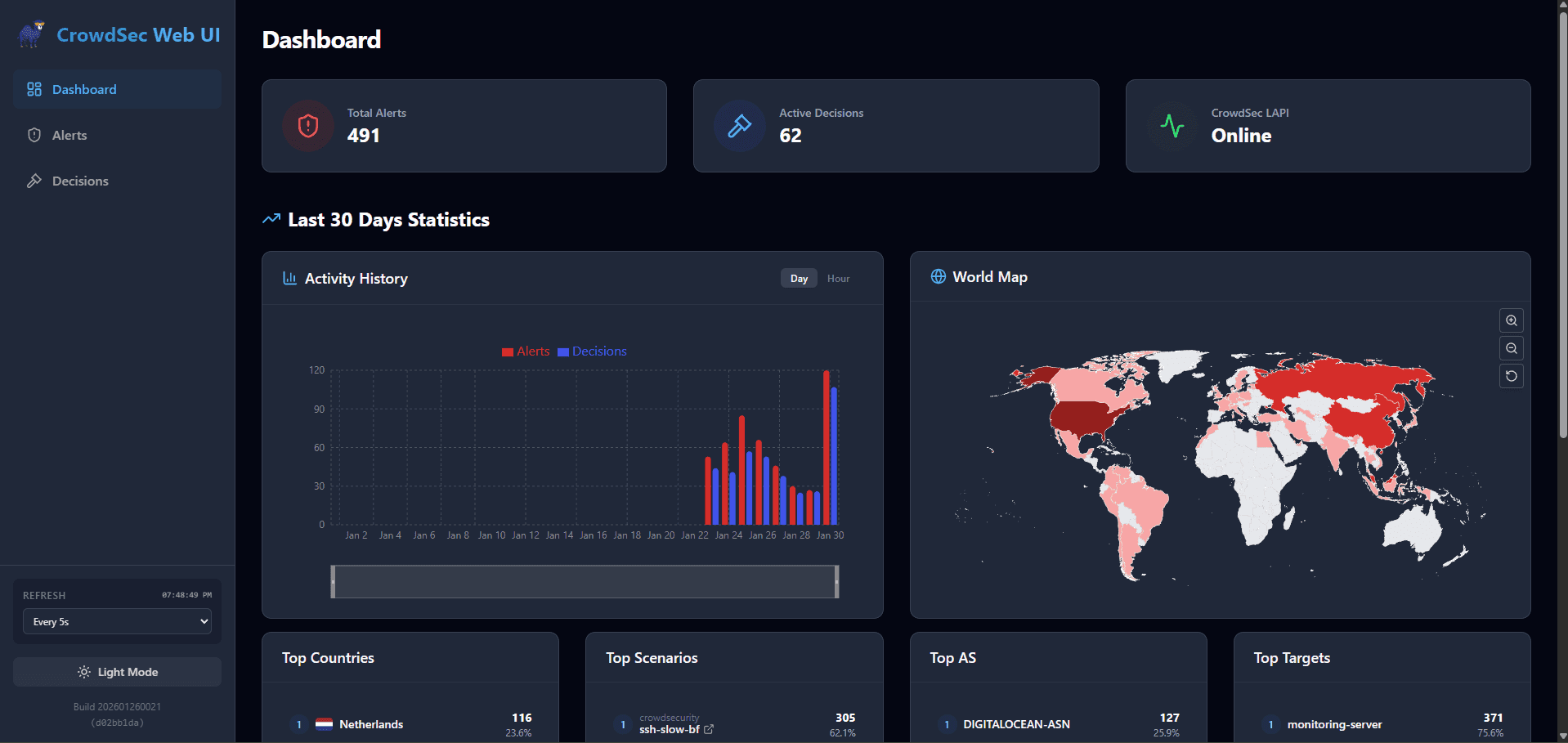
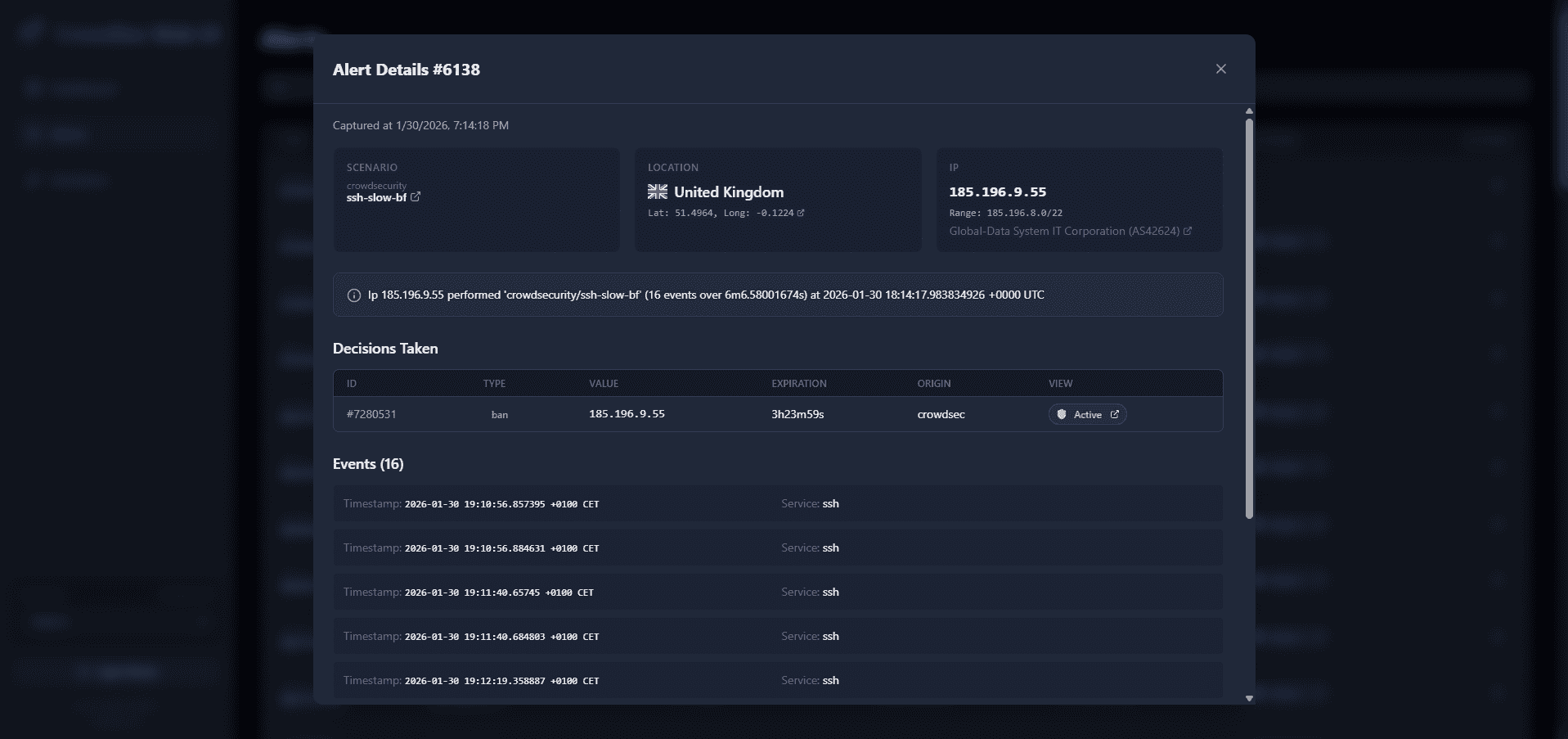
The CrowdSec Web UI provides a browser-based interface for managing alerts and decisions.
Security Note: The Web UI has no built-in authentication. We'll add Traefik Basic Auth to protect it.
|
|
Step 4.1 - Register machine account for Web UI
UIPASS=$(openssl rand -hex 16)
cscli machines add crowdsec-web-ui --password "${UIPASS}" -f /dev/null
echo "CROWDSEC_UI_PASSWORD=${UIPASS}" >> /opt/monitoring/.env
Step 4.2 - Generate Basic Auth credentials
# Install htpasswd utility
apt install apache2-utils -y

# Generate credentials (you'll be prompted for a password, change 'admin' if desired)
htpasswd -n admin
This outputs something like: admin:$apr1$xyz123$hashedpasswordhere
Add to your .env file (escape $ with $$):
# Example: if htpasswd gave you admin:$apr1$xyz$hash
# Write it as admin:$$apr1$$xyz$$hash
echo 'CROWDSEC_UI_BASICAUTH=admin:$$apr1$$xyz123$$hashedpasswordhere' >> /opt/monitoring/.env
Step 4.3 - Add Web UI to docker-compose
Edit your monitoring stack:
nano /opt/monitoring/docker-compose.ymlAdd the Web UI service:
  # ... existing services ...
  crowdsec-web-ui:
    image: ghcr.io/theduffman85/crowdsec-web-ui:latest
    container_name: crowdsec-web-ui
    restart: unless-stopped
    extra_hosts:
      - "host.docker.internal:host-gateway"
    environment:
      - CROWDSEC_URL=http://host.docker.internal:8080
      - CROWDSEC_USER=crowdsec-web-ui
      - CROWDSEC_PASSWORD=${CROWDSEC_UI_PASSWORD}
      - CROWDSEC_LOOKBACK_PERIOD=30d
    volumes:
      - crowdsec_webui_data:/app/data
    labels:
      - "traefik.enable=true"
      - "traefik.http.routers.crowdsec-ui.rule=Host(`crowdsec.${DOMAIN}`)"
      - "traefik.http.routers.crowdsec-ui.entrypoints=https"
      - "traefik.http.routers.crowdsec-ui.tls=true"
      - "traefik.http.routers.crowdsec-ui.tls.certresolver=letsencrypt"
      - "traefik.http.services.crowdsec-ui.loadbalancer.server.port=3000"
      - "traefik.http.routers.crowdsec-ui.middlewares=crowdsec-ui-auth"
      - "traefik.http.middlewares.crowdsec-ui-auth.basicauth.users=${CROWDSEC_UI_BASICAUTH}"
    networks:
      - monitoring
  # ... existing services ...
Add the volume:
volumes:
  # ... existing volumes ...
  crowdsec_webui_data:
Step 4.4 - Ensure DOMAIN is set
Note the DOMAIN variable is used in the Traefik rule above. Make sure it's set in your .env. The final domain will be crowdsec.<your-domain>.
grep DOMAIN /opt/monitoring/.env || echo "DOMAIN=<your-domain>" >> /opt/monitoring/.envStep 4.5 - Deploy the updated stack
cd /opt/monitoring
docker compose up -d
Step 4.6 - Verify Web UI
docker logs crowdsec-web-ui --tail 20You should see successful login messages. Access the UI at https://crowdsec.<your-domain>.
The login credentials are:
- User: admin
- Password: the password you set in step 4.2.
Step 5 - Configure Child Servers as Log Processors
Now convert your existing CrowdSec instances to report to the central LAPI. Repeat this section for each server.
Step 5.1 - Supabase Server
SSH into your Supabase server:
ssh root@<SUPABASE_SERVER_IP>Register with central LAPI:
Get the auto-registration token from Step 2.2 and run:
docker exec crowdsec cscli lapi register \
  --machine "supabase-1-server" \
  --url http://<MONITORING_SERVER_IP>:8080 \
  --token "<AUTO_REG_TOKEN>"
On the Monitoring Server, verify registration:
cscli machines listYou should see supabase-1-server listed.
Create bouncer keys on Monitoring Server:
cscli bouncers add supabase-1-firewall-bouncer
cscli bouncers add supabase-1-traefik-bouncer
Save both API keys.
Back on Supabase Server, update docker-compose:
nano /opt/crowdsec/docker-compose.ymlUpdate the environment section:
services:
  crowdsec:
    image: crowdsecurity/crowdsec:latest
    container_name: crowdsec
    restart: unless-stopped
    ports:
      - "0.0.0.0:6060:6060" # Metrics only
    security_opt:
      - no-new-privileges:true
    environment:
      - GID=1000
      - COLLECTIONS=crowdsecurity/traefik crowdsecurity/http-cve crowdsecurity/whitelist-good-actors crowdsecurity/base-http-scenarios crowdsecurity/sshd crowdsecurity/linux
      - DISABLE_LOCAL_API=true
      - LOCAL_API_URL=http://<MONITORING_SERVER_IP>:8080
    volumes:
      - /opt/crowdsec/data:/var/lib/crowdsec/data
      - /opt/crowdsec/config:/etc/crowdsec
      - /var/log/traefik:/var/log/traefik:ro
      - /var/log/auth.log:/var/log/auth.log:ro
      - /var/log/syslog:/var/log/syslog:ro
      - /var/run/docker.sock:/var/run/docker.sock:ro
    networks:
      - coolify

networks:
  coolify:
    external: true
Update firewall bouncer:
nano /etc/crowdsec/bouncers/crowdsec-firewall-bouncer.yamlCopy the API key from Monitoring Server "supabase-1-firewall-bouncer" to use here:
api_url: http://<MONITORING_SERVER_IP>:8080/
api_key: "<SUPABASE_1_FIREWALL_BOUNCER_API_KEY>"
Update Traefik bouncer:
nano /data/coolify/proxy/dynamic/crowdsec.ymlCopy the API key from Monitoring Server "supabase-1-traefik-bouncer" to use here:
http:
  middlewares:
    crowdsec:
      plugin:
        crowdsec:
          enabled: true
          crowdsecMode: live
          crowdsecLapiKey: "<SUPABASE_1_TRAEFIK_BOUNCER_API_KEY>"
          crowdsecLapiHost: "<MONITORING_SERVER_IP>:8080"
          crowdsecLapiScheme: http
          forwardedHeadersTrustedIPs:
            - 10.0.0.0/8
            - 172.16.0.0/12
            - 192.168.0.0/16
          clientTrustedIPs:
            - 10.0.0.0/8
            - 172.16.0.0/12
            - 192.168.0.0/16
Restart services:
cd /opt/crowdsec
docker compose down
docker compose up -d

systemctl restart crowdsec-firewall-bouncer
Verify connection:
docker exec crowdsec cscli lapi status
systemctl status crowdsec-firewall-bouncer
Step 5.2 - Apps Server (and additional servers)
Repeat Step 5.1 for each additional server, using unique names:
- Machine name:
apps-server - Bouncer names:
apps-firewall-bouncer,apps-traefik-bouncer
Step 6 - Centralize VictoriaMetrics Notifications
With all alerts flowing through the central LAPI, configure notifications in one place.
On the Monitoring Server:
Step 6.1 - Create notification handler
mkdir -p /etc/crowdsec/notifications

cat > /etc/crowdsec/notifications/victoriametrics.yaml << 'EOF'
type: http
name: http_victoriametrics
log_level: info
format: >
  {{- range $Alert := . -}}
  {{- range .Decisions -}}
  {"metric":{"__name__":"cs_lapi_decision","instance":"{{ $Alert.MachineID }}","country":"{{$Alert.Source.Cn}}","asname":"{{$Alert.Source.AsName}}","asnumber":"{{$Alert.Source.AsNumber}}","latitude":"{{$Alert.Source.Latitude}}","longitude":"{{$Alert.Source.Longitude}}","iprange":"{{$Alert.Source.Range}}","scenario":"{{.Scenario}}","type":"{{.Type}}","duration":"{{.Duration}}","scope":"{{.Scope}}","ip":"{{.Value}}"},"values": [1],"timestamps":[{{now|unixEpoch}}000]}
  {{- end }}
  {{- end -}}
url: http://localhost:8428/api/v1/import
method: POST
headers:
  Content-Type: application/json
EOFNote: The
instancefield uses{{ $Alert.MachineID }}to identify which server detected the threat.
Note: The notification URL uses
localhost:8428. Ensure VictoriaMetrics is bound to localhost in your docker-compose (see monitoring guide). If you bound VictoriaMetrics only to your external IP, either add a localhost binding or change the URL tohttp://<MONITORING_SERVER_IP>:8428/api/v1/import.
Step 6.2 - Update profiles
cat > /etc/crowdsec/profiles.yaml << 'EOF'
name: default_ip_remediation
filters:
  - Alert.Remediation == true && Alert.GetScope() == "Ip"
decisions:
  - type: ban
    duration: 4h
notifications:
  - http_victoriametrics
on_success: break
---
name: default_range_remediation
filters:
  - Alert.Remediation == true && Alert.GetScope() == "Range"
decisions:
  - type: ban
    duration: 4h
notifications:
  - http_victoriametrics
on_success: break
EOF
Step 6.3 - Restart CrowdSec
systemctl restart crowdsecStep 6.4 - Verify notifications are active
cscli notifications listExpected output shows http_victoriametrics as active.
Step 6.5 - Remove old notification configs from child servers
On each child server (Supabase, Apps, etc.):
rm -f /opt/crowdsec/config/notifications/victoriametrics.yaml
rm -f /opt/crowdsec/config/profiles.yaml
docker restart crowdsec
Step 7 - Verify Complete Setup
On the Monitoring Server:
Step 7.1 - Check all machines
cscli machines listExpected output:
 Name               IP Address            Status  Version  Last Heartbeat
 monitoring-server  127.0.0.1             :heavy_check_mark:      v1.x.x   10s
 supabase-server    <SUPABASE_SERVER_IP>  :heavy_check_mark:      v1.x.x   15s
 apps-server        <APPS_SERVER_IP>      :heavy_check_mark:      v1.x.x   12s
 crowdsec-web-ui    172.18.0.x            :heavy_check_mark:      1.0.0    -
Step 7.2 - Check all bouncers
cscli bouncers listExpected output shows all bouncers with recent "Last API pull" timestamps.
Step 7.3 - Test shared decisions
Create a test ban on the monitoring server:
cscli decisions add --ip 192.0.2.1 --duration 1m --reason "Test ban"Verify it's visible on a child server:
# On Supabase server
docker exec crowdsec cscli decisions list
The test ban should appear on all servers.
Remove the test ban:
# On Monitoring server
cscli decisions delete --ip 192.0.2.1
Step 8 - Migrate Historical Data (Optional)
If you have existing alerts and decisions in the old SQLite database, you can migrate them to PostgreSQL.
Step 8.1 - Check existing data
sqlite3 /var/lib/crowdsec/data/crowdsec.db "SELECT COUNT(*) FROM alerts;"
sqlite3 /var/lib/crowdsec/data/crowdsec.db "SELECT COUNT(*) FROM decisions;"
Step 8.2 - Stop CrowdSec
systemctl stop crowdsecStep 8.3 - Export data from SQLite
# Export alerts
sqlite3 -header -csv /var/lib/crowdsec/data/crowdsec.db \
  "SELECT id, created_at, updated_at, scenario, bucket_id, message, events_count, started_at, stopped_at, source_ip, source_range, source_as_number, source_as_name, source_country, source_latitude, source_longitude, source_scope, source_value, capacity, leak_speed, scenario_version, scenario_hash, simulated, uuid, remediation FROM alerts;" > /tmp/alerts.csv

# Export decisions
sqlite3 -header -csv /var/lib/crowdsec/data/crowdsec.db \
  "SELECT id, created_at, updated_at, until, scenario, type, scope, value, origin, simulated, uuid, alert_decisions FROM decisions;" > /tmp/decisions.csv
Step 8.4 - Clear PostgreSQL tables
docker exec crowdsec-db psql -U crowdsec -d crowdsec -c "TRUNCATE decisions, alerts, events, meta CASCADE;"Step 8.5 - Import data
# Copy files to container
docker cp /tmp/alerts.csv crowdsec-db:/tmp/alerts.csv
docker cp /tmp/decisions.csv crowdsec-db:/tmp/decisions.csv

# Import alerts
docker exec crowdsec-db psql -U crowdsec -d crowdsec -c "
COPY alerts (id, created_at, updated_at, scenario, bucket_id, message, events_count, started_at, stopped_at, source_ip, source_range, source_as_number, source_as_name, source_country, source_latitude, source_longitude, source_scope, source_value, capacity, leak_speed, scenario_version, scenario_hash, simulated, uuid, remediation)
FROM '/tmp/alerts.csv'
WITH (FORMAT csv, HEADER true, NULL '');
"

# Import decisions
docker exec crowdsec-db psql -U crowdsec -d crowdsec -c "
COPY decisions (id, created_at, updated_at, until, scenario, type, scope, value, origin, simulated, uuid, alert_decisions)
FROM '/tmp/decisions.csv'
WITH (FORMAT csv, HEADER true, NULL '');
"

# Fix foreign keys and sequences
docker exec crowdsec-db psql -U crowdsec -d crowdsec -c "
UPDATE alerts SET machine_alerts = 1 WHERE machine_alerts IS NULL;
SELECT setval('alerts_id_seq', (SELECT MAX(id) FROM alerts));
SELECT setval('decisions_id_seq', (SELECT MAX(id) FROM decisions));
"
Step 8.6 - Start CrowdSec
systemctl start crowdsec
systemctl status crowdsec
Quick Reference - CrowdSec Commands
| Command | Description |
|---|---|
cscli machines list |
List all connected machines |
cscli bouncers list |
List all registered bouncers |
cscli decisions list |
List active bans |
cscli decisions add --ip X.X.X.X --duration 4h |
Manually ban an IP |
cscli decisions delete --ip X.X.X.X |
Unban an IP |
cscli alerts list |
List recent alerts |
cscli notifications list |
List notification plugins |
cscli metrics |
View detection metrics |
Troubleshooting
Child server can't connect to LAPI:
- Check firewall allows port 8080 from child server IP
- Verify the auto-registration token matches
- Check CrowdSec logs:
journalctl -u crowdsec -n 50
Web UI shows "Request timeout":
- Verify Docker networks can reach host port 8080:
ufw allow from 172.17.0.0/16 to any port 8080 ufw allow from 172.18.0.0/16 to any port 8080 - Restart the Web UI:
docker restart crowdsec-web-ui
Bouncers show no "Last API pull":
- Check bouncer configuration has correct LAPI URL and API key
- Restart the bouncer service
- Traefik bouncers only pull when processing requests
Database migration fails:
- Ensure CrowdSec is stopped before migration
- Check PostgreSQL container is healthy
- Verify CSV files exported correctly:
head -5 /tmp/alerts.csv
Conclusion
You now have a centralized CrowdSec architecture with:
- ✅ Single LAPI server handling all decisions
- ✅ PostgreSQL backend for reliability
- ✅ Web UI for visual management
- ✅ Shared threat intelligence across all servers
- ✅ Centralized notifications to VictoriaMetrics
- ✅ Historical data preserved with geo-location
Benefits of this architecture:
- An attacker blocked on one server is immediately blocked everywhere
- Single pane of glass for security management
- Simplified configuration and updates
- Better visibility into infrastructure-wide threats