

Introduction
Supabase is an open-source Firebase alternative that provides a PostgreSQL database, authentication, instant APIs, real-time subscriptions, and storage. While Supabase offers a managed cloud service, self-hosting gives you complete control over your data and infrastructure.
This tutorial guides you through deploying a production-ready Supabase instance on Hetzner Cloud using Coolify — an open-source, self-hostable platform that simplifies application deployment. By the end of this tutorial, you'll have a fully functional Supabase instance with:
- Secure HTTPS access via Traefik reverse proxy
- Automatic SSL certificate management with Let's Encrypt
- UFW firewall protection
- A hardened tenant ID for additional security
Prerequisites
- A Hetzner account
- A domain name with DNS management access (this tutorial uses Namecheap as an example)
- An existing machine that has Coolify already installed (see the Coolify installation guide)
- Basic familiarity with Linux command line and Docker
Example terminology
This tutorial uses example values that you should replace with your own:
| Placeholder | Example | Description |
|---|---|---|
<server-ip> |
203.0.113.10 |
Your Hetzner server's public IP |
<your-domain.com> |
example.com |
Your domain name |
<alphanumeric-string> |
472snc2m5h |
Random string for subdomain obscurity |
Step 1 - Create a Hetzner Cloud Server
First, provision a new server in your Hetzner Console for Supabase.
Step 1.1 - Configure the server
-
Log in to Hetzner Console
-
Select your project or create a new one
-
Click Add Server
-
Configure with these settings:
Setting Value Location Choose closest to your users (e.g., Nuremberg) Image Apps → Docker CE Type CX23 or higher (2 vCPU, 4GB RAM) Networking Public IPv4 ✅, IPv6 disabled SSH Keys Select your SSH key Name supabase-1 -
Click Create & Buy Now
Step 1.2 - Initial server access
Once the server is running, connect via SSH:
ssh root@<server-ip>Update the system:
apt update && apt upgrade -yStep 2 - Initial Server Configuration
Step 2.1 - Add Coolify SSH key
Your Coolify instance needs SSH access to manage this server. In your Coolify dashboard:
- Navigate to Keys & Tokens → your SSH key
- Copy the Public Key
On the Supabase server, add the key:
echo "your-coolify-public-key" >> /root/.ssh/authorized_keysStep 2.2 - Set server timezone
timedatectl set-timezone Europe/ZurichAdjust the timezone to match your location.
Step 2.3 - Harden SSH access
Disable password authentication and apply security settings:
# Disable password authentication
sed -i 's/#PasswordAuthentication yes/PasswordAuthentication no/' /etc/ssh/sshd_config
sed -i 's/PasswordAuthentication yes/PasswordAuthentication no/' /etc/ssh/sshd_config

# Disable root login with password (key-only)
sed -i 's/#PermitRootLogin prohibit-password/PermitRootLogin prohibit-password/' /etc/ssh/sshd_config

# Disable empty passwords
sed -i 's/#PermitEmptyPasswords no/PermitEmptyPasswords no/' /etc/ssh/sshd_config

# Limit authentication attempts
echo "MaxAuthTries 3" >> /etc/ssh/sshd_config

# Set login grace time
echo "LoginGraceTime 60" >> /etc/ssh/sshd_config

# Restart SSH
systemctl restart ssh
Step 3 - DNS Configuration
You'll create DNS records that point to your server. Using a random subdomain string adds security through obscurity.
Step 3.1 - Generate a random subdomain
Generate a random alphanumeric string (10 characters recommended):
openssl rand -hex 5Example output: 472snc2m5h
Step 3.2 - Create DNS records
In your DNS provider, add these A records:
| Type | Host | Value | TTL |
|---|---|---|---|
| A | supabase.<alphanumeric-string> |
<server-ip> |
Automatic |
| A | *.supabase.<alphanumeric-string> |
<server-ip> |
Automatic |
Example:
supabase.472snc2m5h.example.com→203.0.113.10*.supabase.472snc2m5h.example.com→203.0.113.10
Note: If using Namecheap with DNS challenge for SSL certificates, whitelist your server's IP in Profile → Tools → Namecheap API Access → Whitelisted IPs.
Step 4 - Add Server to Coolify
Step 4.1 - Register the server
In your Coolify dashboard:
- Go to Servers → Add Server
- Configure:
- Name:
supabase-1 - IP Address:
<server-ip> - SSH Key: Select your Coolify SSH key
- Name:
- Click Save
Step 4.2 - Configure server settings
After adding the server:
- Go to the server's Settings
- Set Wildcard Domain:
https://supabase.<alphanumeric-string>.<your-domain.com> - Enable Metrics (optional but recommended)
- Click Save
- Click Restart Proxy
Step 5 - Configure Traefik Proxy
Coolify uses Traefik as its reverse proxy. Configure it for your domain.
Step 5.1 - Create log directory
SSH into your server:
mkdir -p /var/log/traefik
chmod 755 /var/log/traefik
Step 5.2 - Update Traefik configuration
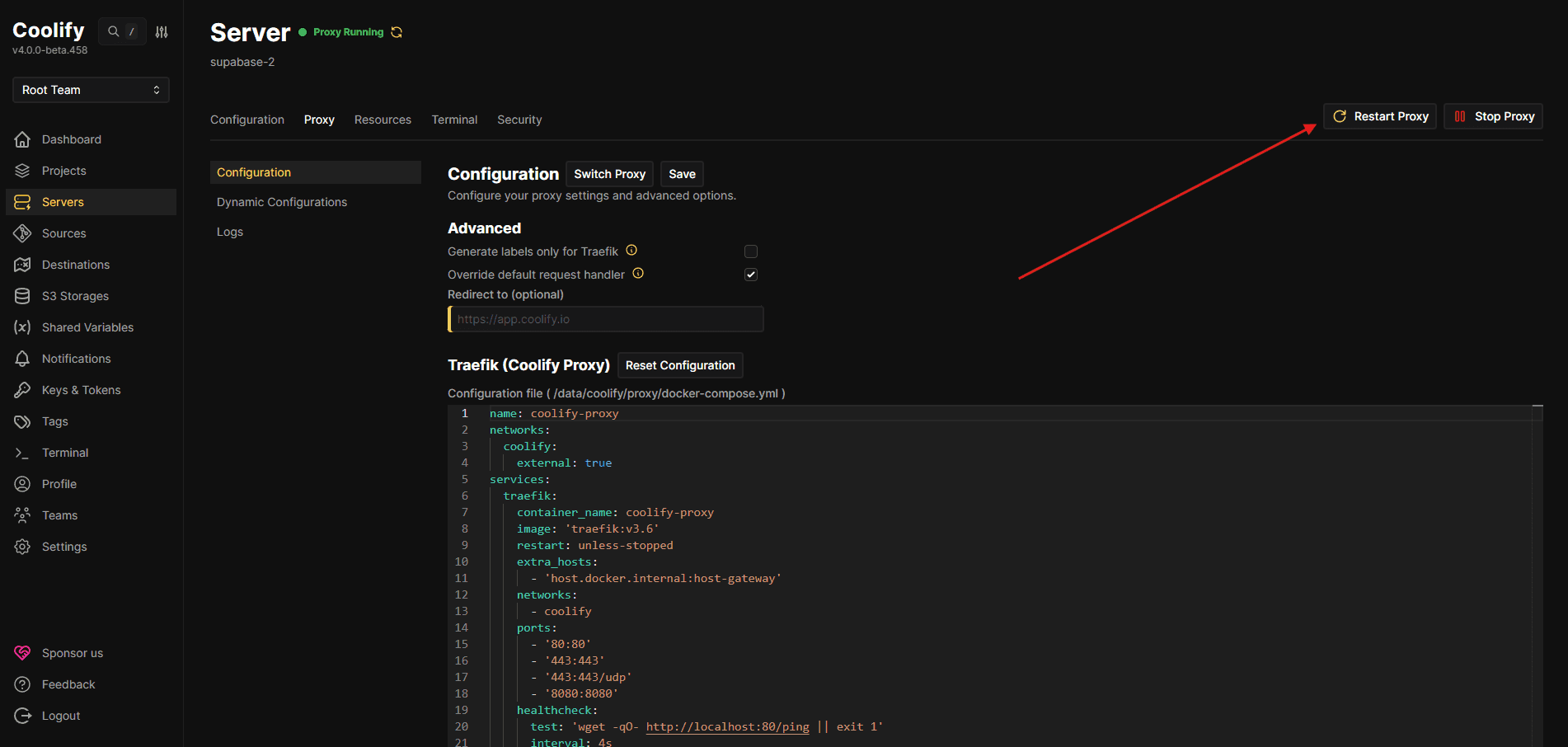
In Coolify → Server → Proxy tab, update the Traefik configuration.
Add environment variables for DNS challenge (example for Namecheap):
services:
  traefik:
    environment:
      - NAMECHEAP_API_KEY=<your-api-key>
      - NAMECHEAP_API_USER=<your-api-user>
Add commands for access logging and DNS challenge:
Replace
namecheapand<your-email@example.com>with your own information.
    command:
      - "--accesslog=true"
      - "--accesslog.filepath=/var/log/traefik/access.log"
      - "--certificatesresolvers.letsencrypt.acme.dnschallenge=true"
      - "--certificatesresolvers.letsencrypt.acme.dnschallenge.provider=namecheap"
      - "--certificatesresolvers.letsencrypt.acme.dnschallenge.delaybeforecheck=30"
- "--certificatesresolvers.letsencrypt.acme.email=<your-email@example.com>"Note: Remove any existing HTTP challenge commands if present e.g.:
- "--certificatesresolvers.letsencrypt.acme.httpchallenge=true"
- "--certificatesresolvers.letsencrypt.acme.httpchallenge.entrypoint=http"DNS challenge is required for wildcard certificates.
Add labels for wildcard certificate:
    labels:
      - traefik.http.routers.traefik.tls.certresolver=letsencrypt
      - traefik.http.routers.traefik.tls.domains[0].main=supabase.<alphanumeric-string>.<your-domain.com>
      - traefik.http.routers.traefik.tls.domains[0].sans=*.supabase.<alphanumeric-string>.<your-domain.com>
Add volume mount for logs:
    volumes:
      - "/var/log/traefik:/var/log/traefik"
Click Save and Restart Proxy.
Step 6 - Configure Firewall (UFW)
SSH into your server and configure the firewall:
# Reset and set defaults
ufw --force reset
ufw default deny incoming
ufw default allow outgoing

# Allow required ports
ufw allow 22/tcp comment 'SSH'
ufw allow 80/tcp comment 'HTTP'
ufw allow 443/tcp comment 'HTTPS'
ufw allow 5432/tcp comment 'PostgreSQL Direct'
ufw allow 6543/tcp comment 'PostgreSQL Pooler'

# Disable IPv6 if not used
sed -i 's/IPV6=yes/IPV6=no/' /etc/default/ufw

# Enable firewall
ufw --force enable
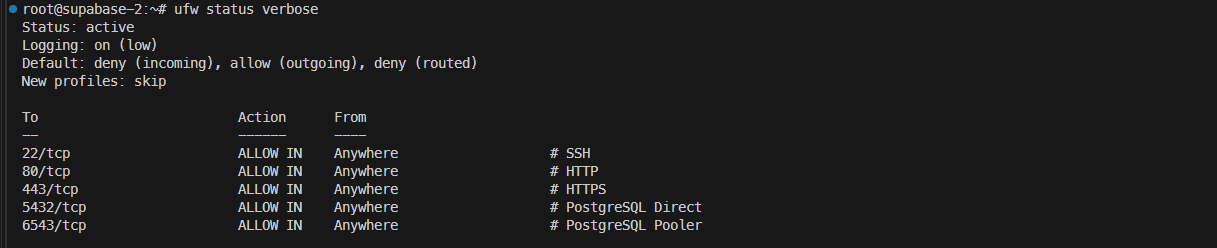
Verify the configuration:
ufw status verboseExpected output:
Step 7 - Deploy Supabase
Step 7.1 - Create the project
In Coolify:
- Click Add New Project
- Name it
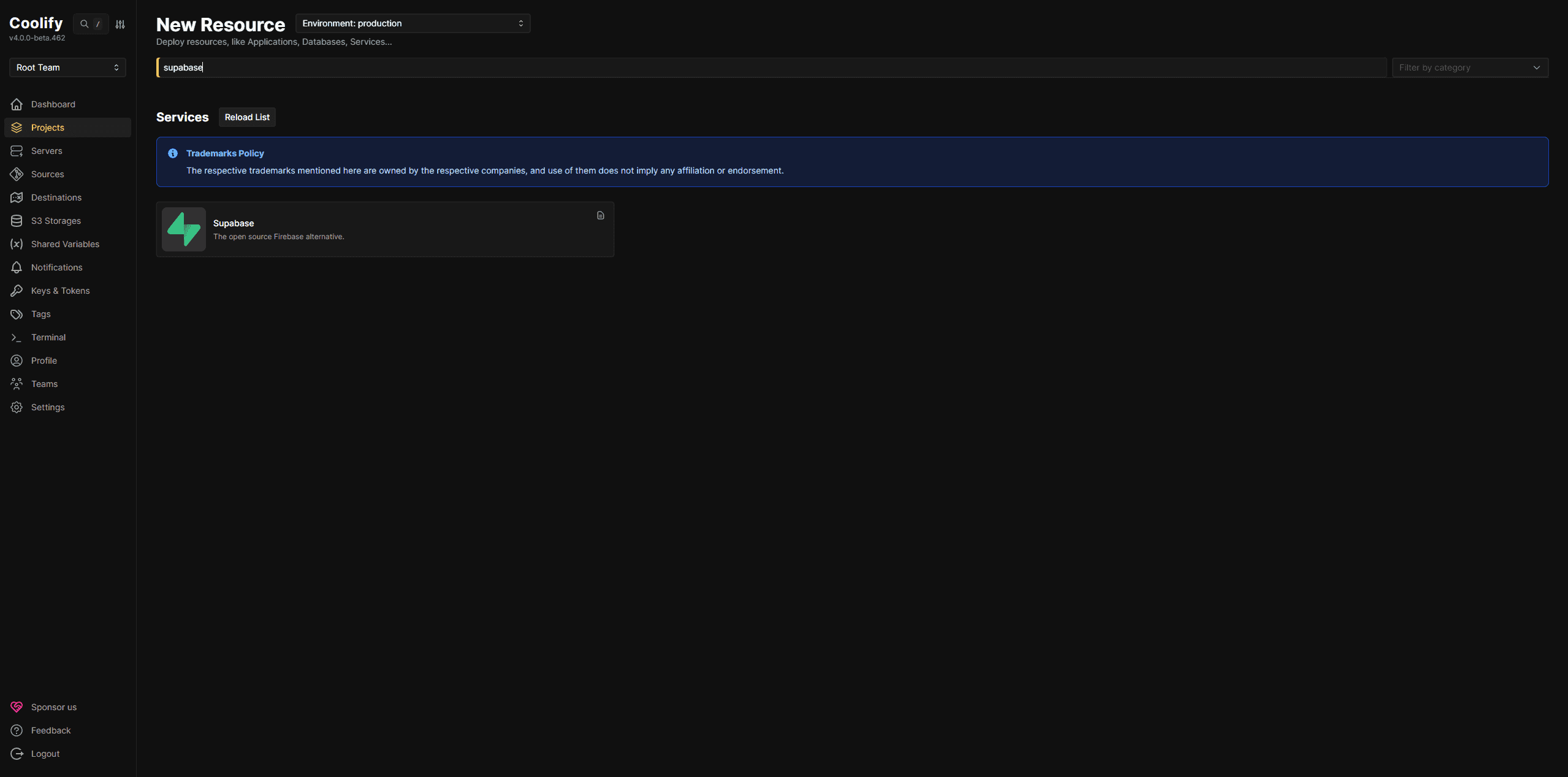
supabase-1 - Click Add New Resource → Services → Supabase template (Just search for "supabase")
Step 7.2 - Configure Kong domain
Generate another random string for the Kong subdomain:
openssl rand -hex 4Example output: qc2ru8yz
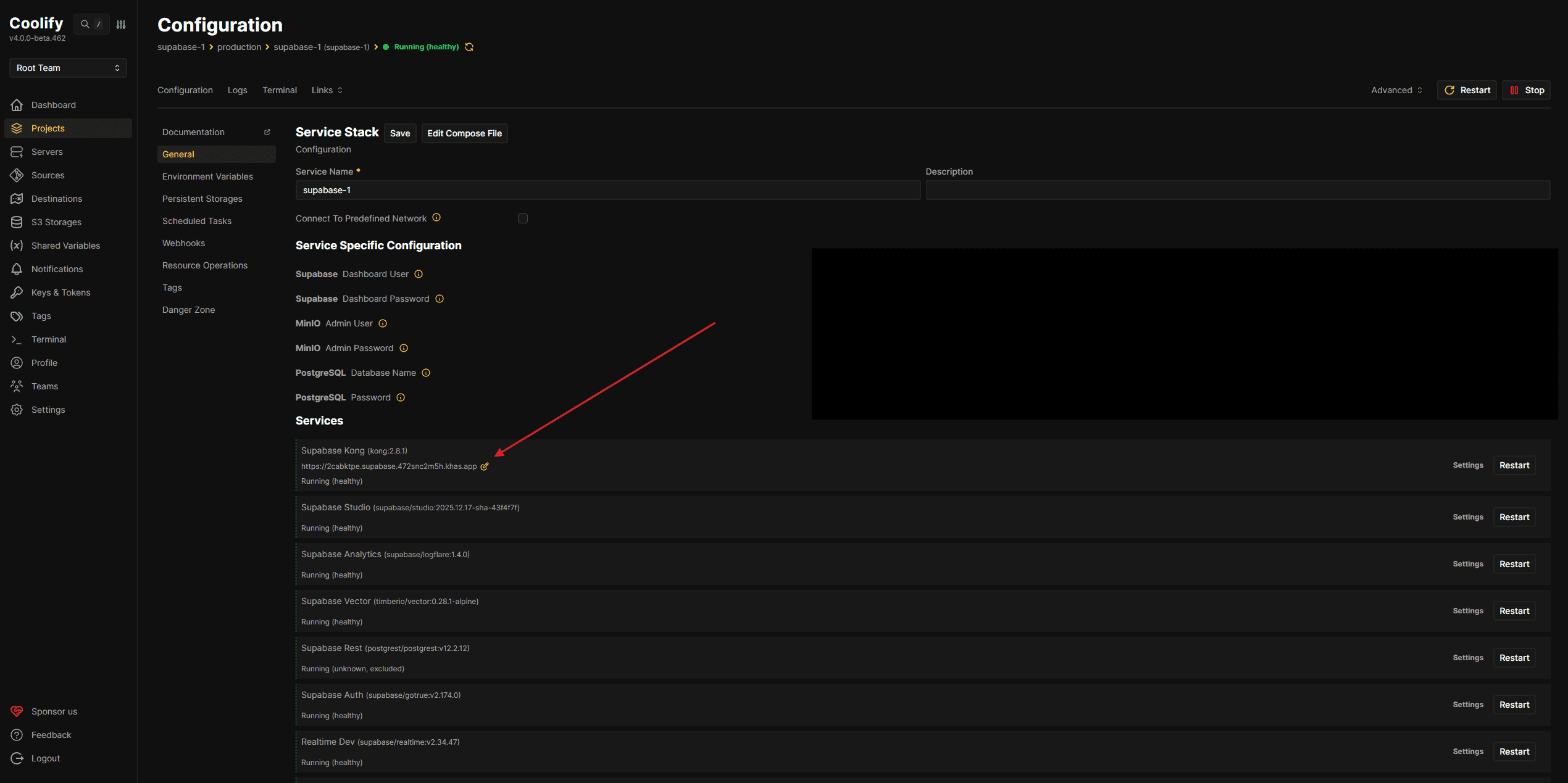
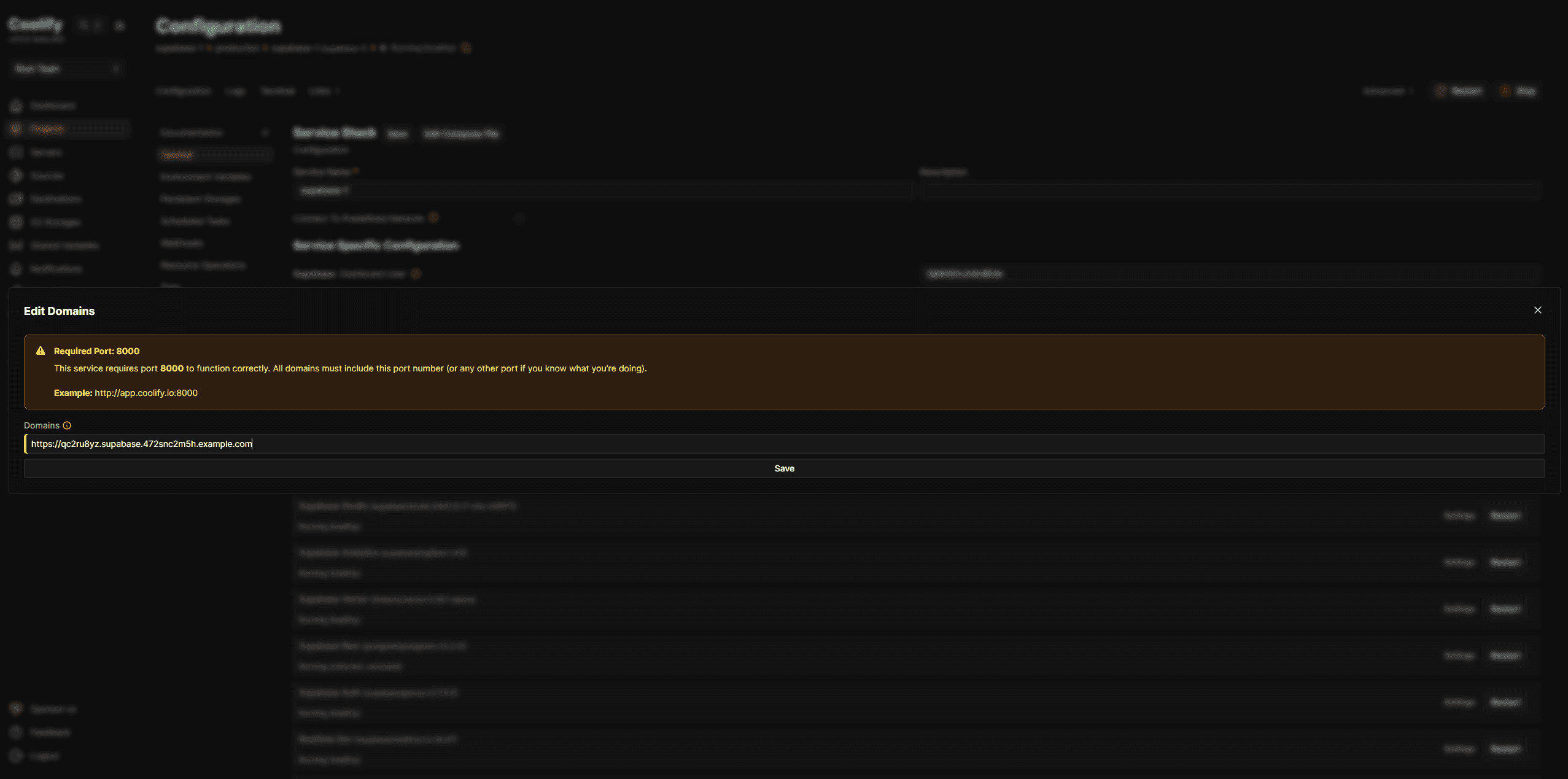
In Coolify, select the project "supabase-1" and navigate to the Supabase service overview, go to "General" » "Service Stack":
- Click on the supabase-kong service in the service stack
- In the Settings → General tab, find the Domains field
- Set the domain:
https://<kong-string>.supabase.<alphanumeric-string>.<your-domain.com>
Example: https://qc2ru8yz.supabase.472snc2m5h.example.com
|
|
Important: Configure the Kong domain before proceeding. This creates the
SERVICE_URL_SUPABASEKONGvariable that other services depend on.
Step 7.3 - Harden the Pooler Tenant ID
The Supabase connection pooler uses a tenant identifier that appears in all database connection strings. By default, this is dev_tenant, which is predictable.
Generate a random tenant ID:
openssl rand -base64 16 | tr -d '=' | tr '+/' '-_'Example output: Kx7mP9qR2sT4vW6y8zA1
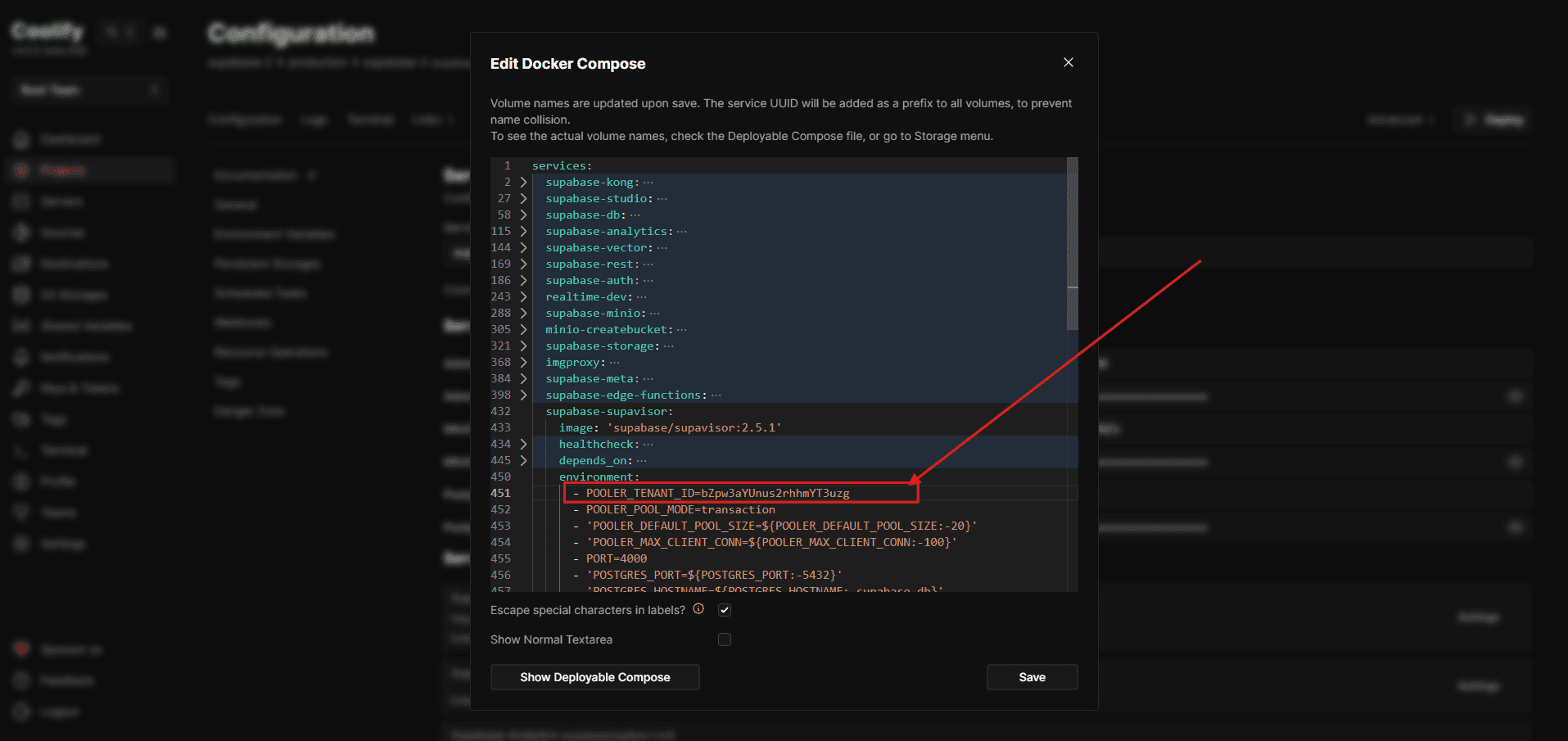
In Coolify, navigate to the Supabase service overview, go to "General" » "Service Stack" » "Edit Compose File", locate the supabase-supavisor service and update:
supabase-supavisor:
  environment:
- POOLER_TENANT_ID=Kx7mP9qR2sT4vW6y8zA1Important: This must be configured before initial deployment. Changing it later requires database migrations.
Step 7.4 - Expose PostgreSQL port
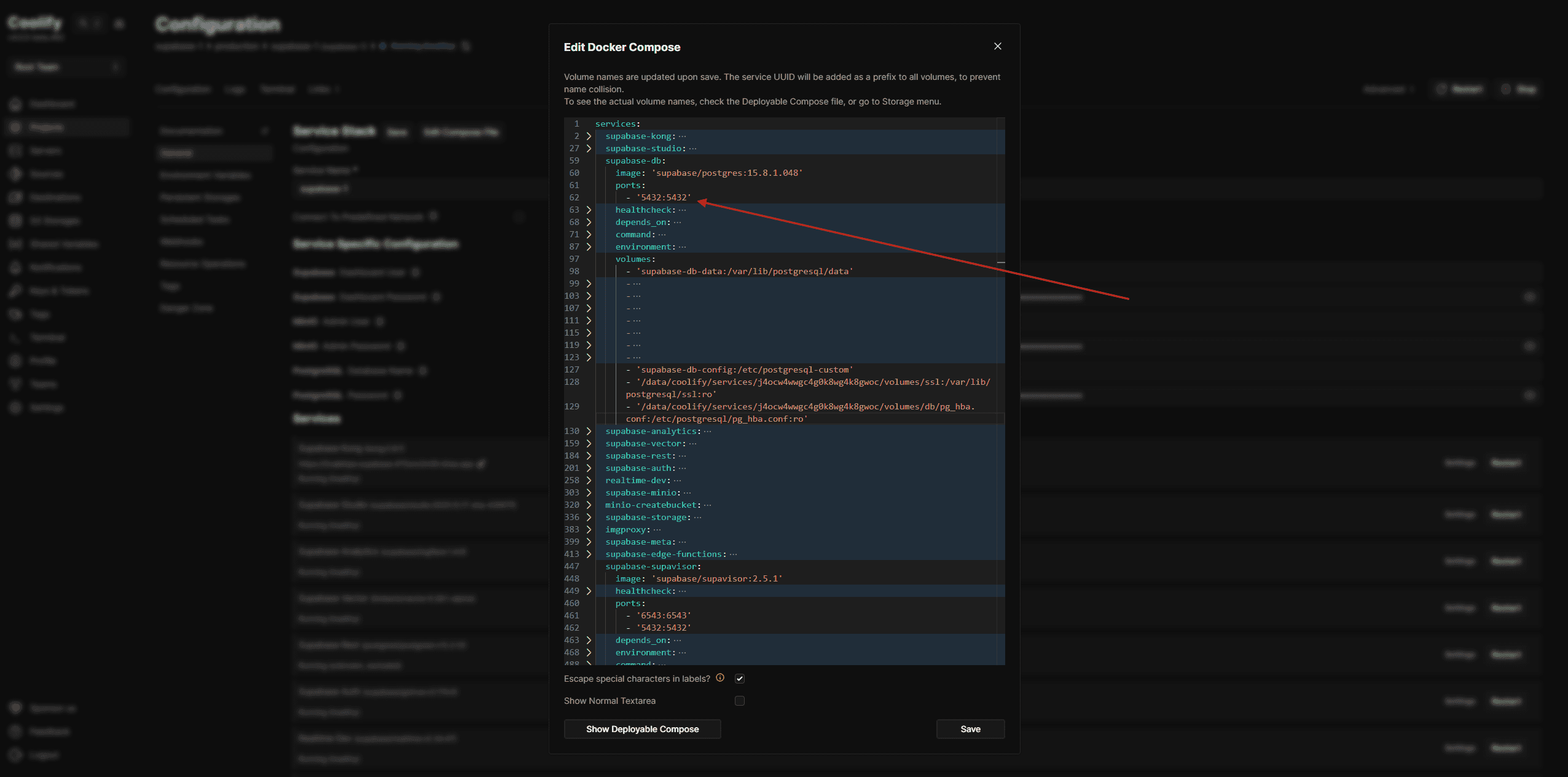
To allow direct database connections for testing and migrations, expose port 5432 in the Docker Compose file.
In Coolify → Edit Compose File, locate the supabase-db service and add the ports section:
supabase-db:
  image: "supabase/postgres:15.8.1.048"
  ports:
    - "5432:5432"
Step 7.5 - Add environment variables
In the Supabase service overview, go to "Environment Variables" in the left menu bar and update the following values:
# SMTP Configuration (for auth emails)
SMTP_ADMIN_EMAIL=admin@example.com
SMTP_HOST=mail.example.com
SMTP_PASS=<your-smtp-password>
SMTP_PORT=587
SMTP_SENDER_NAME=Supabase
SMTP_USER=admin@example.com

# Studio Configuration
STUDIO_DEFAULT_ORGANIZATION=My Organization
STUDIO_DEFAULT_PROJECT=My Project
Step 7.6 - Deploy
Click Deploy and wait for all services to start. This may take several minutes on first deployment.
Step 8 - Verify Deployment
Step 8.1 - Check service health
In Coolify, verify all services show as healthy:
- ✅ supabase-db
- ✅ supabase-kong
- ✅ supabase-auth
- ✅ supabase-rest
- ✅ supabase-realtime
- ✅ supabase-storage
- ✅ supabase-studio
- ✅ supabase-supavisor
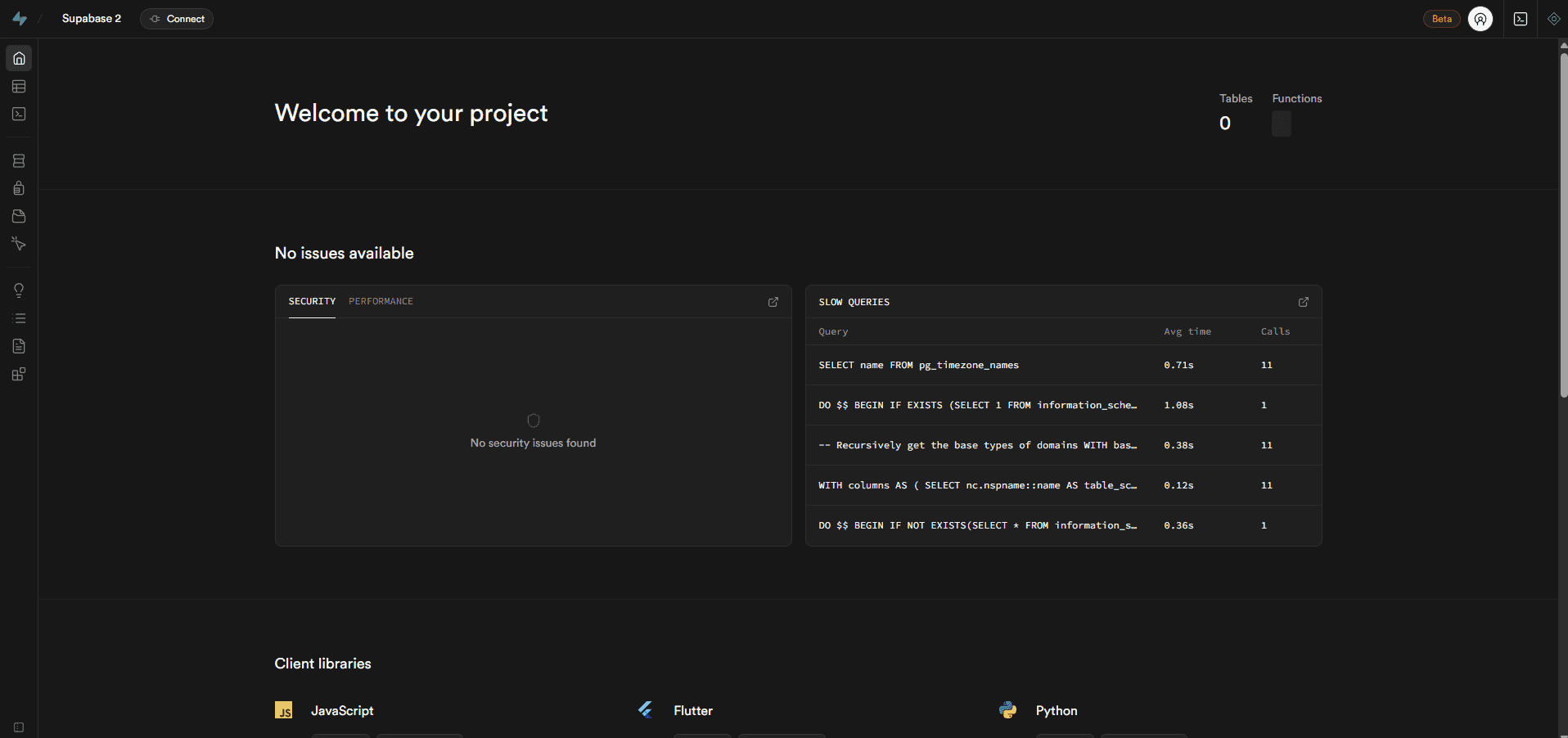
Step 8.2 - Access Supabase Studio
Open your browser and navigate to:
https://<kong-string>.supabase.<alphanumeric-string>.<your-domain.com>You should see the basic auth login prompt. Use the credentials from the Coolify "Supabase Dashboard User" and "Supabase Dashboard Password".:
Step 8.3 - Test database connection
With port 5432 exposed in Step 7.5 and allowed through UFW in Step 6, you can test the connection from your local machine:
psql "postgresql://postgres:<password>@supabase.<alphanumeric-string>.<your-domain.com>:5432/postgres"Replace <password> with your PostgreSQL password (from Coolify's generated secrets under SERVICE_PASSWORD_POSTGRES).
Security Warning: This connection is unencrypted and should only be used for initial testing. For production use, enable SSL by following the companion tutorial "Harden PostgreSQL SSL for Self-Hosted Supabase". After SSL hardening, you'll use the tenant ID prefix (e.g.,
postgres.<TENANT_ID>) in your connection strings for pooled connections.
Step 9 - Connection String Reference
After completing this tutorial, use these connection strings for your applications:
Important: The connection strings below are unencrypted. For production deployments, you should enable SSL by following "Harden PostgreSQL SSL for Self-Hosted Supabase". After SSL hardening, you'll use the tenant ID prefix in connection strings for pooled connections via Supavisor.
Direct connection (port 5432)
postgresql://postgres:[PASSWORD]@<domain>:5432/postgresPrisma example (.env file)
DIRECT_URL="postgresql://postgres:[PASSWORD]@<domain>:5432/postgres"Replace:
[PASSWORD]with your PostgreSQL password (from Coolify'sSERVICE_PASSWORD_POSTGRES)<domain>with your full domain (e.g.,supabase.472snc2m5h.example.com)
Conclusion
You now have a fully functional self-hosted Supabase instance running on Hetzner Cloud. The deployment includes:
- ✅ Secure HTTPS access with automatic SSL certificates
- ✅ Randomized subdomains for security through obscurity
- ✅ Custom tenant ID to prevent enumeration attacks
- ✅ UFW firewall with minimal open ports
- ✅ SSH hardening
Next steps
For production deployments, consider:
- SSL hardening: Enforce SSL for all database connections — see the companion tutorial "Harden PostgreSQL SSL for Self-Hosted Supabase"
- Intrusion detection: Add CrowdSec for automated threat detection — see "Protect Self-Hosted Services with CrowdSec and Traefik"
- Monitoring: Set up centralized logging and metrics — see "Centralized Security Monitoring with Prometheus and Grafana"
- Backups: Configure automated PostgreSQL backups (check Hetzner Snapshots or other solutions)