

Introduction
Large language models (LLMs) like Llama, Mistral, and Gemma are incredibly powerful, but using them through commercial APIs means sending your data to third parties. By self-hosting, you keep full control over your data while getting fast, private AI chats.
Libre WebUI is an open-source, local-first AI workspace licensed under Apache 2.0, with zero telemetry and no CLA. Sensitive data (chat history, documents, notes, credentials) is encrypted at rest with AES-256-GCM. This tutorial sets up the core workspace: chat with local models through Ollama, document search (RAG) over your own files, interactive artifacts, custom personas, notes, sandboxed coding workspaces (Work), and multi-user access with an admin account. Optional features such as image generation, text-to-speech, and single sign-on can be added later.
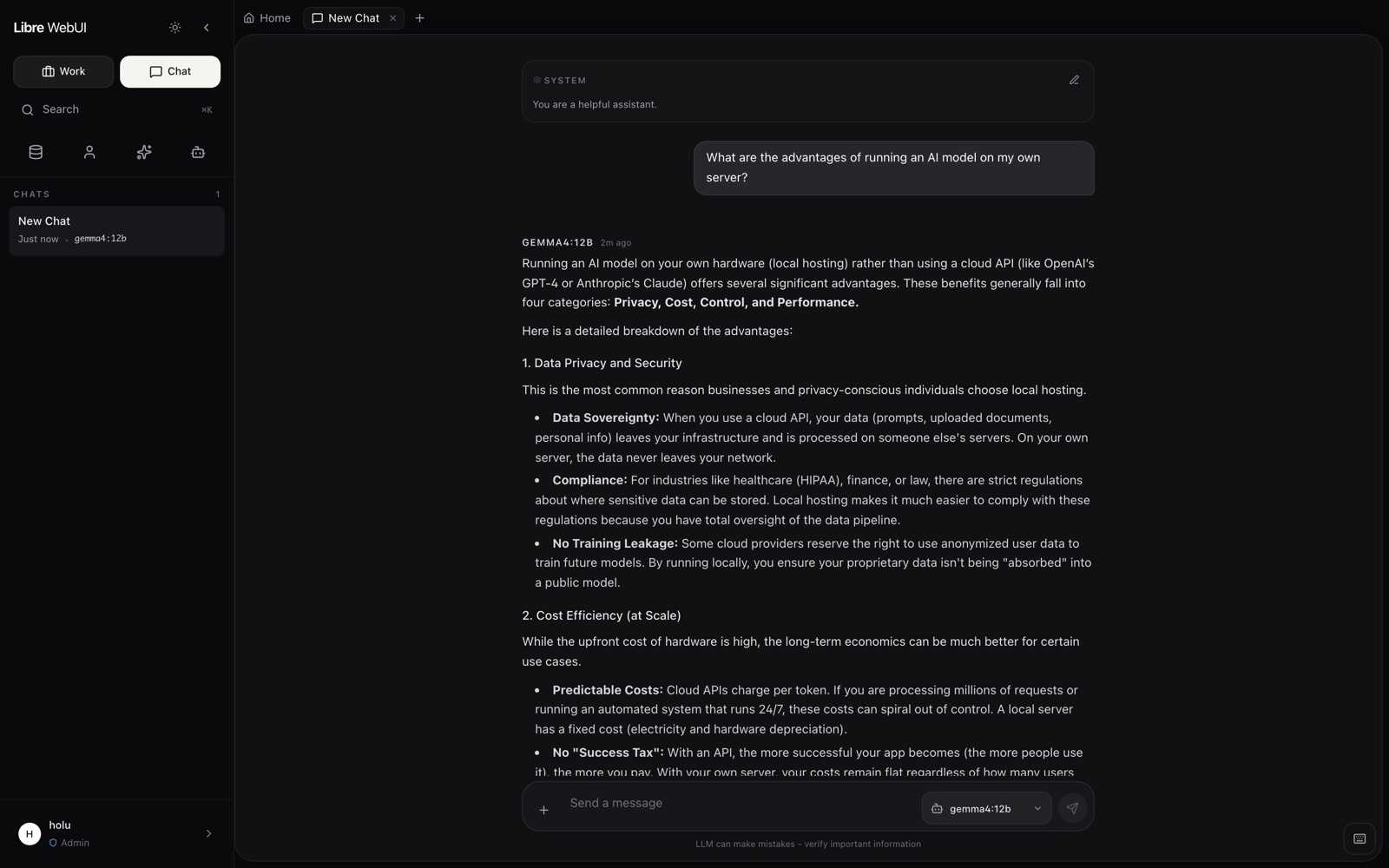
In this tutorial, you will deploy Libre WebUI alongside Ollama on a GPU dedicated server. By the end, you will have a GPU-accelerated AI workspace accessible from your browser, with all data staying on EU infrastructure.
What you'll set up:
- Ollama running LLMs with CUDA GPU acceleration
- Libre WebUI providing a full AI workspace in your browser: chat, document search, artifacts, and sandboxed Work tasks
- Everything containerized with Docker for easy management
- Optional: HTTPS with a reverse proxy for secure remote access
Choosing a Hetzner GPU server
At the time of writing (early 2026), Hetzner offers two GPU dedicated server lines, both located in their German data centers (Falkenstein / Nuremberg) and powered by 100% green electricity:
| Server | GPU | vRAM | RAM | CPU | Use case |
|---|---|---|---|---|---|
| GEX45 | NVIDIA RTX PRO™ 4000 Blackwell SFF | 24 GB GDDR7 | 64 GB | Intel® i5-13500 | Running 7B-14B parameter models comfortably |
| GEX131 | NVIDIA RTX PRO™ 6000 Blackwell Max-Q | 96 GB GDDR7 | 256 GB DDR5 ECC | Intel® Xeon® Gold 5412U | Running 70B+ parameter models, fine-tuning |
This tutorial uses the GEX45 as the baseline - it is the most affordable option and has enough VRAM to run popular models like Gemma 3 12B, Phi 4 14B, and Mistral Small 24B. If you need to run larger models (e.g., Llama 3.3 70B), choose the GEX131 with its 96 GB of VRAM.
Prerequisites
- A GPU Dedicated Server, e.g. with Hetzner (GEX45 or GEX131)
- Ubuntu 24.04 installed, e.g. via the Hetzner Robot panel
- An SSH key added to your server
- A domain name pointed at your server (optional, for HTTPS access)
- Basic familiarity with the Linux command line
Example terminology
- Username:
holu - Hostname:
<your_host> - Domain:
<example.com> - Server IP:
<10.0.0.1>
Step 1 - Connect to Your Server and Create a User
It is best practice to avoid running services as root. In this step, you will create a dedicated non-root user with sudo privileges that you will use for the rest of the tutorial.
SSH into your server as root using the IP address shown in your Hetzner Robot panel:
ssh root@<10.0.0.1>Create a new user called holu. The adduser command will prompt you for a password and optional user details:
adduser holuGrant the new user sudo privileges by adding it to the sudo group. This allows holu to run administrative commands with sudo:
usermod -aG sudo holuCopy your SSH key to the new user's home directory so you can log in without a password. The authorized_keys file contains the public keys that are allowed to authenticate:
rsync --archive --chown=holu:holu ~/.ssh /home/holuLog out and reconnect as holu:
ssh holu@<10.0.0.1>From this point on, all commands will be run as holu.
Step 2 - Install NVIDIA Drivers
Before Docker can use the GPU, the NVIDIA driver must be installed on the host operating system. The driver provides the low-level interface between Linux and the GPU hardware.
Update the package index and upgrade any existing packages to ensure you are starting from a clean, up-to-date system:
sudo apt update && sudo apt upgrade -yInstall the NVIDIA driver. The nvidia-driver-580 package includes the kernel module that communicates with the GPU, and nvidia-utils-580 provides command-line utilities like nvidia-smi for monitoring GPU status:
sudo apt install -y nvidia-driver-580 nvidia-utils-580Note: The driver version (580) is current as of February 2026 for Ubuntu 24.04. If your server ships with a newer GPU or Ubuntu version, check the NVIDIA driver downloads page for the recommended version.
Reboot the server to load the newly installed kernel module:
sudo rebootAfter the server comes back up (usually within 30 seconds), reconnect via SSH and verify that the driver is loaded and the GPU is detected:
ssh holu@<10.0.0.1>
nvidia-smi
You should see a table showing your GPU model (e.g., "NVIDIA RTX 4000 SFF Ada Generation"), the driver version, the CUDA version, temperature, and memory usage. If nvidia-smi returns command not found or an error about the driver, the installation did not complete successfully - check the NVIDIA driver troubleshooting docs before continuing.
Step 3 - Install Docker and the NVIDIA Container Toolkit
Docker will run both Libre WebUI and Ollama as isolated containers. The NVIDIA Container Toolkit is a separate component that allows Docker containers to access the host GPU - without it, containers cannot use CUDA.
Step 3.1 - Install Docker
Install Docker Engine as explained in the official documentation or by using the official convenience script. This script detects your distribution and configures the Docker apt repository automatically:
curl -fsSL https://get.docker.com | sudo shAdd your user to the docker group so you can run Docker commands without sudo. Without this, every docker command would require root privileges:
sudo usermod -aG docker holuLog out and reconnect for the group membership change to take effect. Linux only evaluates group memberships at login time:
exit
ssh holu@<10.0.0.1>
Verify Docker is working by running a test container. The hello-world image prints a confirmation message and exits:
docker run --rm hello-worldIf you see "Hello from Docker!", Docker is installed correctly.
Step 3.2 - Install the NVIDIA Container Toolkit
The NVIDIA Container Toolkit consists of a runtime hook and a set of libraries that expose the host GPU to Docker containers. Without it, the --gpus flag and the deploy.resources section in Docker Compose will not work.
First, add NVIDIA's package signing key and repository. The GPG key ensures that packages are authentic, and the repository provides the toolkit packages:
curl -fsSL https://nvidia.github.io/libnvidia-container/gpgkey | sudo gpg --dearmor -o /usr/share/keyrings/nvidia-container-toolkit-keyring.gpg

curl -s -L https://nvidia.github.io/libnvidia-container/stable/deb/nvidia-container-toolkit.list | \
  sed 's#deb https://#deb [signed-by=/usr/share/keyrings/nvidia-container-toolkit-keyring.gpg] https://#g' | \
  sudo tee /etc/apt/sources.list.d/nvidia-container-toolkit.list
Update the package index to include the new repository, then install the toolkit:
sudo apt update
sudo apt install -y nvidia-container-toolkit
Configure the Docker daemon to use the NVIDIA container runtime. This command modifies /etc/docker/daemon.json to register the NVIDIA runtime:
sudo nvidia-ctk runtime configure --runtime=dockerRestart Docker to apply the new configuration:
sudo systemctl restart dockerStep 3.3 - Verify GPU Access from Docker
Run a minimal CUDA container to confirm that Docker can see the GPU. This pulls a small NVIDIA base image and runs nvidia-smi inside the container:
docker run --rm --gpus all nvidia/cuda:12.6.0-base-ubuntu24.04 nvidia-smiYou should see the same GPU information as when you ran nvidia-smi on the host in Step 2. If you see an error like could not select device driver, the NVIDIA Container Toolkit was not configured correctly - re-run the nvidia-ctk runtime configure command and restart Docker.
Step 4 - Deploy Libre WebUI with Ollama
Now that Docker can access the GPU, you will deploy two containers:
- Ollama - the model inference server that loads and runs LLMs on the GPU
- Libre WebUI - the web-based chat interface that connects to Ollama
Both are defined in a single Docker Compose file for easy management.
Create a directory for the deployment and navigate into it:
mkdir -p ~/libre-webui && cd ~/libre-webuiCreate the Docker Compose configuration file:
nano docker-compose.ymlPaste the following configuration:
Replace
<10.0.0.1>with your actual server IP.
services:
  libre-webui:
    image: librewebui/libre-webui:latest
    container_name: libre-webui
    ports:
      - "8080:3001"
    environment:
      - NODE_ENV=production
      - DOCKER_ENV=true
      - PORT=3001
      - OLLAMA_BASE_URL=http://ollama:11434
      - CORS_ORIGIN=http://<10.0.0.1>:8080
      - BASE_URL=http://<10.0.0.1>:8080
      - JWT_SECRET=${JWT_SECRET:-}
      - ENCRYPTION_KEY=${ENCRYPTION_KEY:-}
    volumes:
      - libre_webui_data:/app/backend/data
      - libre_webui_temp:/app/backend/temp
      - /var/run/docker.sock:/var/run/docker.sock
    group_add:
      - "${DOCKER_GID:-0}"
    depends_on:
      - ollama
    restart: unless-stopped

  ollama:
    image: ollama/ollama:latest
    container_name: ollama
    volumes:
      - ollama_data:/root/.ollama
    deploy:
      resources:
        reservations:
          devices:
            - driver: nvidia
              count: all
              capabilities: [gpu]
    restart: unless-stopped

volumes:
  libre_webui_data:
  libre_webui_temp:
  ollama_data:
Here is what each key section does:
ports: "8080:3001"- Maps port 8080 on the host to port 3001 inside the Libre WebUI container. You will access the UI athttp://<10.0.0.1>:8080.OLLAMA_BASE_URL=http://ollama:11434- Tells Libre WebUI where to find Ollama. Docker Compose creates an internal network where containers can reach each other by service name (ollama).CORS_ORIGINandBASE_URL- Both must match the URL you use to access the UI in your browser. If they do not match, the page still loads but real-time features such as chat streaming are blocked. Update both if you add a domain name later.JWT_SECRETandENCRYPTION_KEY- Used for session tokens and AES-256-GCM data encryption. You will generate both in a moment. Setting them explicitly is the documented production practice; without a fixedJWT_SECRET, a new secret is generated on every start and all users are logged out whenever the container restarts./var/run/docker.sockandgroup_add- Enable Work, Libre WebUI's sandboxed coding workspaces (Step 6). The Docker socket lets the app create isolated task containers. This grants the application - and therefore every Libre WebUI administrator - control over the Docker host, which is why this tutorial keeps a single administrator account and no self-service registration. Remove the socket line if you do not want Work; everything else keeps working.deploy.resources.reservations.devices- This is the GPU passthrough configuration. It tells Docker to reserve all available NVIDIA GPUs (count: all) and expose them to the Ollama container with CUDA capabilities.- Ollama has no
portsentry - It stays private to the Compose network, so the unauthenticated inference API is not reachable from the internet. Libre WebUI talks to it internally, and you pull models withdocker exec. volumes- Named Docker volumes persist data across container restarts and upgrades.libre_webui_datastores the encrypted SQLite database,libre_webui_tempis reserved for temporary files, andollama_datastores downloaded model weights.
Save the file (Ctrl+O, then Enter, then Ctrl+X in nano).
Next, generate the secrets in a .env file, which Docker Compose reads automatically from the same directory:
{
  echo "JWT_SECRET=$(openssl rand -hex 32)"
  echo "ENCRYPTION_KEY=$(openssl rand -hex 32)"
  echo "DOCKER_GID=$(docker run --rm -v /var/run/docker.sock:/var/run/docker.sock alpine stat -c '%g' /var/run/docker.sock)"
} > .envJWT_SECRETkeeps users logged in across container restarts and upgrades.ENCRYPTION_KEYmust be exactly 64 hexadecimal characters (32 bytes) -openssl rand -hex 32produces that. Back up the.envfile together with the data volume: without the key, the encrypted data cannot be read.DOCKER_GIDis the group that owns the Docker socket, read from inside a container so the value is correct for the container user. Work needs it to access the socket.
Now start both services in detached mode:
docker compose up -dDocker will pull the images (this may take a few minutes on first run) and start both containers. Check that they are running:
docker compose psYou should see both libre-webui and ollama with a status of Up. If either container shows Restarting or Exited, check its logs:
docker compose logs libre-webui
docker compose logs ollama
Step 5 - Pull a Model and Start Chatting
Ollama does not include any models by default - you need to download them. Models are stored in the ollama_data volume and persist across container restarts.
Pull Gemma 4 12B, Google's latest open model with vision and tool-calling support, making it an excellent starting point for the GEX45's 24 GB of VRAM:
docker exec ollama ollama pull gemma4:12bThe docker exec command runs a command inside the already-running ollama container. This downloads the model weights (around 7.6 GB) from the Ollama model registry. The RTX 4000 SFF Ada's 20 GB of VRAM can hold this model entirely in GPU memory, which means inference runs at full speed without swapping to system RAM.
Once the download completes, open your browser and navigate to:
http://<10.0.0.1>:8080On first launch, Libre WebUI greets you with a short setup wizard that asks you to create the administrator account. Do this right away: until the first account exists, anyone who can reach port 8080 can claim it. Set a strong password and keep the credentials safe. Your instance stays private by default: anyone who signs up after that is placed in a pending state and cannot log in until you approve them in the admin user management panel. To turn public registration off entirely once your admin account exists, add - ENABLE_SIGNUP=false to the environment section and run docker compose up -d again. (Do not set it before the first launch - it also blocks the setup wizard.)
After signing in, select gemma4:12b from the model selector in the message box and send a message. Responses should be noticeably fast thanks to GPU acceleration.
You can pull additional models at any time. Here are some recommended models for each GPU tier:
GEX45 (24 GB VRAM) - these all fit in GPU memory:
docker exec ollama ollama pull gemma4:12b         # 7.6 GB - Google's latest open model (vision + tools)
docker exec ollama ollama pull gemma4:e4b         # 9.6 GB - Gemma 4 with audio understanding
docker exec ollama ollama pull mistral-small:24b  # 14 GB  - Mistral's mid-size all-rounder (tools)
docker exec ollama ollama pull qwen3-coder:30b    # 19 GB  - agentic coding specialist (MoE)
GEX131 (96 GB VRAM) - large models that require significantly more memory:
docker exec ollama ollama pull llama4:scout       # 67 GB - Meta's multimodal MoE flagship
docker exec ollama ollama pull gpt-oss:120b       # 65 GB - OpenAI's open-weight reasoning model
docker exec ollama ollama pull deepseek-r1:70b    # 43 GB - advanced chain-of-thought reasoning
All pulled models appear in the Libre WebUI model selector automatically. Ollama loads and unloads models from VRAM on demand, so you can have many models downloaded even if they don't all fit in memory at once.
Browse the full list of available models at ollama.com/library.
Document search (RAG): to get semantic search over documents you upload, also pull the embedding model and then enable embeddings in the Libre WebUI settings:
docker exec ollama ollama pull nomic-embed-textWithout an embedding model, document search silently falls back to plain keyword matching.
A note on quantization: The model sizes listed above are for the default quantization (usually Q4_K_M). Quantization is a compression technique that reduces model file size and VRAM usage by representing weights with fewer bits (e.g., 4-bit instead of 16-bit). Lower quantization means smaller files and faster inference, but slightly reduced quality. Ollama handles this automatically, so you do not need to configure anything. For most use cases, the default quantization offers an excellent balance between quality and performance.
Running models larger than your VRAM: You are not limited to models that fit entirely in GPU memory. When a model exceeds the available VRAM, Ollama automatically splits the model layers between the GPU and system RAM. The layers that fit in VRAM run on the GPU at full speed, while the remaining layers are offloaded to RAM and processed on the CPU. This means you can run a 14 GB model like mistral-small:24b on the GEX45's 24 GB VRAM entirely on the GPU, but you could also run a 43 GB model like deepseek-r1:70b by offloading the extra layers to the GEX45's 64 GB of system RAM. Performance will be slower compared to fully GPU-accelerated inference, but still significantly faster than CPU-only. The GEX131 with its 256 GB of DDR5 RAM is particularly well-suited for running oversized models with partial GPU offloading.
Pulling models from Hugging Face: Libre WebUI also includes a built-in integration with Hugging Face Hub, giving you access to over 1 million models. You can pull GGUF-format models (the quantized format used by Ollama and llama.cpp) directly from Hugging Face through the models page in Libre WebUI, without using the command line. This is useful for finding specialized or community fine-tuned models that are not listed in the Ollama library.
Step 6 - Run Sandboxed Coding Tasks with Work
Work is Libre WebUI's built-in coding-agent surface. Each Work task gives the selected model its own persistent /workspace inside a dedicated, hardened Docker container: it runs as a non-root user with a read-only root filesystem, all Linux capabilities dropped, and CPU, memory, and process limits applied. The model can create and edit files, run commands, and start a browser preview of a generated web app - all inside that sandbox, never on your host directly.
Because the Compose file from Step 4 already mounts the Docker socket and sets DOCKER_GID, Work is ready to use. Two things to know:
- Work is admin-only. Only administrator accounts see and can use it - another reason to keep registration disabled on a public server.
- Work needs a model that supports tool calling.
gemma4does, so thegemma4:12byou pulled in Step 5 works out of the box. For heavier coding tasks,qwen3-coder:30bfrom the Step 5 list is a strong dedicated choice, and on the GEX131,llama4:scoutandgpt-oss:120balso support tools.
Select Work next to Chat in the sidebar, choose the model, and describe a task - for example, "Create a small landing page for a bakery and start a preview". The Files, Activity, Git, Terminal, and Preview tabs let you inspect everything the model does inside the sandbox. Task files persist in a dedicated Docker volume until you delete the task.
If you do not want Work at all, remove the /var/run/docker.sock line from docker-compose.yml and run docker compose up -d again - the Work page will report the runtime as unavailable, and everything else keeps working.
Step 7 - Set Up HTTPS with Caddy (Optional)
If you want to access your AI chat securely over the internet with a domain name, you can place a reverse proxy in front of Libre WebUI. This step uses Caddy, which automatically obtains and renews TLS certificates from Let's Encrypt with zero configuration.
Before proceeding, make sure your domain's DNS A record points to your server's IP address (<10.0.0.1>).
Install Caddy by adding its official repository and installing the package:
sudo apt install -y debian-keyring debian-archive-keyring apt-transport-https
curl -1sLf 'https://dl.cloudsmith.io/public/caddy/stable/gpg.key' | sudo gpg --dearmor -o /usr/share/keyrings/caddy-stable-archive-keyring.gpg
curl -1sLf 'https://dl.cloudsmith.io/public/caddy/stable/debian.deb.txt' | sudo tee /etc/apt/sources.list.d/caddy-stable.list
sudo apt update
sudo apt install caddy
Edit the Caddyfile, which is Caddy's configuration file:
sudo nano /etc/caddy/CaddyfileReplace the entire contents with the following. Caddy uses the domain name to automatically request a TLS certificate from Let's Encrypt:
<example.com> {
    reverse_proxy localhost:8080
}
Save and restart Caddy to apply the configuration:
sudo systemctl restart caddyCaddy will automatically obtain a TLS certificate for your domain. This may take a few seconds on the first request.
Now update CORS_ORIGIN and BASE_URL in your docker-compose.yml to match the HTTPS domain. This is required because Libre WebUI validates the origin of incoming requests - with a stale value, the page still loads but chat streaming fails:
cd ~/libre-webui
nano docker-compose.yml
Change the two lines to:
- CORS_ORIGIN=https://<example.com>
- BASE_URL=https://<example.com>
Restart Libre WebUI to apply the change:
docker compose up -dYour AI chat is now accessible at https://<example.com> with automatic HTTPS. Caddy will renew the certificate automatically before it expires.
Step 8 - Verify GPU Utilization (Optional)
To confirm that Ollama is actually using the GPU for inference (rather than falling back to CPU), send a message in the Libre WebUI chat and immediately check the GPU status.
While a response is being generated, run:
nvidia-smiLook at the "Processes" section at the bottom of the output. You should see a process with the name ollama or ollama_llama_server using a significant amount of GPU memory (several gigabytes, depending on the model). This confirms that the model is loaded in VRAM and inference is running on the GPU.
You can also monitor GPU usage in real time with the watch command, which refreshes the output every second:
watch -n 1 nvidia-smiPress Ctrl+C to stop watching.
If you do not see the Ollama process in the GPU list, check the Ollama container logs for errors related to CUDA:
docker compose logs ollama | grep -i cudaConclusion
You now have a private, GPU-accelerated AI chat interface running on your server. Libre WebUI gives you a polished chat experience with AES-256-GCM encrypted storage, while Ollama handles running the models locally with full CUDA acceleration. Your conversations never leave your server.
Because Hetzner's data centers are located in Germany and Finland, this setup is inherently GDPR-compliant - your AI infrastructure runs entirely within the EU, with no data sent to third-party cloud providers. This makes it suitable for organizations handling sensitive data across industries like healthcare, legal, and finance, regardless of where their users are located.
What you accomplished:
- Installed NVIDIA drivers and the NVIDIA Container Toolkit
- Deployed Ollama with GPU passthrough via Docker
- Deployed Libre WebUI connected to Ollama with encrypted data storage
- Ran sandboxed coding tasks with Work
- Optionally secured everything with HTTPS via Caddy
Next steps:
- Explore Libre WebUI's features - document chat (RAG), personas, artifacts, and more
- Try larger models - upgrade to the GEX131 (96 GB VRAM) to run
llama4:scoutand beyond - Connect cloud providers (OpenAI, Anthropic, Mistral AI) alongside Ollama for a unified interface
- For GDPR-compliant managed AI infrastructure, Kroonen AI delivers turnkey deployments for organizations worldwide - including custom model fine-tuning, SLA-backed support, and air-gapped installations