

Introduction
This tutorial shows how to deploy Qrvpn on a Rocky Linux VPS using Docker, and how to connect to it from Windows client.
Qrvpn is developed by VentoByte the team behind the Proxifier.
Qrvpn is based on the industry-leading WireGuard VPN protocol. It provides the optimal performance and the state-of-the-art end-to-end encryption of the data in transit. No data is stored.
Prerequisites
Before you begin, you need:
- A VPS running Rocky Linux 10
rootorsudoaccess- A public IPv4 address
How Qrvpn Works
This section explains why Qrvpn does not require open ports.
High-level Architecture
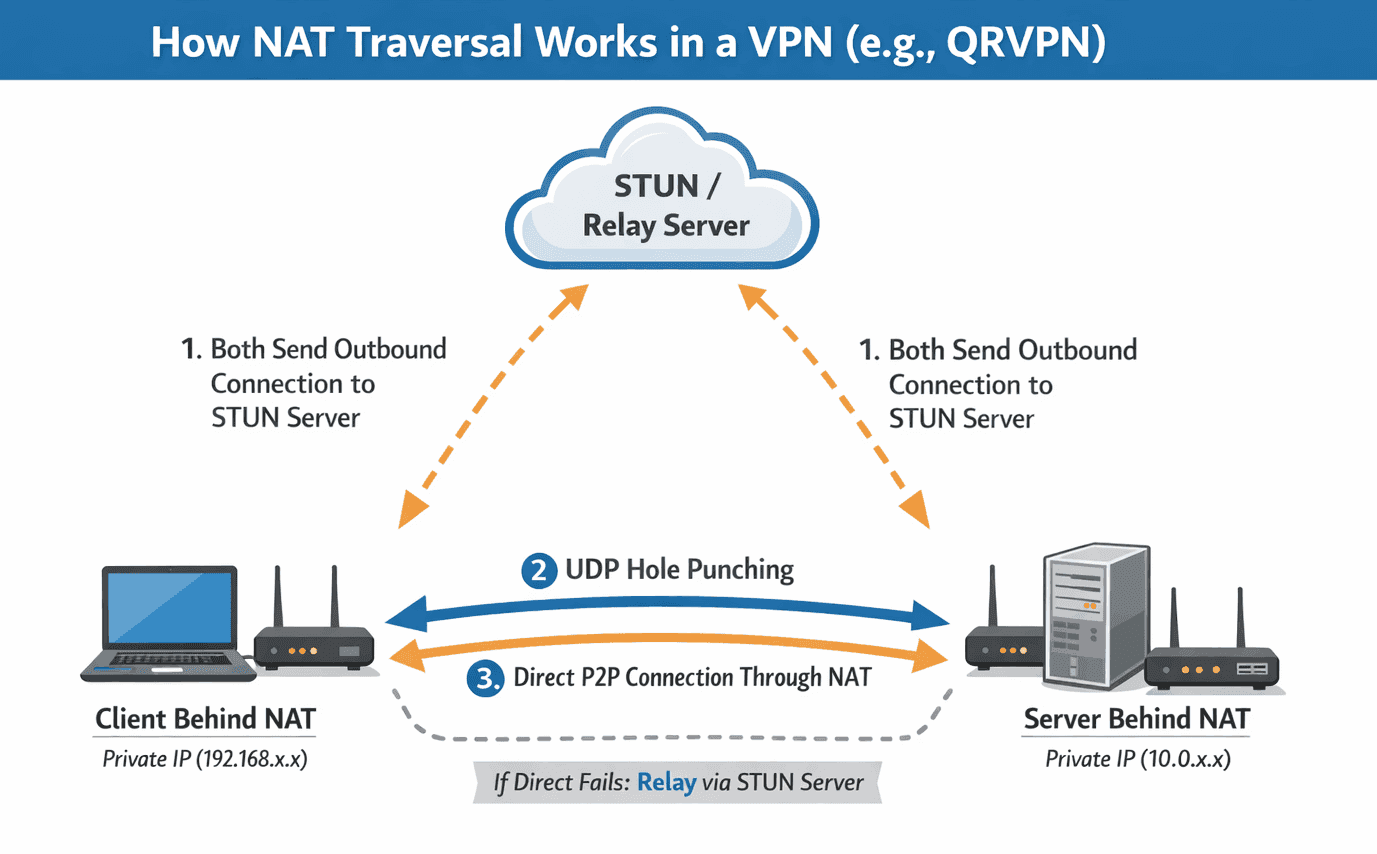
Qrvpn uses an outbound-only connection model combined with NAT traversal and encrypted relays. Neither the server nor the client ever listens for inbound connections.
Important details:
- Traffic remains end-to-end encrypted.
- The relay cannot inspect payloads.
- No open ports.
Connection Flow
| Server Registration |
When the Qrvpn server starts:
Because the connection is outbound, it works behind NAT and Firewalls. As a result:
|
| Client Authentication |
When a client connects:
Still no inbound traffic is required. |
| NAT Traversal (Direct Tunnel) |
Qrvpn attempts to establish a direct peer-to-peer tunnel using NAT traversal techniques (similar to WebRTC): If successful:
|
Step 1 - Install Docker on Rocky Linux
I purchased a Rocky Linux 10 VPS instance on Hetzner Cloud.
You need to install Docker on your Rocky Linux instance. If you are using a different Linux distribution, follow the steps provided on the official Docker website.
# Update your instance
dnf -y update

# Install useful packages
dnf -y install \
	epel-release \
	bash-completion

# Reboot your Linux instance
reboot
# Add the Docker repository
dnf config-manager \
--add-repo \
https://download.docker.com/linux/centos/docker-ce.repo
# Install Docker Engine
dnf -y install \
docker-ce \
docker-ce-cli \
containerd.io \
docker-compose-plugin
# Enable and start Docker service
systemctl --now enable docker
# Verify installation
docker versionStep 2 - Build the Docker image
After installing Docker, we have to create our Docker image. As you may know, Docker images are immutable, which means they can't be modified once created.
# Create project directory
mkdir /etc/qrvpn

# Change the current working directory
cd /etc/qrvpn

# Create Dockerfile with vim editor
vi Dockerfile
This is our Dockerfile config file and instructions about how Docker should build the image.
Dockerfile
# Use Rocky Linux as the base image
FROM rockylinux/rockylinux:10

# Qrvpn runtime environment
ENV PATH=$PATH:/etc/qr
WORKDIR /etc/qr

RUN \
	curl -O "https://get.qrvpn.com/qrvpn.tgz" && \
	tar -zxvf qrvpn.tgz && \
	rm -rf qrvpn.tgz

# Specify the start point of your image
ENTRYPOINT ["sh", "-c", "qrvpn $QR_MODE $QR_SERVER_NAME $QR_PASSWORD $QR_INSTANCE_ID"]
It's time to build the new image.
# Build
docker build --rm -t qrvpn:1.0 --file Dockerfile ./

# Check Docker images on your Linux machine
docker image list --all
Step 3 - Run the Docker container
You must specify 4 environment variables in order to start Qrvpn.
# QR_MODE         -->  "server" or "client"
# QR_SERVER_NAME  -->  a random string
# QR_PASSWORD     -->  server password
# QR_INSTANCE_ID  -->  a 6-digit number
# Start the container
docker run -d \
--name=c_qrvpn \
--restart always \
--cap-add NET_ADMIN \
--device /dev/net/tun \
--sysctl net.ipv4.conf.all.src_valid_mark=1 \
-e QR_MODE=server \
-e QR_SERVER_NAME=my_server \
-e QR_PASSWORD=strong_password \
-e QR_INSTANCE_ID=333999 \
qrvpn:1.0# Check logs
docker logs c_qrvpnIf you see an error like the one below, change the QR_SERVER_NAME.
# [E] Server with this name already exists.If the server runs successfully, you should see log output similar to the following:
# [M] Initialization started
# [M] VPN interface opened tun0
# [M] VPN interface initialized
# [M] Server ready
Step 4 - Connect from Windows
Step 4.1 - Download the Qrvpn Client
Download the Windows client from the official Qrvpn website.
Step 4.2 - Client section
-
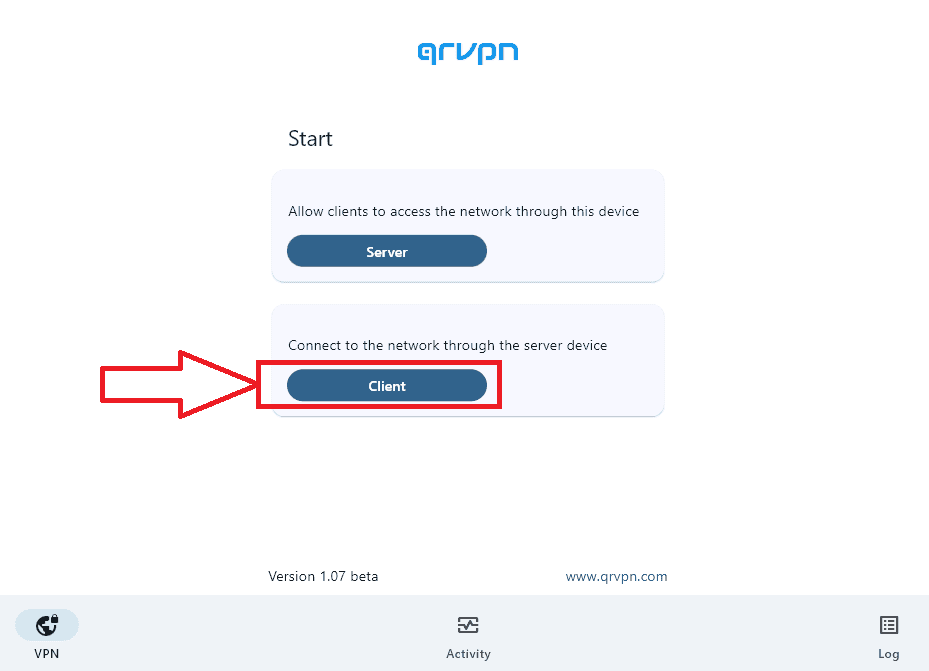
Open the Qrvpn client.
-
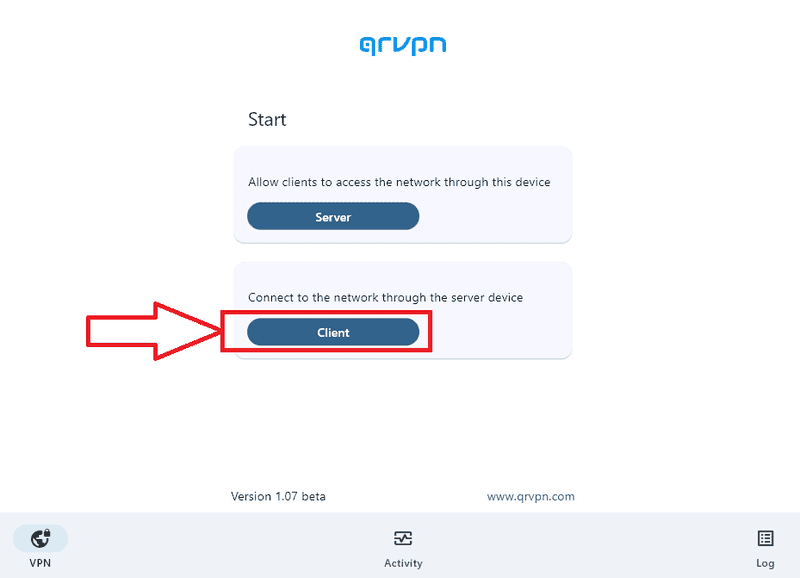
Press the Client button.
-
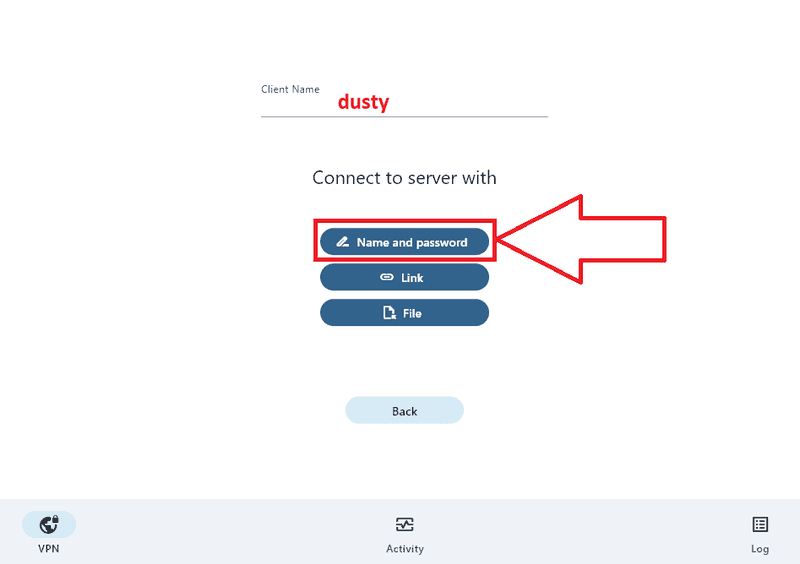
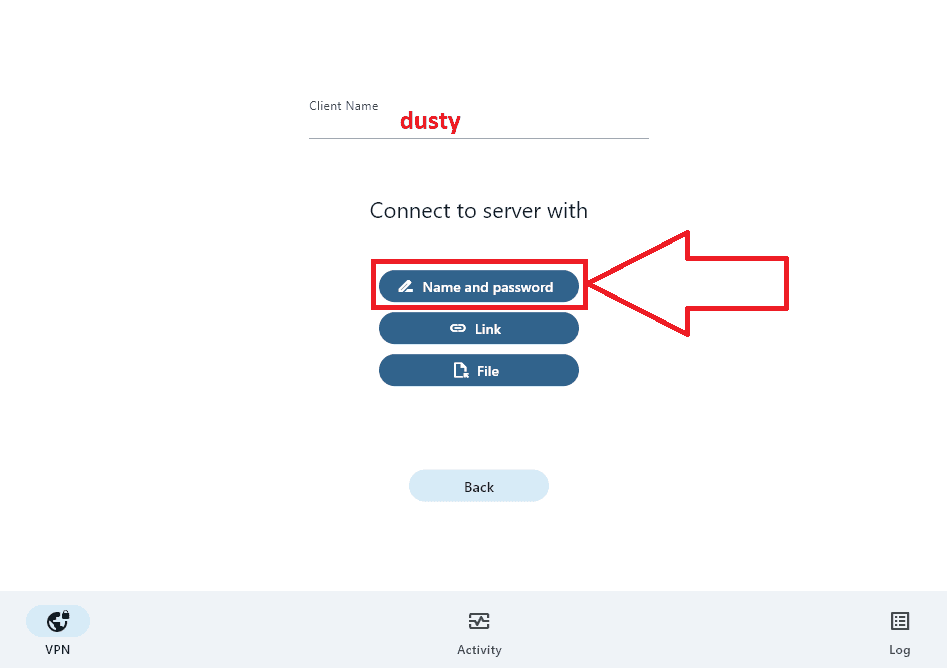
Select the Name and Password button.
-
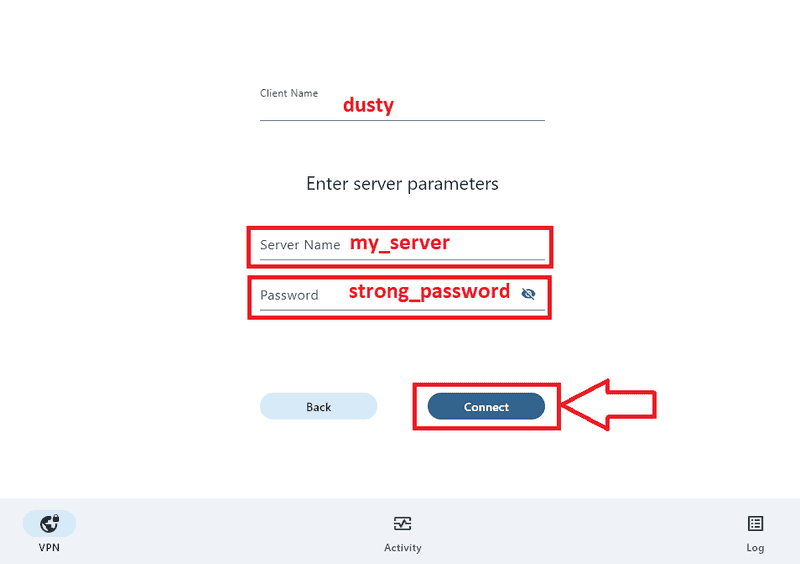
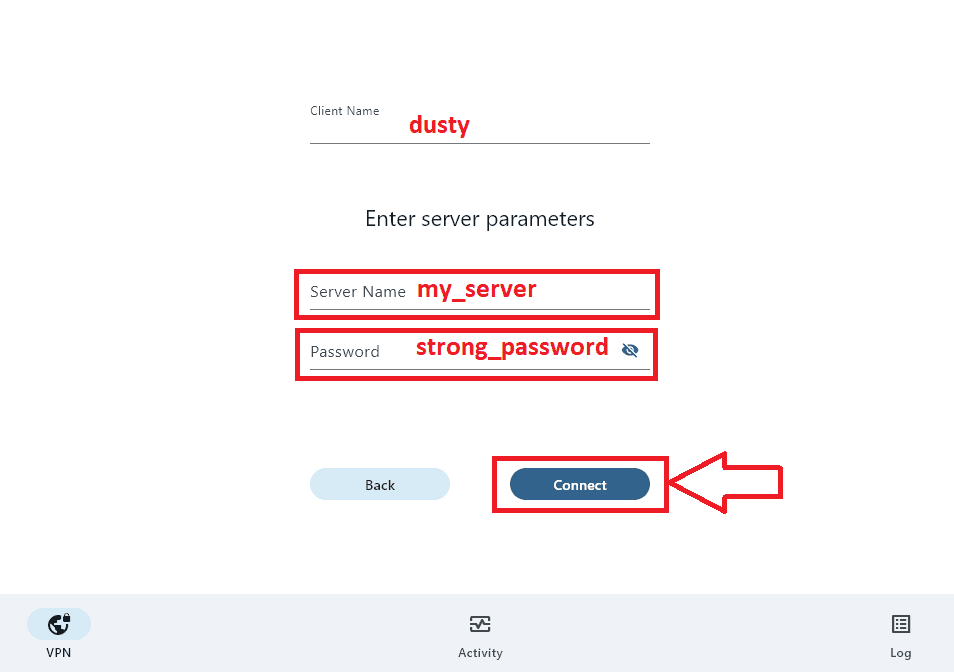
Fill the Server Name and Password.
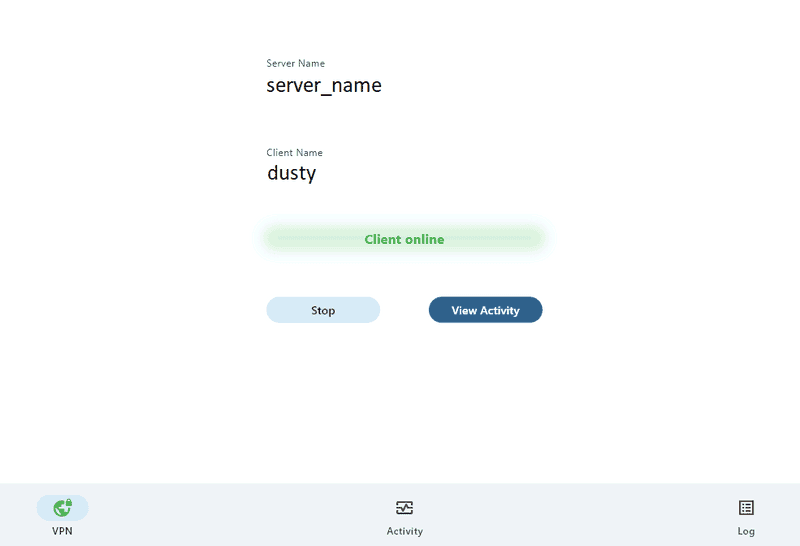
-
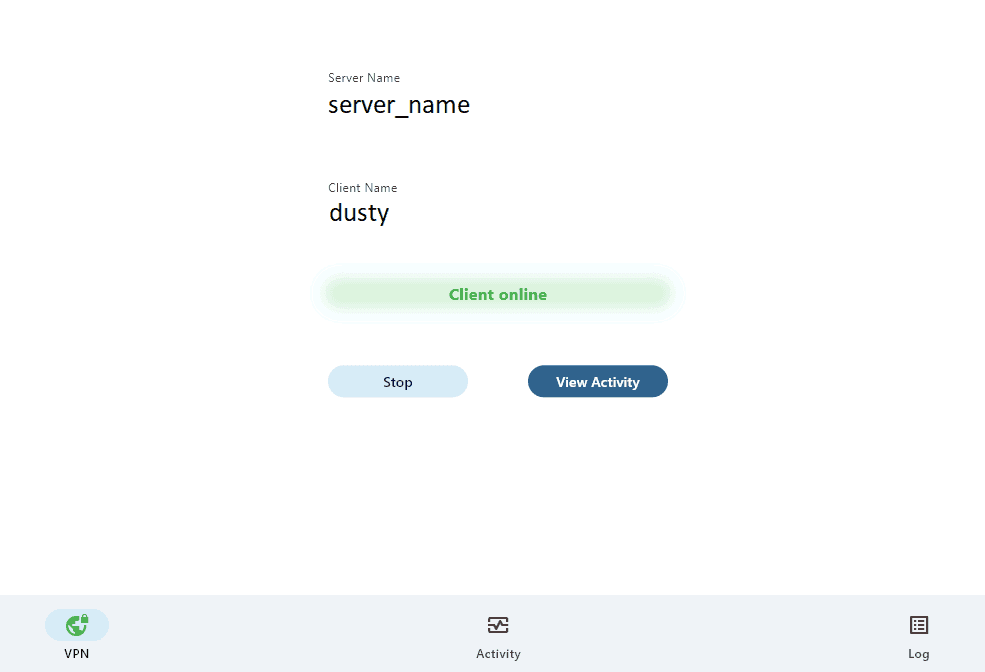
Verify that your public IP address has changed using a web browser (e.g. at ip.hetzner.com).
Conclusion
You have successfully deployed Qrvpn on a Rocky Linux VPS using Docker and connected a client from Windows.
This setup is lightweight, reproducible, and easy to maintain for personal or small-team VPN usage.