

Introduction
In this tutorial you will learn how to deploy the WireGuard UI wg-easy on a Linux machine using Docker Compose.
WireGuard Easy is a web-based admin UI.
Prerequisites
- Linux Cloud Server (preferably Ubuntu 22.04 / 24.04)
- Docker and Docker Compose installed
- Public IPv4 Address
- A domain
Step 1 - Update your server
sudo apt update && sudo apt upgradeTo ensure Docker Compose is correctly installed use:
docker compose versionAlso, make sure the A record of your domain points to the IPv4 of your server.
Step 2 - Setting up the .YML
The .yml file contains all information needed,
to create Docker containers for the WireGuard UI.
You can find a basic docker-compose.yml in the wg-easy repository on GitHub. However, you would need to set INSECURE to "true" to be able to login in the UI.
The wg-easy wiki covers a few alternatives. In this tutorial, we will use WireGuard Easy with nginx SSL.
Set a variable and create a new directory:
DOMAIN="wg-easy.example.com"
sudo mkdir /opt/wg-easy
Now run these two commands to create docker-compose.yml and ~/.nginx/servers/wg-easy.conf:
sudo tee /opt/wg-easy/wg-easy.conf <<EOF
server {
    server_name $DOMAIN;

    location / {
        proxy_pass http://wg-easy:51821/;
        proxy_http_version 1.1;
        proxy_set_header Upgrade \$http_upgrade;
        proxy_set_header Connection "Upgrade";
        proxy_set_header Host \$host;
        proxy_set_header X-Forwarded-Proto \$scheme;
    }
}
EOF
sudo tee /opt/wg-easy/docker-compose.yml <<EOF
volumes:
etc_wireguard:
services:
wg-easy:
image: ghcr.io/wg-easy/wg-easy:15
container_name: wg-easy
hostname: wg-easy
volumes:
- etc_wireguard:/etc/wireguard
- /lib/modules:/lib/modules:ro
ports:
- "51820:51820/udp"
restart: unless-stopped
cap_add:
- NET_ADMIN
- SYS_MODULE
sysctls:
- net.ipv4.ip_forward=1
- net.ipv4.conf.all.src_valid_mark=1
- net.ipv6.conf.all.disable_ipv6=0
- net.ipv6.conf.all.forwarding=1
- net.ipv6.conf.default.forwarding=1
nginx:
image: weejewel/nginx-with-certbot
container_name: nginx
hostname: nginx
volumes:
- /opt/wg-easy/:/etc/nginx/servers/
- ./.nginx/letsencrypt/:/etc/letsencrypt/
ports:
- "80:80/tcp"
- "443:443/tcp"
restart: unless-stopped
EOFStep 3 - Starting the Container and accessing the GUI
To start the container enter:
sudo docker compose -f /opt/wg-easy/docker-compose.yml up -dThe output should look like:
 [+] up 35/35
 :heavy_check_mark: Image ghcr.io/wg-easy/wg-easy:15      Pulled         11.3s
 :heavy_check_mark: Image weejewel/nginx-with-certbot     Pulled         5.1ss
 :heavy_check_mark: Network wg-easy_default               Created        0.0s
 :heavy_check_mark: Volume wg-easy_etc_wireguard          Created        0.0s
 :heavy_check_mark: Container wg-easy                     Started        0.6s
 :heavy_check_mark: Container nginx                       Started        0.6s
Make sure the status of both containers is "Up ## seconds":
docker psOnce they are ready, run these commands to create a Let's Encrypt certificate:
docker exec -it nginx /bin/sh
cp /etc/nginx/servers/wg-easy.conf /etc/nginx/conf.d/.
DOMAIN="wg-easy.example.com"
certbot --nginx --non-interactive --agree-tos -m webmaster@google.com -d $DOMAIN
nginx -s reload
exit
Using your browser enter https://wg-easy.example.com
Replace wg-easy.example.com with your own domain.
If you were successful, you should see the WireGuard Easy welcome page.
Click "Continue" and create an admin account.
After the account is created, it will ask if you have an existing setup. If not, click on "No".
On the next page, provide your domain (e.g. wg-easy.example.com) as "Host" and click "Continue".
Now sign in with the account you just created.
Step 4 - Configure Routing
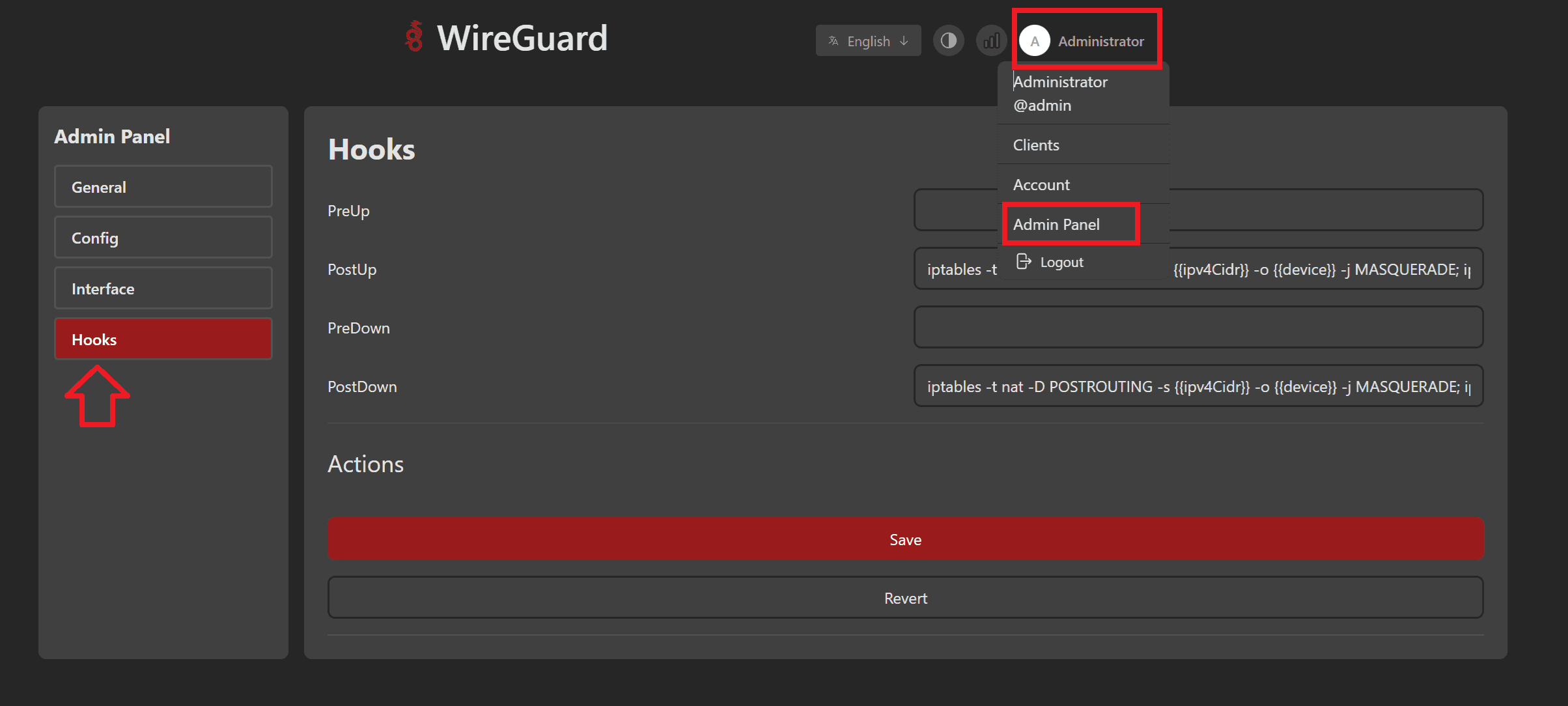
In the top right, click on "Administrator" » "Admin Panel".
In the left menu bar, select "Hooks".
For PostUp and PostDown, there should already be rules. You can add or remove rules as needed.
Step 5 - Creating a new Client Configuration
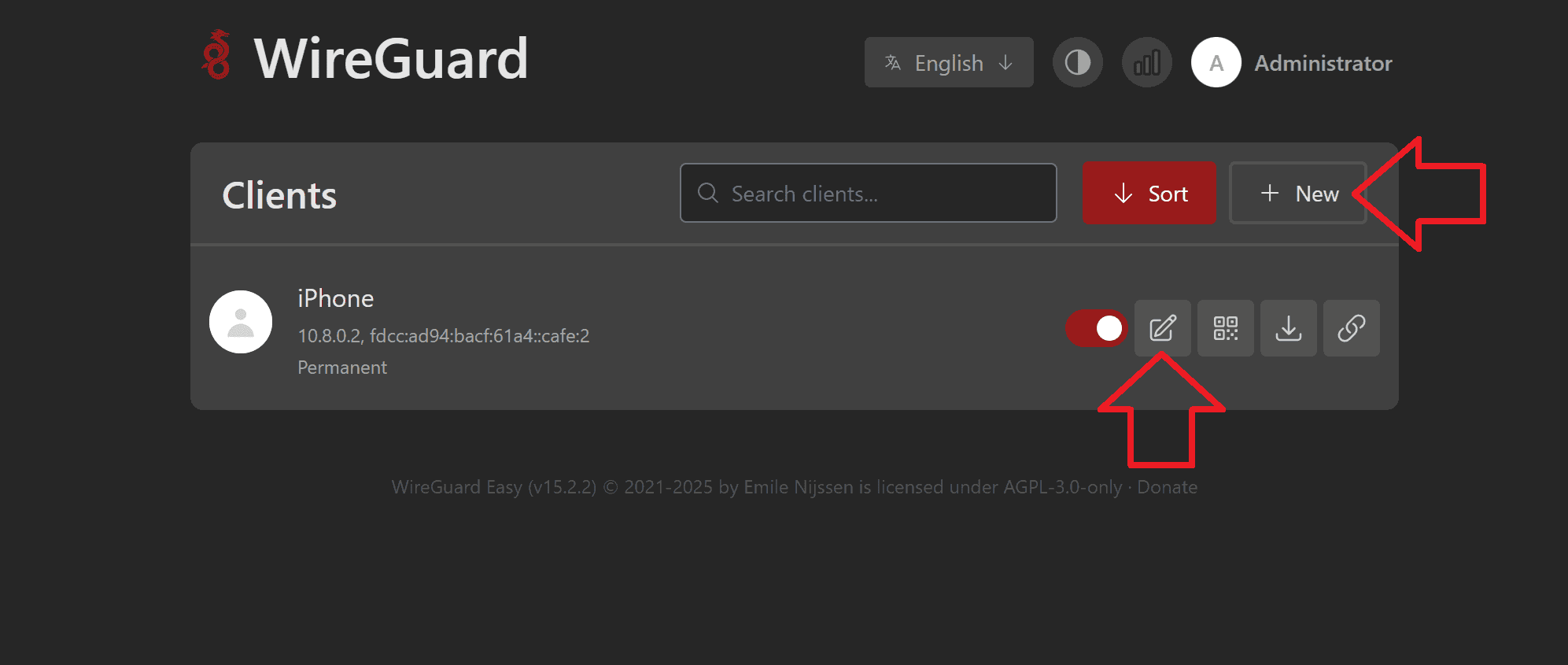
Now create a new client:
- In the top right of the dashboard, click on
+ New - Add a descriptive name
- If needed, set an expiration date
After the client was added, click on the pencil symbol. There, you can view the configuration, customize the settings, or delete the client.
Step 6 - Adding clients
Step 6.1 - iOS / Android
Download the WireGuard App from the App Store / Play Store.
In the WireGuard UI, click on the QR code symbol and scan it with the iOS / Android client like shown in this tutorial.
Step 6.2 - Windows / Mac
Install the Windows WireGuard Client / Mac WireGuard Client.
In the WireGuard UI, click on the download symbol and import the .conf to the Windows / Mac client like shown in this tutorial.
Step 6.3 - Linux
Install WireGuard on the Linux client:
sudo apt update && sudo apt install wireguardIn the WireGuard UI, click on the download symbol and put the .conf into the following file on the Linux client:
/etc/wireguard/wg0.confAnd start (or stop) WireGuard:
-
Temporarily
wg-quick up wg0 wg-quick down wg0 -
Permanently
sudo systemctl start wg-quick@wg0 && sudo systemctl enable wg-quick@wg0
sudo systemctl stop wg-quick@wg0 && sudo systemctl disable wg-quick@wg0
Step 6.4 - Verifying the Connection
To check if everything works as intended, access a website like ip.hetzner.com and compare it to your servers IP Address.
Conclusion
Congratulations! You have successfully deployed a WireGuard UI instance.