

This tutorial explains how to install the free e-commerce management system Magento2. Magento provides online merchants with a flexible shopping cart system, as well as control over the look, content and functionality of their online store. It offers users powerful marketing, search engine optimization, and catalog-management tools.
Important note: This tutorial is designed for an installation on a Managed Server. Since OpenSearch is required as the search engine in order to be able to install and use Magento, the full functionality is not available for web hosting products.
Prerequisites
Required before installation:
- Composer
- Process release for Java.
- SSH connection to your managed server
Example terminology
- Username:
magenh - Database name:
magento2 - Database user:
magentuser - Hostname / database host:
<dediXXX.your-server.de> - Domain:
<example.com> - Subdomain:
<magento.example.com>
Install OpenSearch
You should request the process release "java" in advance via a support request.
You need to first install, configure and start OpenSearch before installing Magento.
Step 1 - Download
-
Download OpenSearch
cd ~ curl -o opensearch.tar.gz https://artifacts.opensearch.org/releases/bundle/opensearch/2.12.0/opensearch-2.12.0-linux-x64.tar.gz -
Extract the downloaded files
mkdir opensearch
tar xzf opensearch.tar.gz -C opensearch --strip-components 1
Step 2 - Configuration
Add the following lines to the end of the configuration under ~/opensearch/config/opensearch.yml:
network.host: 127.0.0.1
plugins.security.disabled: true
discovery.type: 'single-node'
Step 3 - Start OpenSearch
-
Start OpenSearch with the following command
nohup ~/opensearch/bin/opensearch & -
Use the following command to check whether OpenSearch is running correctly
curl http://localhost:9200/The command should display the following output:
{
"name" : "dediXXX.your-server.de",
"cluster_name" : "opensearch",
"cluster_uuid" : "fDyOCQuIRSGpWoD7adY0Qw",
"version" : {
   "distribution" : "opensearch",
   "number" : "2.12.0",
   "build_type" : "tar",
   "build_hash" : "2c355ce1a427e4a528778d4054436b5c4b756221",
   "build_date" : "2024-02-20T02:18:49.874618333Z",
   "build_snapshot" : false,
   "lucene_version" : "9.9.2",
   "minimum_wire_compatibility_version" : "7.10.0",
   "minimum_index_compatibility_version" : "7.0.0"
},
"tagline" : "The OpenSearch Project: https://opensearch.org/"
}
Step 4 - Setup a @reboot Cronjob
- To start OpenSearch automatically after a server restart, you need to create the following cronjob
@reboot ~/opensearch/bin/opensearch
Install Magento2
Step 1 - Account and webserver configuration
Create an account and an installation directory, which will also be the document_root of your website.
- Log onto your account and navigate to konsoleH.
- Select an existing account or create a new one.
- Create a new directory in your
public_htmldirectory. Later, you will install Magento in this directory:magenh@dediXXX:~/public_html$ mkdir ./magento - Set the newly created directory as
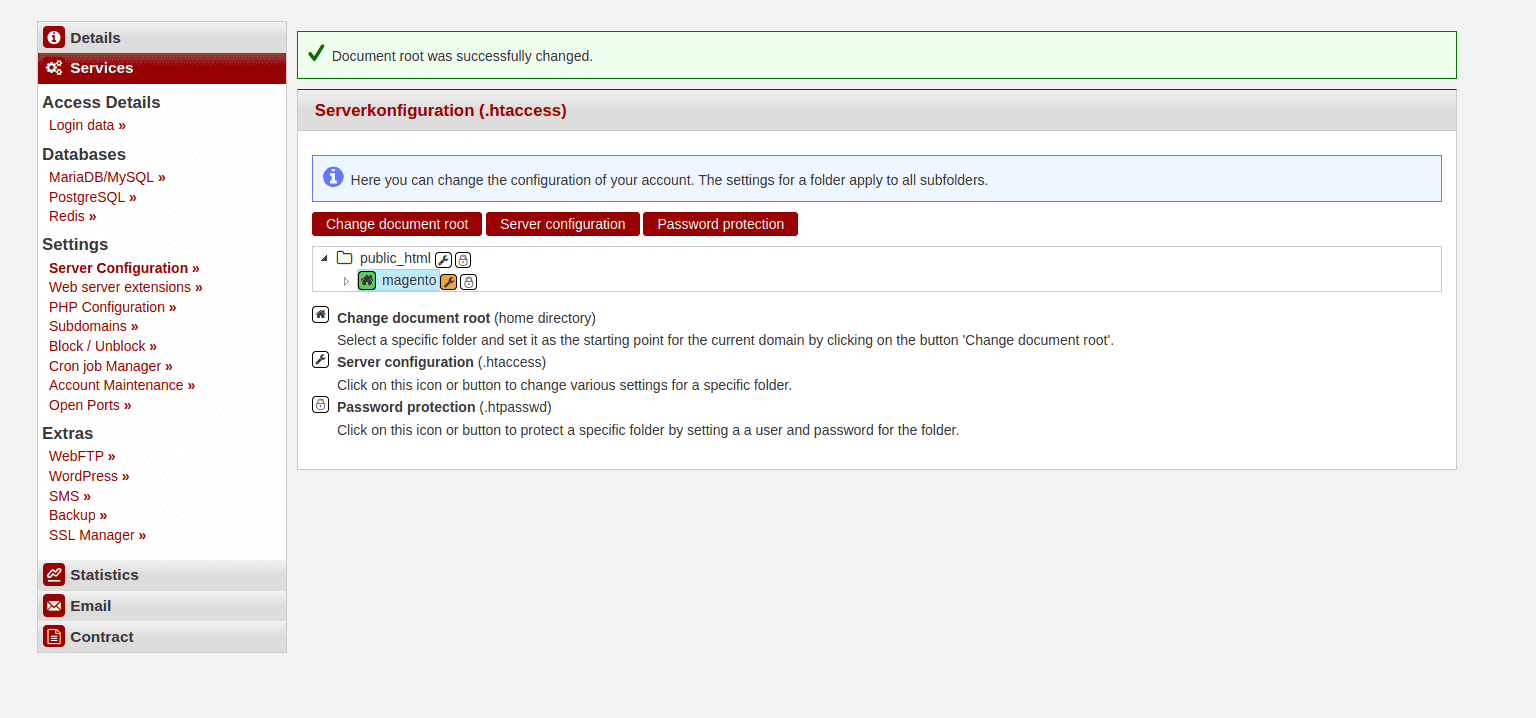
document_rootof your site ("Services" » "Server Configuration").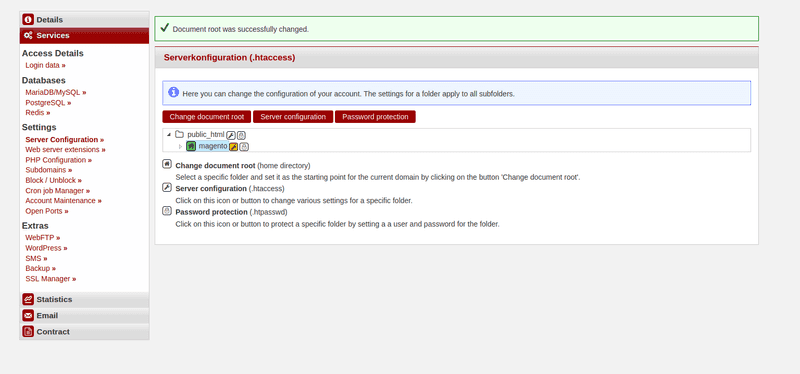
Step 1.1 - PHP configuration
Set the PHP version to 8.2 or 8.3 (no warranty) and set the following values ("Services" » "PHP Configuration"):
allow_url_fopen = Onmemory_limit = 512Mupload_max_filesize = 128Mmax_execution_time = 3600
Step 2 - Database setup
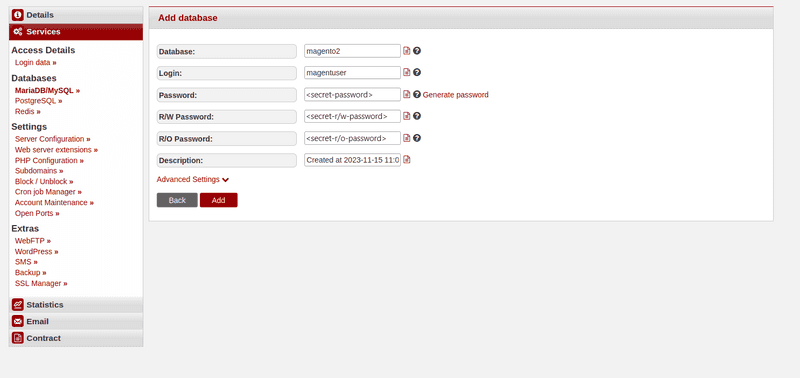
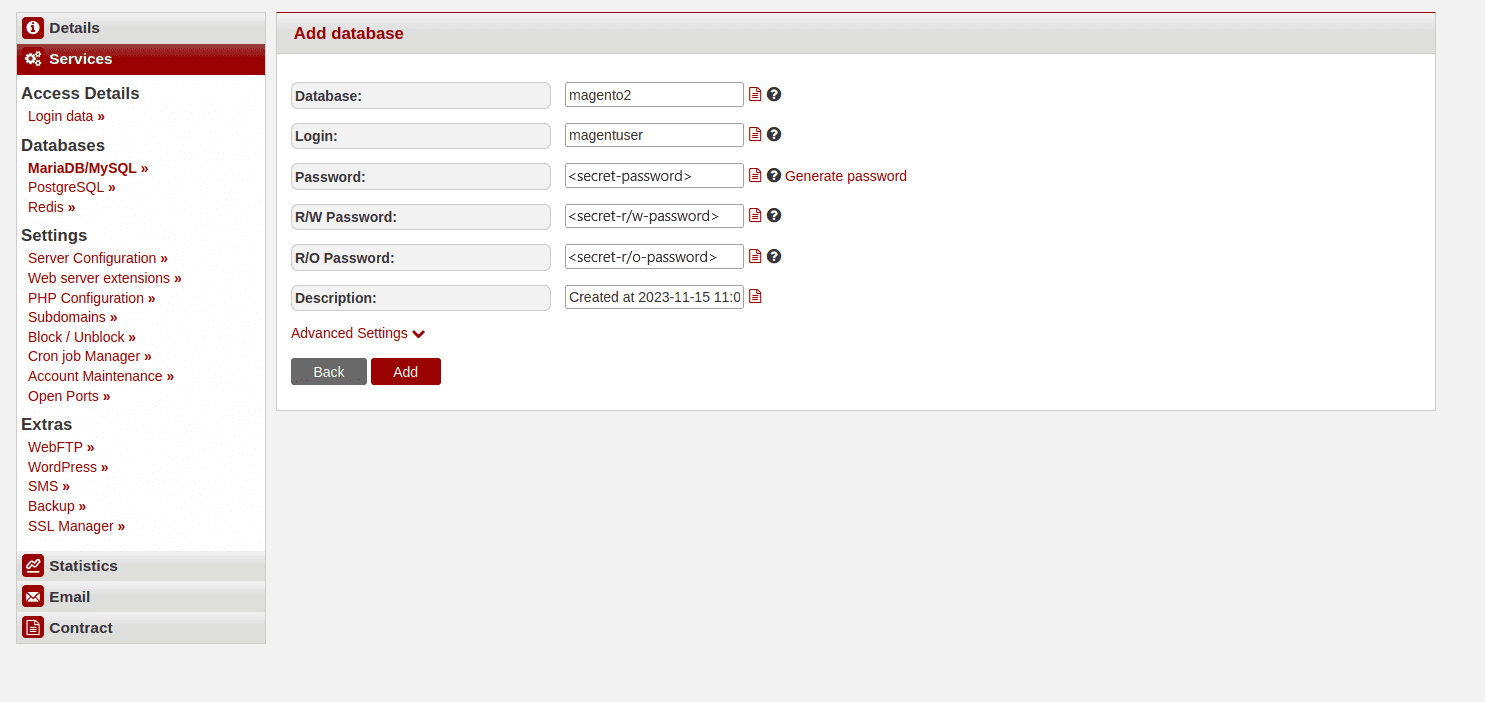
Create the database for your Magento2 ecommerce:
- On konsoleH, navigate to "Services" » "Databases" » "MariaDB/MySQL".
- Select "Add" and assign a name to the database and the user.
Step 3 - Download Magento
Now that the prerequisites are installed, you can install Magento:
composer create-project --repository-url=https://repo.magento.com/ magento/project-community-edition <YOUR-INSTALLATION-DIR>Replace
<YOUR-INSTALLATION-DIR>with your magento directory, or just a.if you are executing the command directly within the magento directory.
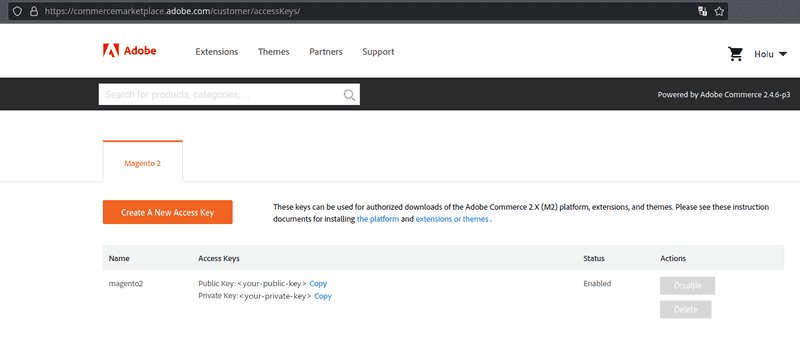
- Log into Adobe Marketplace.
- Click on your profile name in the top right and select "My Profile"
- Click on "Access Keys" on the register "Marketplace"
- Select "Create A New Access Key". Give it a name and click "OK"
- Log onto Adobe Marketplace.
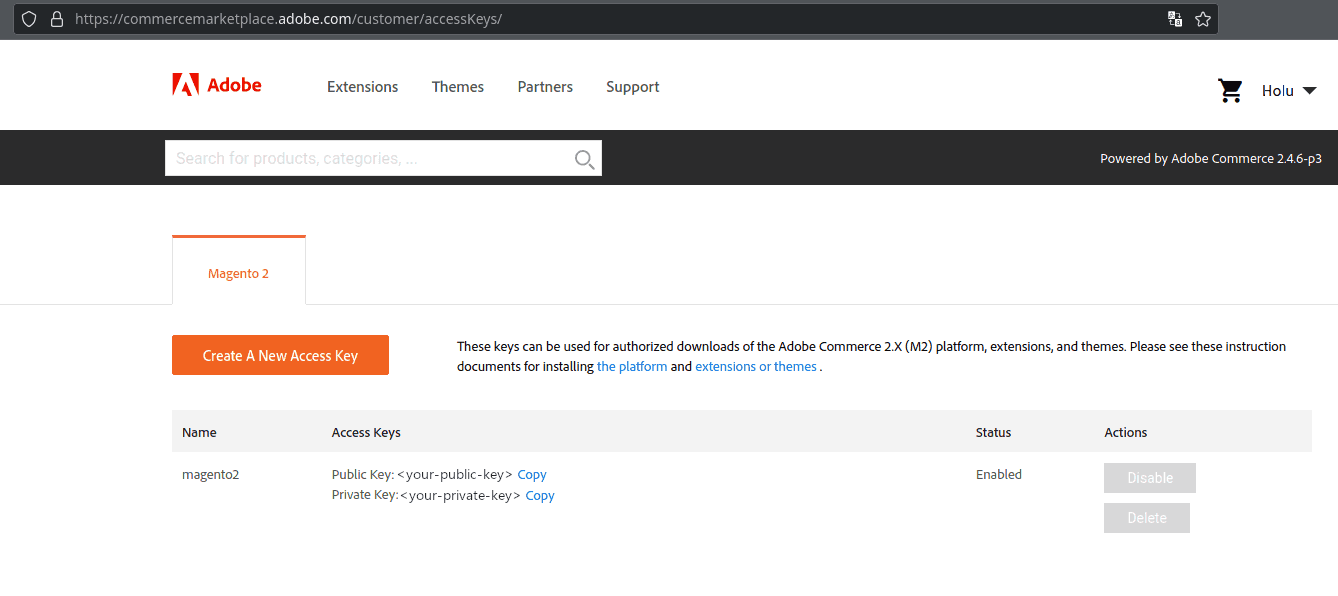
- Click on your profile name in the top right and select "My Profile".
- Click on "Access Keys" on the register "Marketplace".
- Select "Create A New Access Key". Give it a name and click "OK".
- In order to authenticate yourself use:
Username = <public_key>andPassword = <private_key>.

Step 4 - Install Magento
Run the following commands in the magento directory.
-
In order to use Magento with MariaDB 10.11, you need to execute the following command in the installation directory
sed -i '/MariaDB-(10./a\\t\t<item name="MariaDB-10.11" xsi:type="string">^10\\.11\\.</item>' app/etc/di.xml -
Run the installation command with customized options
php bin/magento setup:install \
--base-url='http://magento.example.com/' \
--db-host='dedixxx.your-server.de' \
--db-name='magento2' \
--db-user='magentuser' \
--db-password='<secret-password>' \
--admin-firstname='FNAME' \
--admin-lastname='LNAME' \
--admin-email='mail@example.com' \
--admin-user='admin' \
--admin-password='<secure-password>' \
--language=en_US \
--currency=USD \
--timezone=America/Chicago \
--use-rewrites=1 \
--search-engine=opensearch \
--opensearch-host=localhost \
--opensearch-port=9200 \
--opensearch-index-prefix=magento2 \
--opensearch-timeout=15 \
--disable-modules=Magento_TwoFactorAuth,Magento_AdminAdobeImsTwoFactorAuth
Replace the example values with your own data. You should also replace the value of '--admin-password' with a more secure password.
--disable-modules=Magento_TwoFactorAuth,Magento_AdminAdobeImsTwoFactorAuth is used to disable 2FA when logging into the admin panel. You can re-enabled it later.
You can find the configuration of the installation in <installation_dir>/app/etc/env.php:
<?php
return [
    'backend' => [
        'frontName' => 'admin_d43s'
    ],
...
Change the frontName value to any directory on your website where the admin panel is accessible: http://magento.example.com/admin
Further steps
If everything works as expected, you can now get started with Magento! Check if your website is available:
- Frontend:
http://magento.example.com/ - Backend:
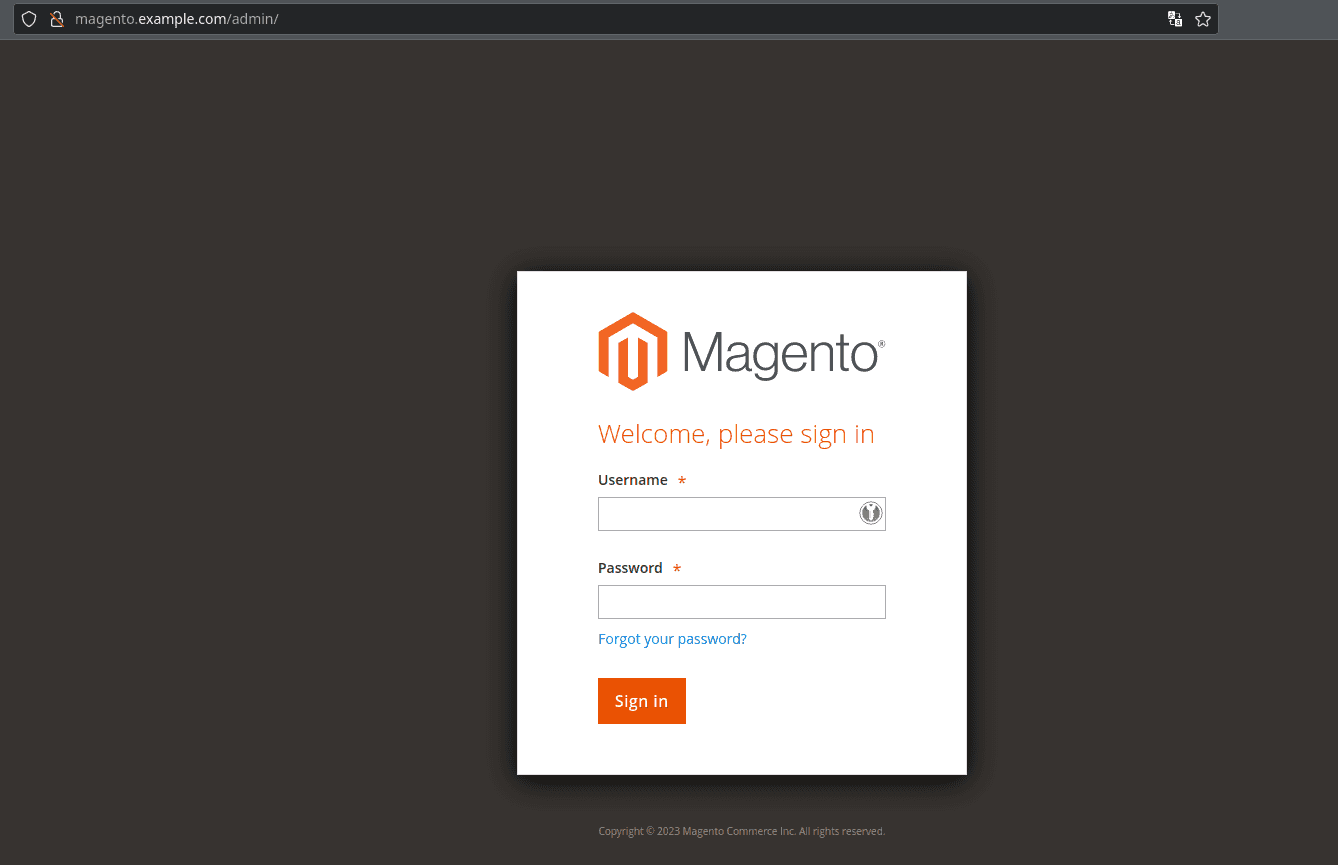
http://magento.example.com/adminUsername: admin
Password:<secure-password>
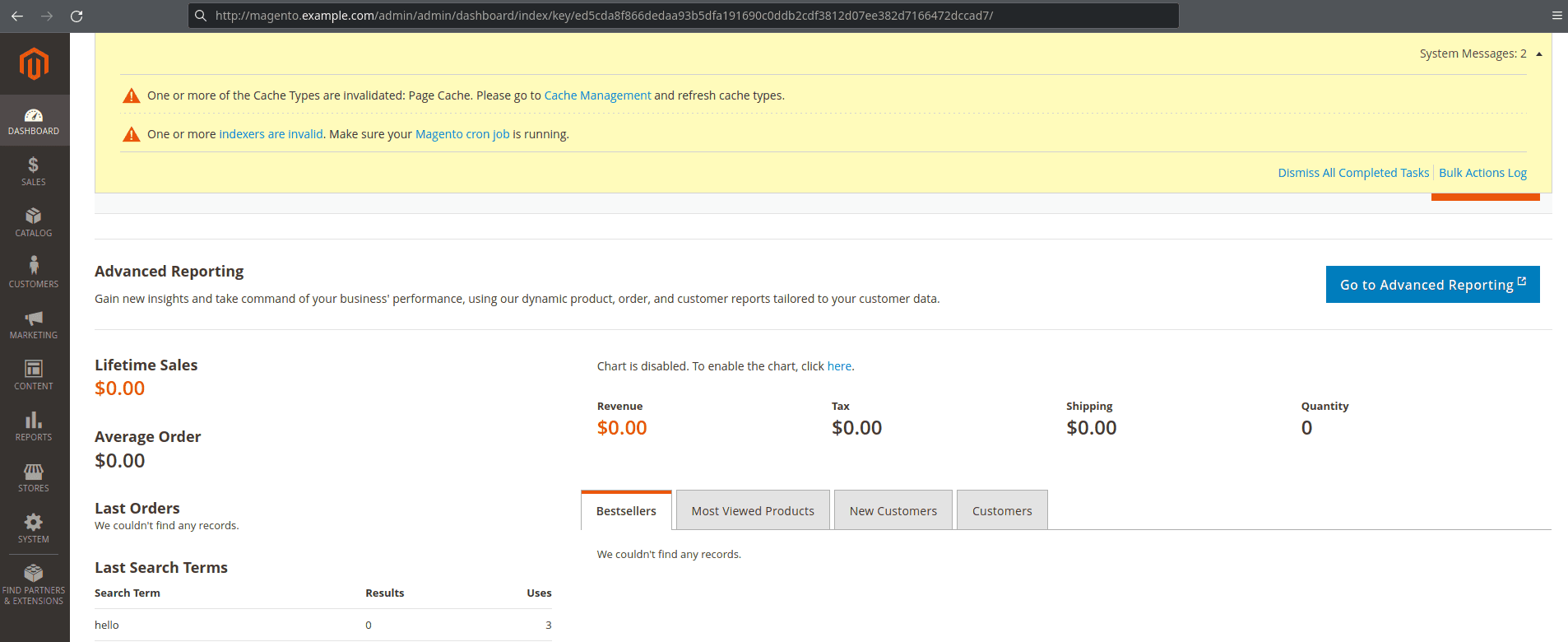
This is how the admin page should look:
If you see a system message like "invalid indexers":
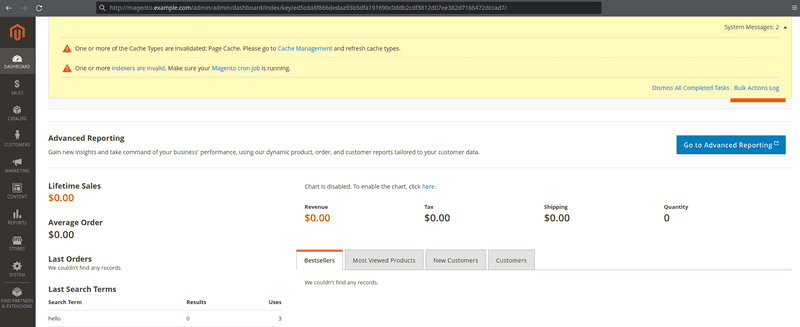
Execute this command:
php bin/magento indexer:reindex
Successfully installing Magento for your e-commerce venture can pave the way for a robust online store.
Remember to keep your installation maintained and up-to-date in order to prevent security gaps.