

Introduction
If you are currently hosting your database on another cloud provider and watching your monthly bills grow, migrating to Hetzner can dramatically reduce your costs while potentially improving performance. Many users report equivalent or better performance compared to much more expensive cloud options, especially for database workloads.
In this guide, I will walk you through transferring your databases to Hetzner using DBConvert Streams - a database migration and replication platform designed to simplify moving data between different hosting environments and database types.
Prerequisites
Before you start, make sure you have:
- An account with DBConvert
- A Hetzner Console account
- Your source database credentials, such as AWS RDS, Google Cloud SQL, Azure DB, or a self-hosted database
- Basic familiarity with Linux commands
- An SSH key added to your Hetzner Console account
Example terminology
- Server:
<10.0.0.1>
Step 1 - Create a Hetzner Cloud Server
First, create a Hetzner cloud server with Docker pre-installed.
For a step-by-step guide, see Creating a server.
- For the image, choose the "Apps" tab and select "Docker CE"
- Select a server type based on your database needs:
- For development and small production databases: CPX22 (2 vCPU, 4 GB RAM)
- For medium workloads: CPX32 (4 vCPU, 8 GB RAM)
- For larger production databases: CPX42 (8 vCPU, 16 GB RAM)
- Add your SSH key or create a new one
Note: The CPX line is recommended for database workloads because it offers NVMe SSD storage with higher I/O performance compared to standard CX instances.
Step 2 - Deploy DBConvert Streams
SSH into your new Hetzner server:
Replace
<10.0.0.1>with the IP address of your cloud server.
ssh root@<10.0.0.1>Now install DBConvert Streams:
-
Download and run the installer:
curl -fsSL https://dbconvert.nyc3.digitaloceanspaces.com/downloads/streams/latest/docker-install.sh | shClick here to view example output
root@example-server:~# curl -fsSL https://dbconvert.nyc3.digitaloceanspaces.com/downloads/streams/latest/docker-install.sh | sh Installing gum using binary installation... ┌──────────────────────────────────────────────────────────────┐ │ │ │ Welcome to DBConvert Streams Installation │ │ This wizard will guide you through the installation process. │ │ │ └──────────────────────────────────────────────────────────────┘ Checking latest available version... Latest version available: v2.1.0 ┌──────────────────────────────────────────┐ │ │ │ Installing DBConvert Streams │ │ Version: v2.1.0 │ │ Directory: /opt/dbconvert-streams-docker │ │ │ └──────────────────────────────────────────┘ Starting installation... Installing DBConvert Streams... Checking prerequisites... Downloading deployment files... Updating version information in .env file... [...] Self-signed certificate generated successfully! Private key: config/certs/private.key Certificate: config/certs/certificate.crt Setting up nginx configuration... Configuring nginx with HTTP only... Nginx configuration complete! Installation complete! DBConvert Streams Version Information Latest available version: Latest version: v2.1.0 Configured versions in .env file: streams: v2.1.0 stream-ui: v2.1.0 No DBConvert Streams services are currently running ┌──────────────────────────────────────────────────────────────────────────────────┐ │ │ │ Installation Complete! │ │ Your DBConvert Streams installation is ready. │ │ │ │ To start the services: │ │ 1. Change to the installation directory: │ │ cd /opt/dbconvert-streams-docker │ │ 2. Run the start script: │ │ For HTTP: ./start.sh │ │ For HTTPS: ./start.sh --secure │ │ │ │ You can switch between HTTP and HTTPS modes at any time using the --secure flag. │ │ │ └──────────────────────────────────────────────────────────────────────────────────┘ -
Navigate to the installation directory and start the services:
cd /opt/dbconvert-streams-docker/
./start.sh
The start script creates the
stream-netDocker network used by DBConvert Streams services. In the next step, PostgreSQL will join the same network so Streams can reach it by container name without exposing PostgreSQL to the public internet.After the services start up, you will see a message with your service URLs:
┌────────────────────────────────────────────────────────────────────┐
│                                                                    │
│ Service URLs                                                       │
│                                                                    │
│ • UI:  http://<10.0.0.1>                                           │
│ • API: http://<10.0.0.1>/api/                                      │
│                                                                    │
│ Setup complete! You can now access the services at the URLs above. │
│                                                                    │
└────────────────────────────────────────────────────────────────────┘
Step 3 - Set Up PostgreSQL on Hetzner
For simplicity in this tutorial, DBConvert Streams and the target PostgreSQL database run on the same Hetzner server.
-
Create a directory for PostgreSQL data:
mkdir -p ~/pg-data -
Run PostgreSQL in Docker:
docker run -d \
  --name postgres \
  --restart unless-stopped \
  --network stream-net \
  -e POSTGRES_USER=pguser \
  -e POSTGRES_PASSWORD=strongpassword \
  -e POSTGRES_DB=mydb \
  -v ~/pg-data:/var/lib/postgresql/data \
  postgres:17
Replace
strongpasswordwith a secure password andmydbwith your desired database name.Security note: This command does not publish port 5432 to the host. DBConvert Streams reaches PostgreSQL through the internal
stream-netDocker network using the container hostnamepostgres, so the database stays off the public internet. -
Verify PostgreSQL is running:
docker ps
You should see your postgres container in the list. It should have no public 5432 port mapping, which is expected.
Step 4 - Obtain and Enter Your API Key
-
Sign in using your preferred authentication method
-
Copy your API key from the account dashboard
-
Return to your DBConvert Streams instance:
http://<10.0.0.1> -
Paste the API key in the provided field
DBConvert Streams offers a free tier so you can evaluate the platform before committing to a paid plan. For current limits, included features, and plan details, see the pricing page.
Step 5 - Connect Your Source Database
Step 5.1 - Configure Source Database Access
Make sure DBConvert Streams can access your source database.
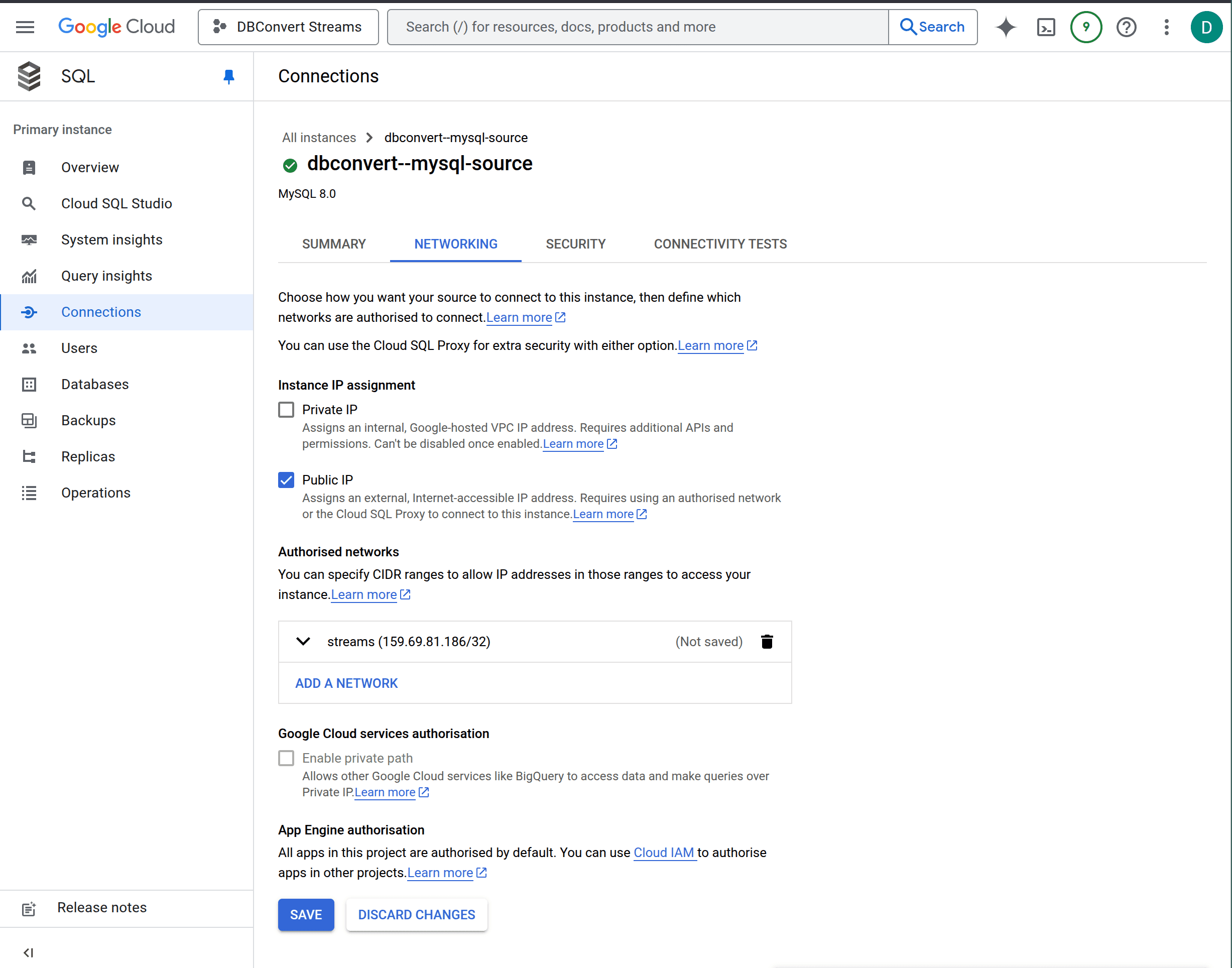
This step depends on your source provider. For example, with Google Cloud SQL MySQL:
- In the Google Cloud Console, navigate to your Cloud SQL instance
- Go to the "Connections" tab
- Under "Networking", select "Add network"
- Add your Hetzner server's IP address
- Save your changes
Step 5.2 - Create the Source Connection
-
Return to your DBConvert Streams instance:
http://<10.0.0.1> -
Click the quick action "Create Connection" in the dashboard
-
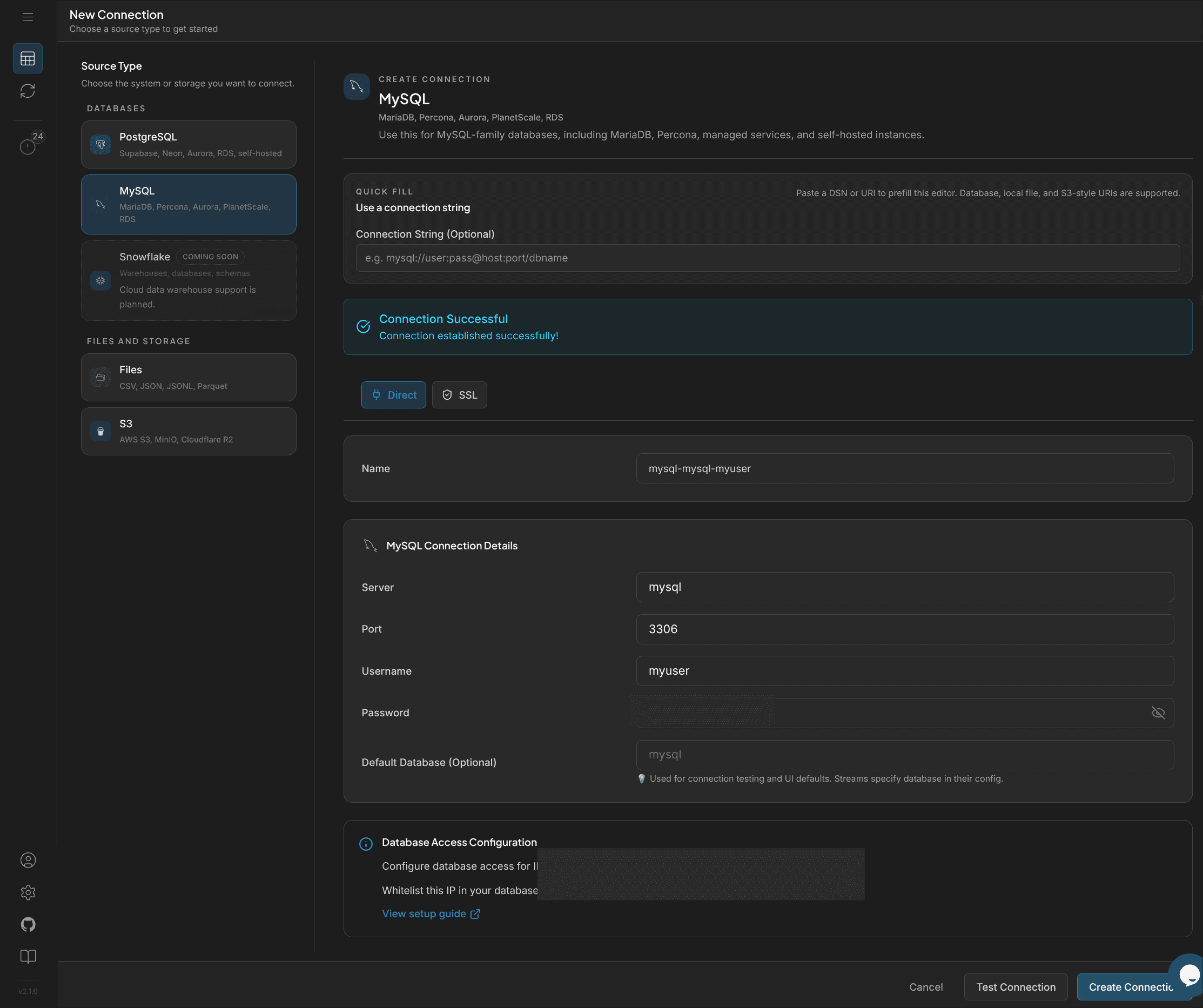
Select your database type, such as "MySQL"
-
Enter your connection details:
- Name: optional descriptive name
- Server: your source database IP address or hostname
- Port: database port, such as 3306 for MySQL
- Username: your database username
- Password: your database password
- Default Database: source database name
-
Click "Test Connection"
-
Click "Create Connection" to store the connection
Step 6 - Connect Your Hetzner PostgreSQL Database
- Return to the dashboard
- Click the quick action "Create Connection" in the dashboard
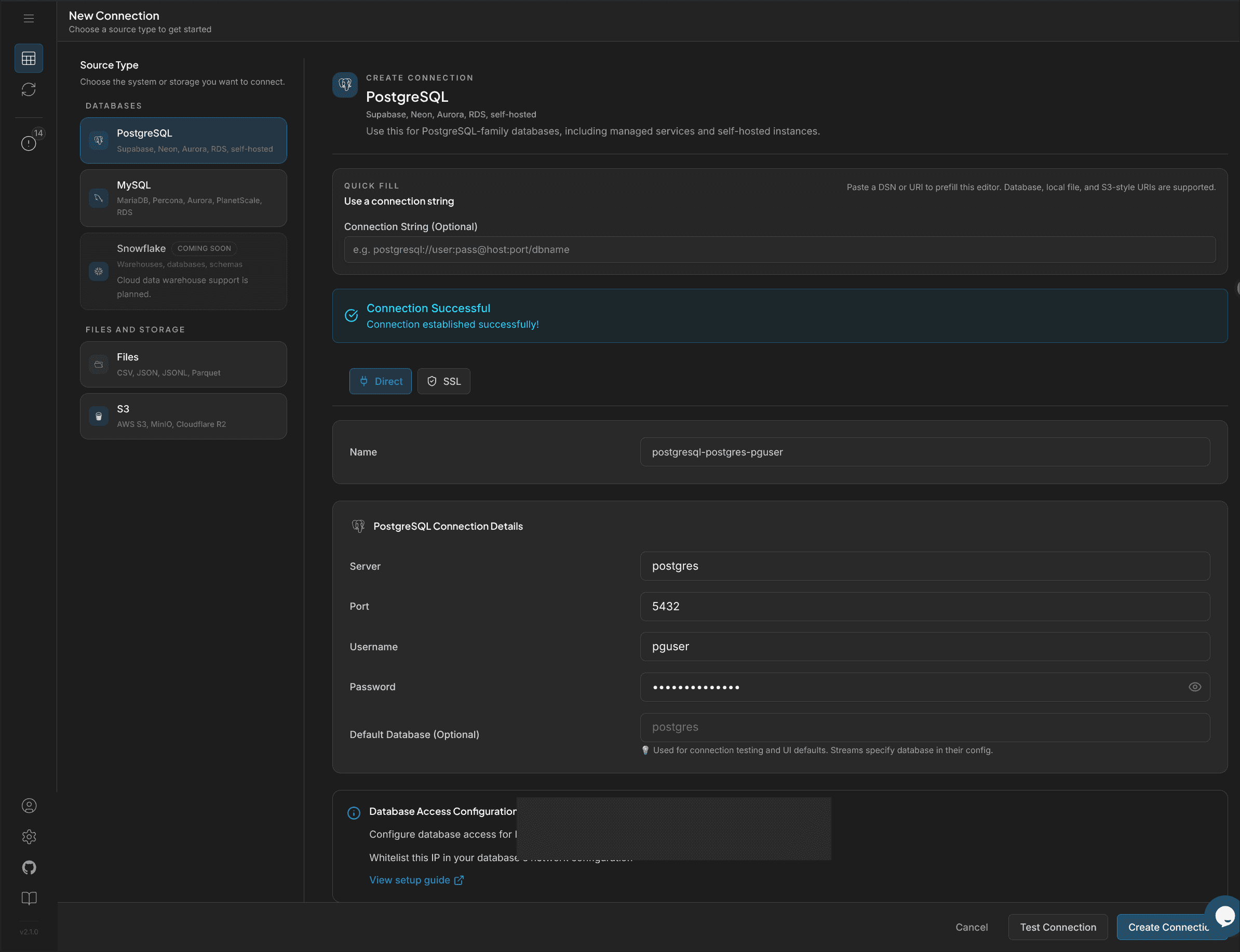
- Select "PostgreSQL"
- Enter the connection details:
- Server:
postgres - Port:
5432 - Username:
pguser - Password: your PostgreSQL password
- Default Database:
mydb
- Server:
- Click "Test Connection"
- Click "Create Connection" to save the configuration
Why
postgresand not the server IP? Both Streams and PostgreSQL run on the same Docker network,stream-net, so Streams resolves the hostnamepostgresthrough Docker's internal DNS. The public IP will not work because port 5432 was not published to the host.
Step 7 - Configure Your Data Stream
- Return to the dashboard
- Click "Create New Stream"
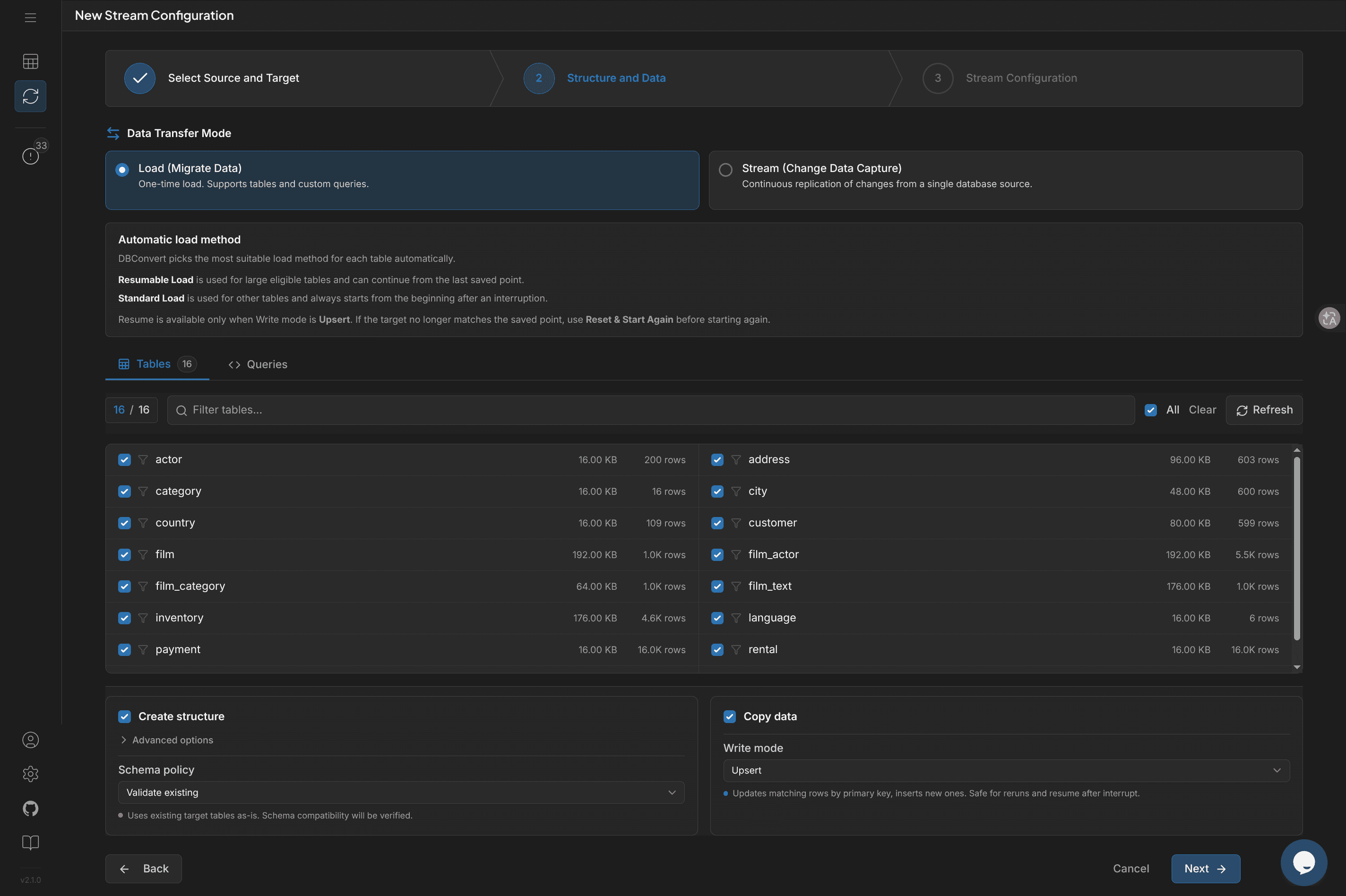
- Select your source connection and target PostgreSQL connection, then click "Next" in the top right
- Choose the tables to migrate
- Select the transfer mode:
- Load (Migrate Data) - one-time migration of existing data
- Stream (Change Data Capture) - continuous replication of database changes
- Configure the transfer options shown in the right panel, such as schema policy, write mode, index handling, and custom queries
- When you are happy with your settings, click "Next" in the top right
- Review the stream configuration and click "Save" in the top right
Step 8 - Start and Monitor the Transfer
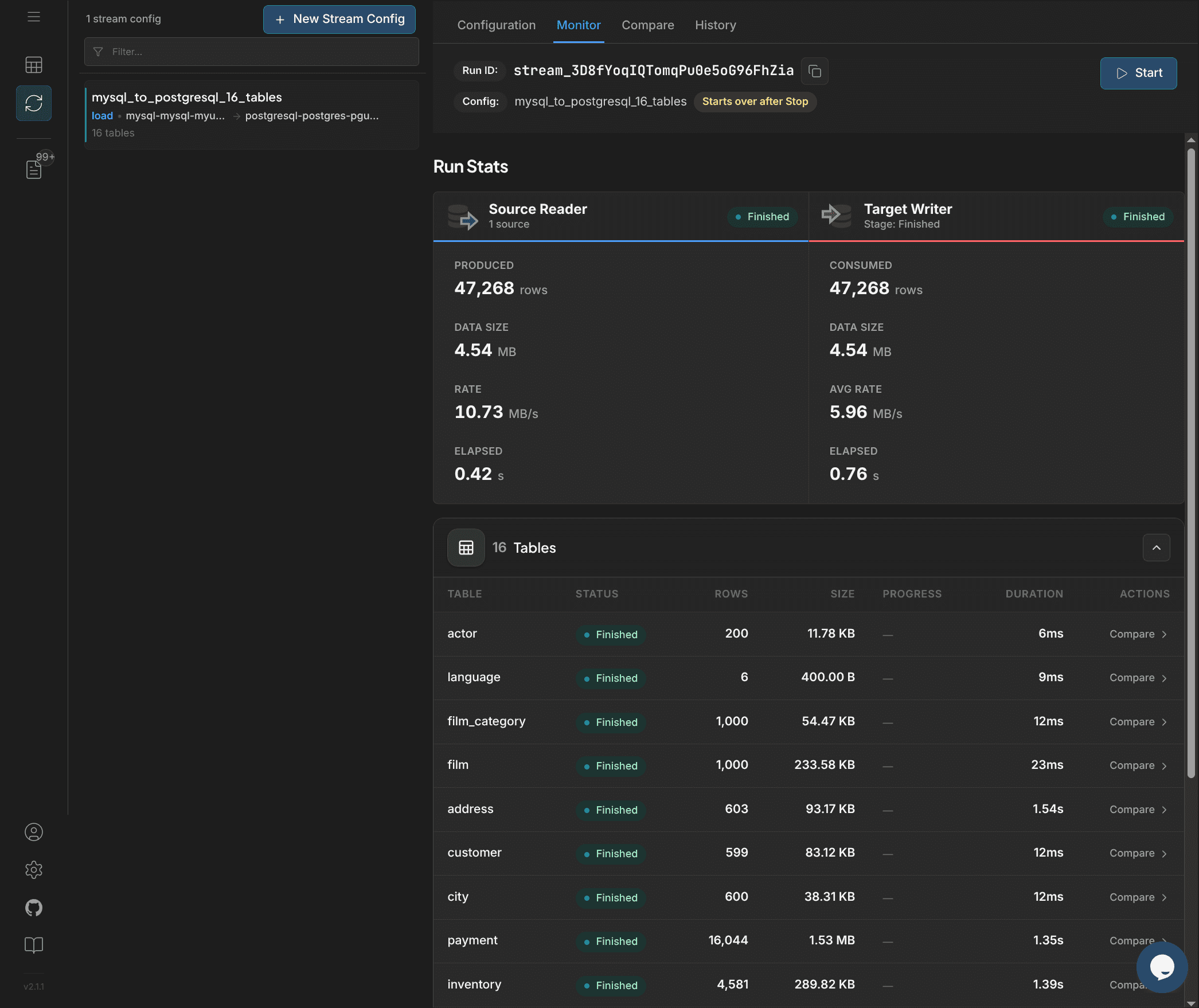
- Click the "Start" button to begin
- Monitor the transfer through the dashboard:
- Track progress for each table
- Monitor data transfer rates
- View detailed logs
- Pause or stop if needed
Step 9 - Verify Your Data
DBConvert Streams ships with two built-in tools that replace most manual SQL verification.
Compare view
After the stream finishes, open the "Compare" tab on your stream config. You get:
- Schema comparison - column-by-column differences between source and target, including data types, nullability, and lengths
- Side-by-side data preview - first rows of each table on both sides, so you can spot-check that values landed correctly
- Per-table row counts - quick source and target totals for each migrated table
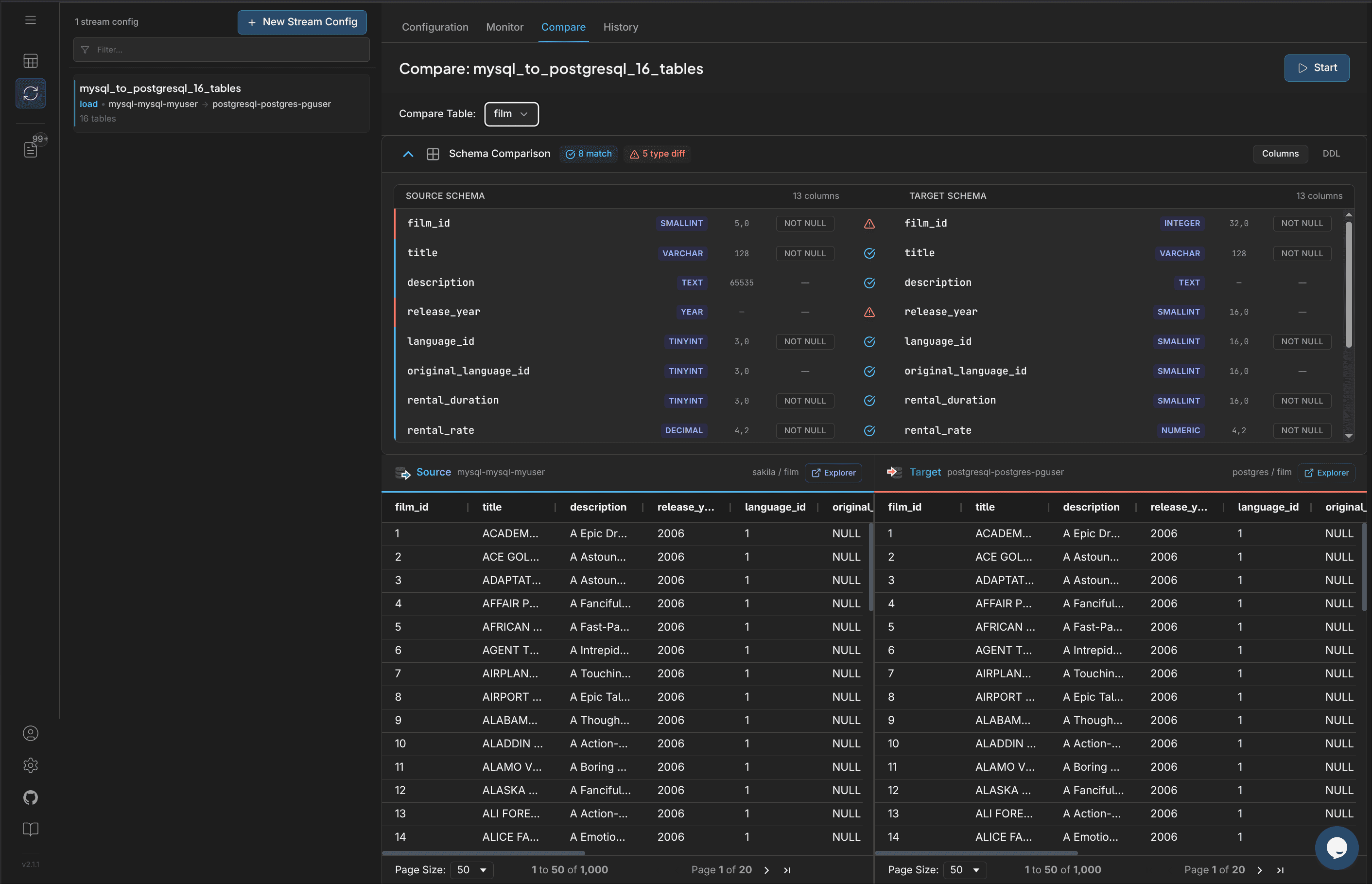
If everything matches, you are done. If you see schema warnings, such as MySQL TINYINT to PostgreSQL SMALLINT, they are usually expected type promotions. Review them once and they should remain stable for future runs.
Data Explorer
For deeper inspection, click the "Explorer" link next to either connection. The Data Explorer lets you:
- Browse tables and rows visually
- Run ad-hoc SQL against either side
- Inspect indexes, foreign keys, and constraints
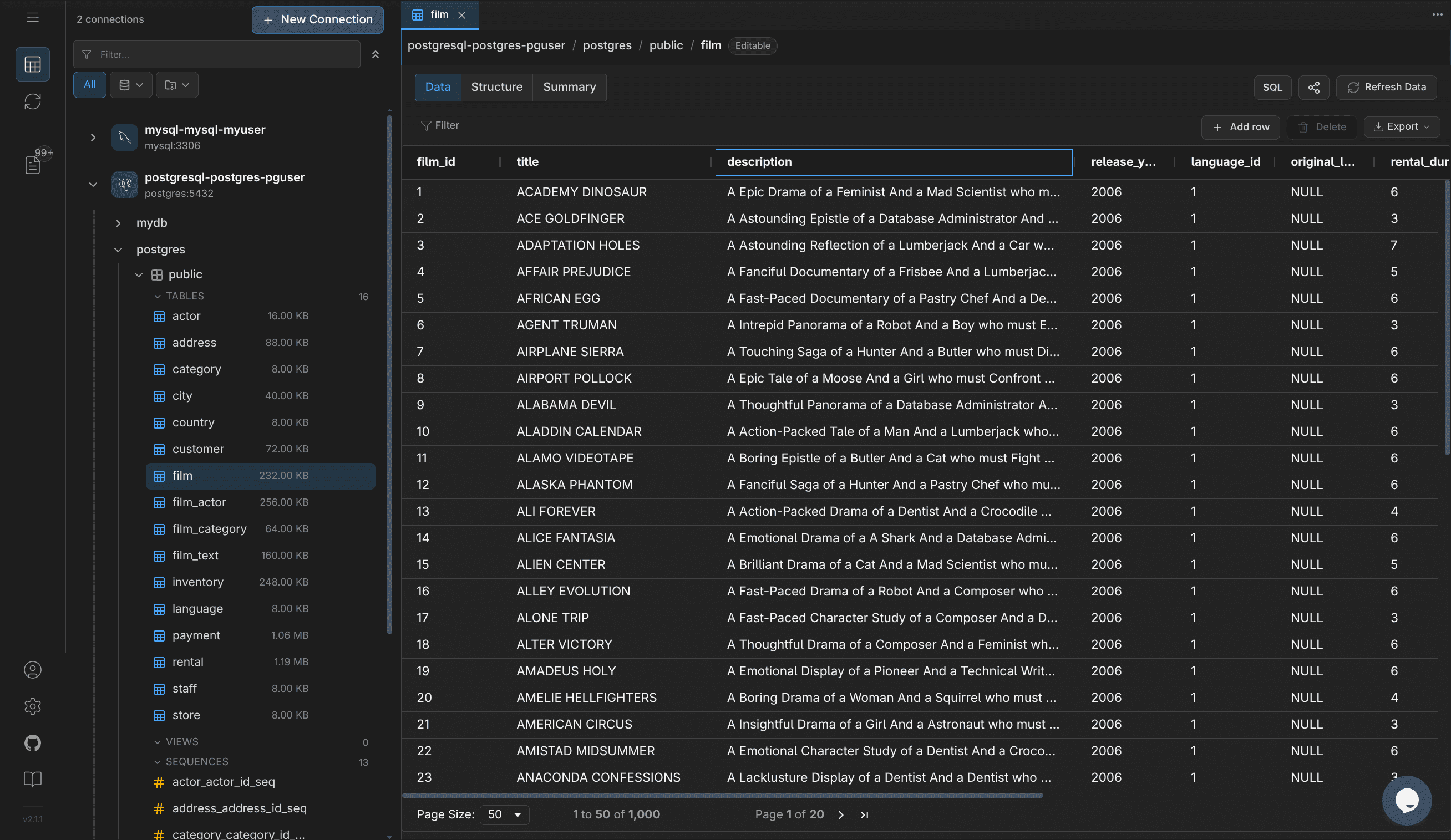
Between Compare and Explorer, you should rarely need to drop into a psql shell. If you do, it is still available:
docker exec -it postgres psql -U pguser -d mydbStep 10 - Set Up Database Backups
Hetzner Snapshots
- In Hetzner Console, select your server
- Click "Snapshots"
- Click "Create Snapshot"
See Snapshot prices at hetzner.com/cloud.
Logical backups
Hetzner Snapshots are crash-consistent: they capture disk state at a point in time, but a running PostgreSQL instance may have uncommitted writes in shared buffers. For production recovery, complement Snapshots with pg_dump or pgBackRest:
docker exec postgres pg_dump -U pguser -F c mydb > mydb-$(date +%F).dumpSchedule logical backups with cron and ship them to S3-compatible storage or a Hetzner Storage Box.
Conclusion
You have successfully migrated your database to Hetzner Console using DBConvert Streams. This setup provides:
- Significant cost savings compared to other cloud providers
- Full control over your database infrastructure
- A private PostgreSQL target that is not exposed to the public internet
- High-performance NVMe storage
- Simple management through Docker containers
Remember to monitor database performance and adjust server resources as needed. You can scale your Hetzner server up or down based on your workload requirements.